VideoIQ User Guide75
On certain cameras you may also need to use the Focus In/Focus Out and Iris
Open/Iris Close buttons to operate the on-screen menu. Refer to your PTZ
camera manual to see what additional steps are needed.
Configuring Input/Output Settings
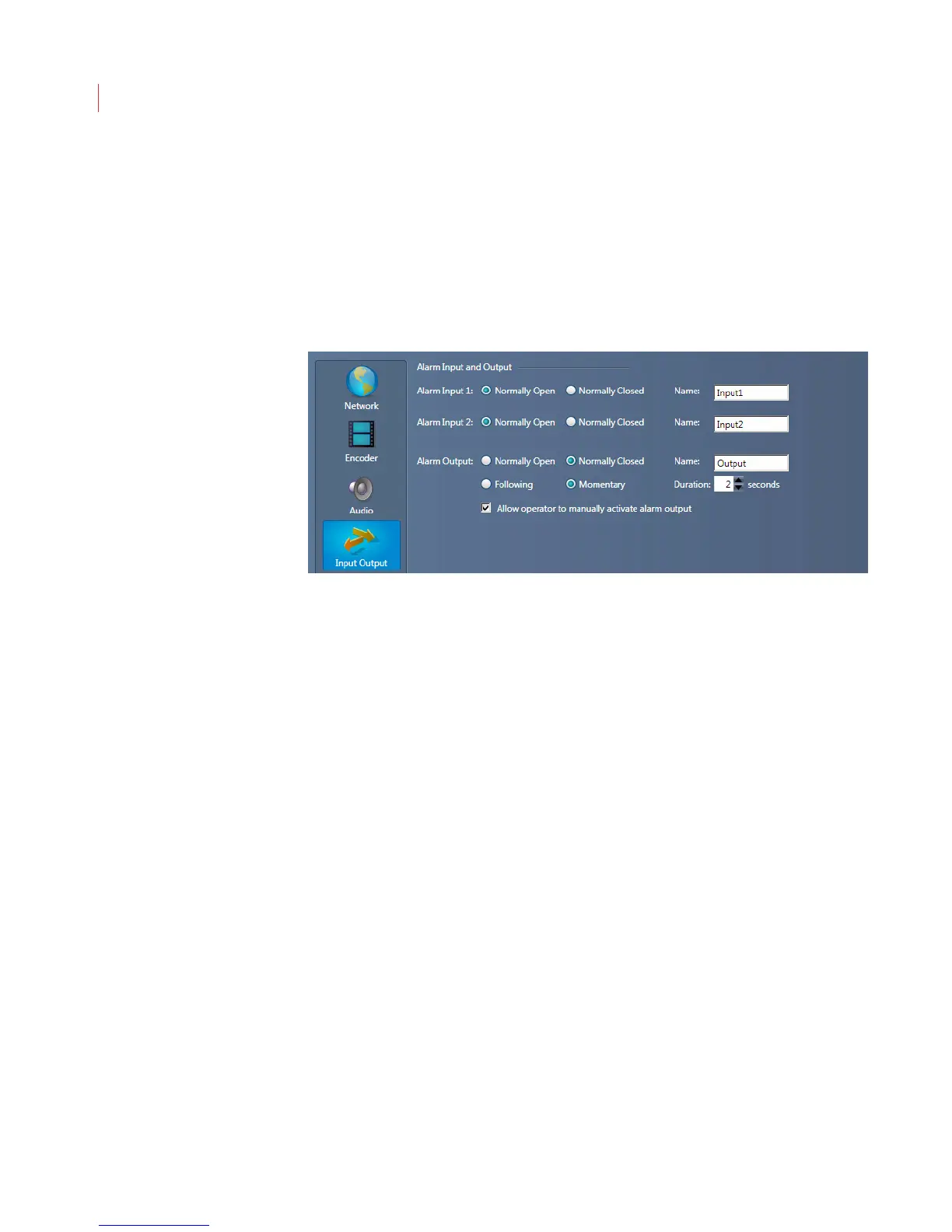
The Input/Output Settings window lets you configure settings for alarm inputs
and outputs attached to your camera. Changing the settings on this page
1. When the Configure Camera window opens, click Input/Output.
2. Use the Alarm Input option buttons to specify if the input device signal is
Normally Open (high) or Normally Closed (low).
a. Change the name of the input field label by entering up to eight
characters in the Name field; then click Apply. The changed label name
displays in the Alarm I/O toolbar on the camera web page.
3. Use the Alarm Output options button to specify if you want the alarm output of
the iCVR to be Normally Open or Normally Closed.
a. Use the Following button to specify if you want the output device to be
triggered for the duration of the rule violation.
b. Use Momentary to specify if the output device should be triggered for a
fixed amount of time. Enter the desired number of seconds in the
Duration field.
4. To enable the Output button on a live video or alarm review window, check
Allow operator to manually activate alarm output, This also enables the
Output button on the Alarm I/O toolbar when accessing a camera via a web
browser.
a. Change the name of this button by entering up to eight characters in the
Name field; then click Apply.
5. Click OK.



 To Next Page