VideoIQ User Guide87
Using the Live Alarm Pop-Up Window
The live alarm pop-up window displays live video alarms from cameras that you
are logged into, regardless of whether that camera is displaying in the Live Video
area. When monitoring multiple cameras it provides an easy way to see the most
recent alarms.
To enable the live alarm pop-up window:
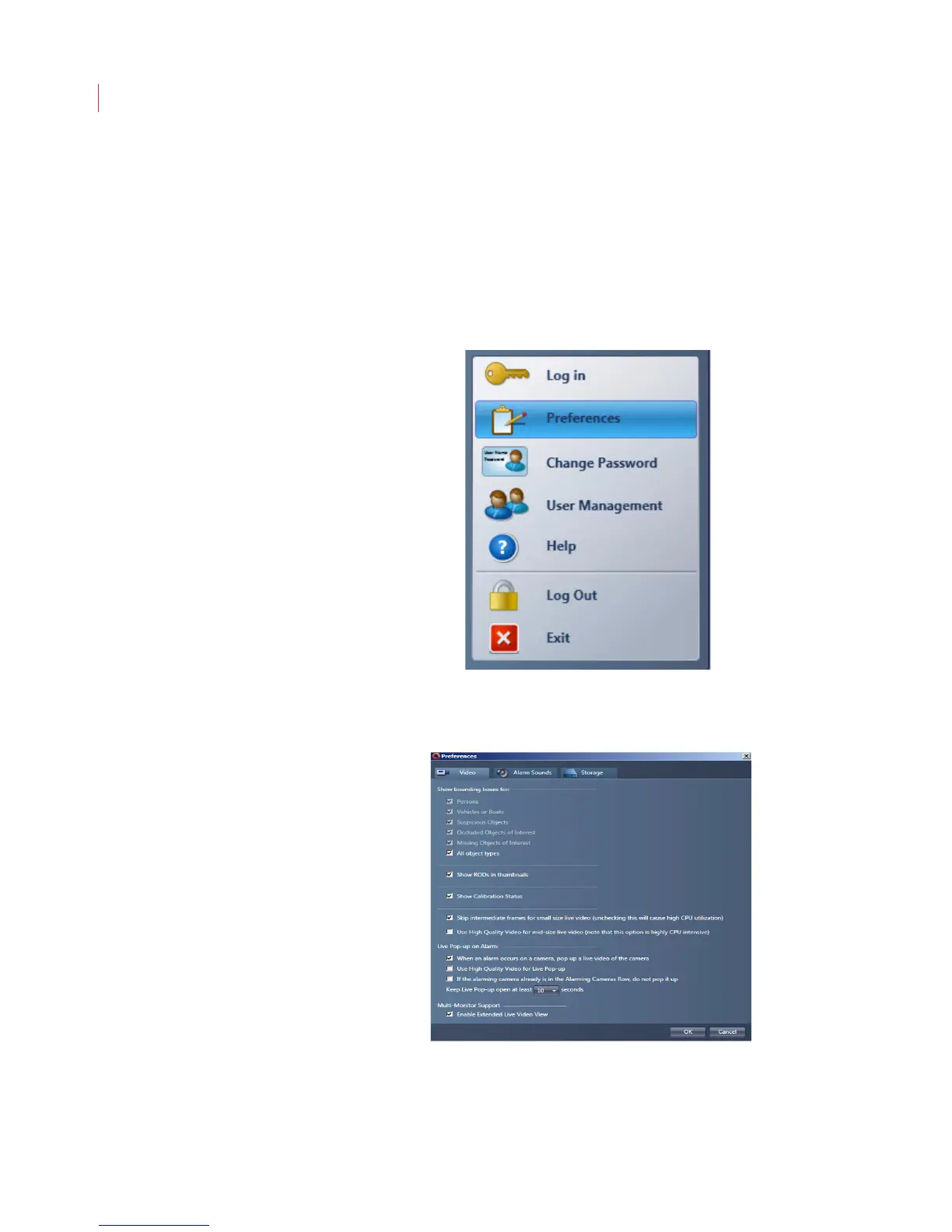
1. Click the VideoIQ button in the toolbar and select Preferences.
2. When the Preferences dialog box displays, ensure that the When an alarm
occurs on a camera, pop up a live video of the camera box is checked.
3. Determine if you want to use high-quality video for the pop-up alarms.
4. Determine if you want alarm windows already showing in the Alarming
Cameras row to show as a pop-up window.



 To Next Page