VideoIQ User Guide28
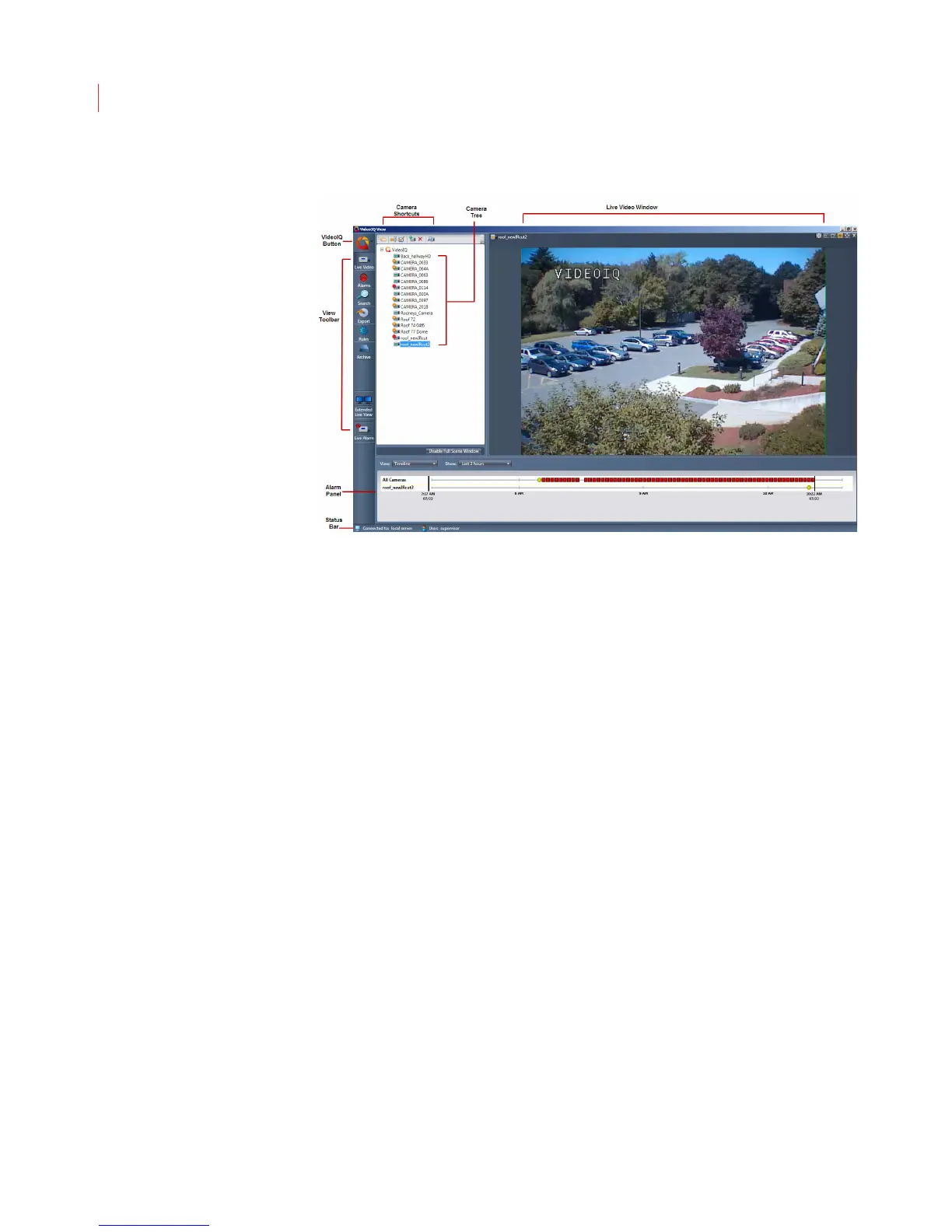
View Toolbar
Use the entries in the View toolbar to select which panel you want to display. For
example, to display the Live Video panel, click Live Video in the sidebar.
VideoIQ Menu
The VideoIQ menu can be accessed by clicking the VideoIQ button and consists
of the following entries:
Log In - Opens the Log In dialog, which allows you to log in as a different
user.
Preferences – Opens the Preferences window, allowing you to select
application preferences for View. The Preferences window is described in
Chapter 8: Configuring View Preferences.
Change Password – Opens the Change Password dialog box, allowing
you to modify the password associated with a user. The Change
Password dialog is described in Chapter 7: User Accounts.
User Management – Opens the User Manager dialog box which displays
your list of users; allows you to add a user or edit user information; modify
user permissions, and copy user accounts across cameras.
Help – Displays version information for the View application.
Log Off – Logs you out of View and leaves the application running.
Exit – Logs you out of View and shuts down the application.
Status Bar
The status bar displays the name of the VideoIQ server and the name of the user
who is currently logged in.



 To Next Page