VideoIQ User Guide33
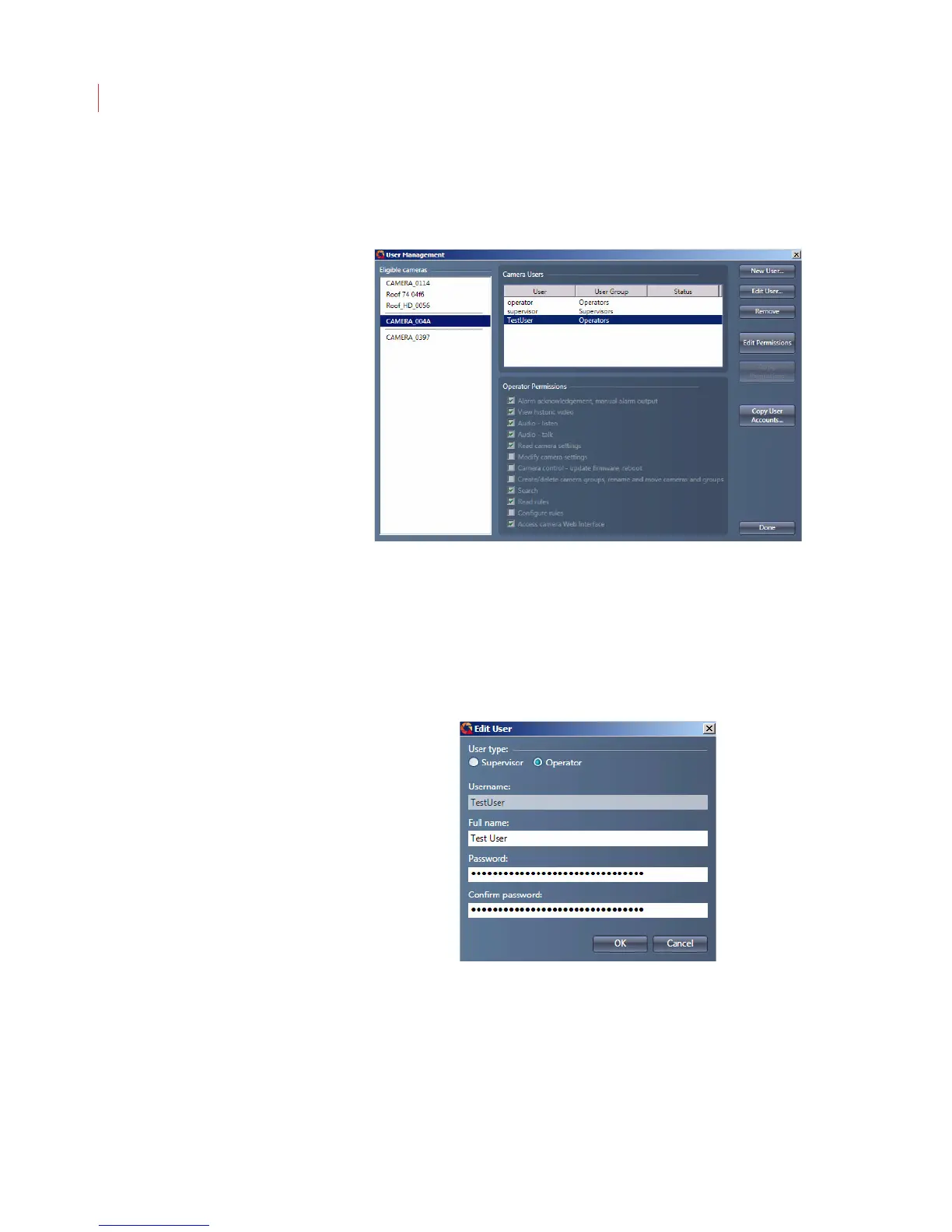
3. The User Management dialog box displays, showing all cameras you
have permissions on. Cameras are grouped together based on like
permissions or users.
4. Select a camera from the Eligible Cameras list.
5. Select a user from the Camera Users field.
6. Click Edit User.
7. Enter the old and new passwords for the user. The password must be a
minimum of 4 characters, can include both numbers and letters, and is
case sensitive.
8. Click OK.
Adding a User Account
You can add an unlimited number of user accounts to a camera:



 To Next Page