Administering Cameras
74
To immediately return the camera to the Home position, click the Home icon in the
live video window.
Controlling Camera Movement
You can use View to control the movement or change the direction of the camera
two different ways:
By clicking anywhere on the live video window to move the camera in the
corresponding direction. The speed of the camera increases the further
your cursor is from the center of the video window, which is indicated by
the red plus sign.
By using the Plus and Minus icons in the live video window you can
control the zoom function of the camera. Move the cursor over the
window to enable the Home, Zoom, Focus In/Focus Out, and Iris
Open/Iris Closed buttons.
Focusing the Camera
The Focus In/Focus Out buttons located on the live video window allow you to
adjust the focus of the camera.
Configuring the Camera Menu
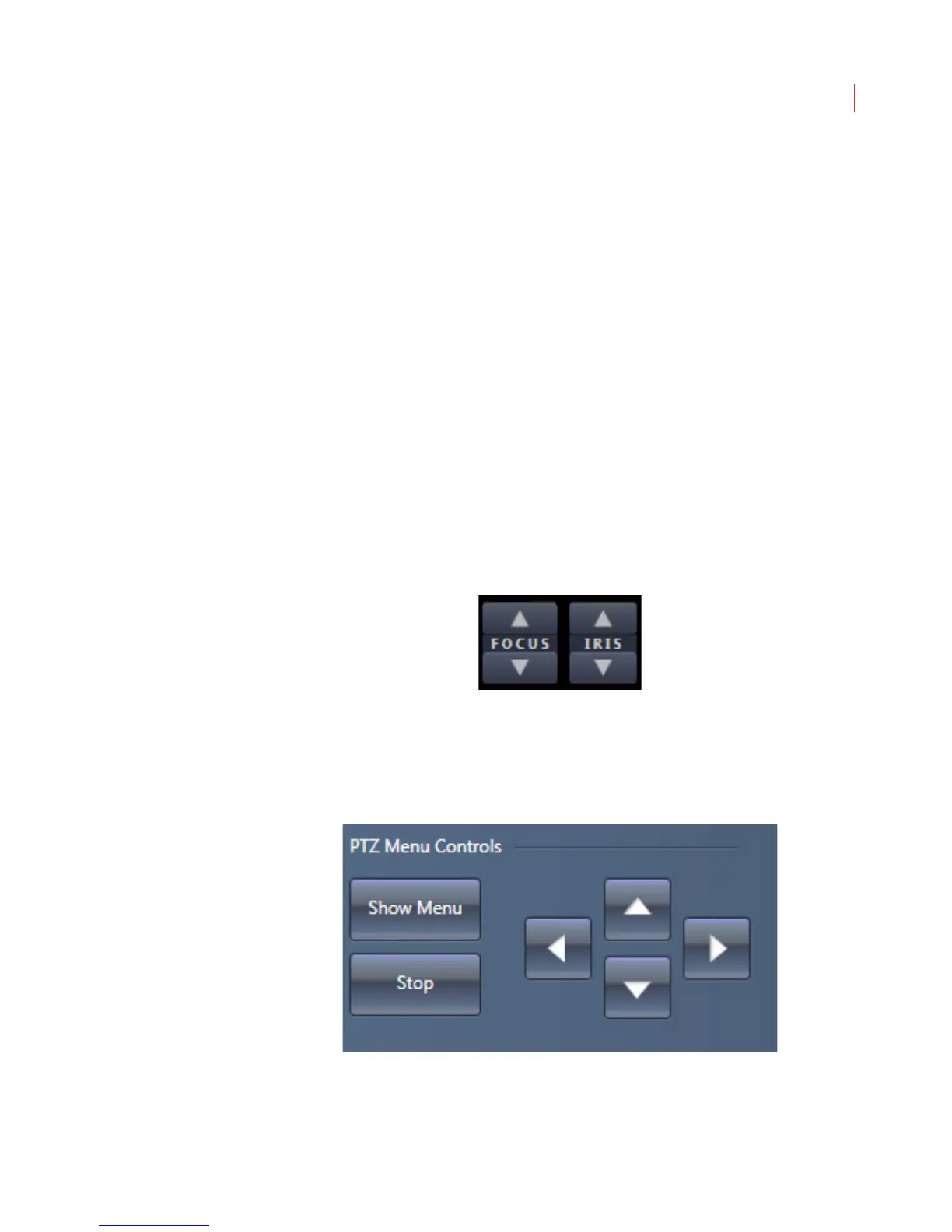
The PTZ Menu controls allow you to navigate your on-screen camera menu from
within View. Click the Show Menu button to display the camera menu, and use
the Up/Down/Right/Left directional arrows to navigate through the menu.



 To Next Page