VideoIQ User Guide106
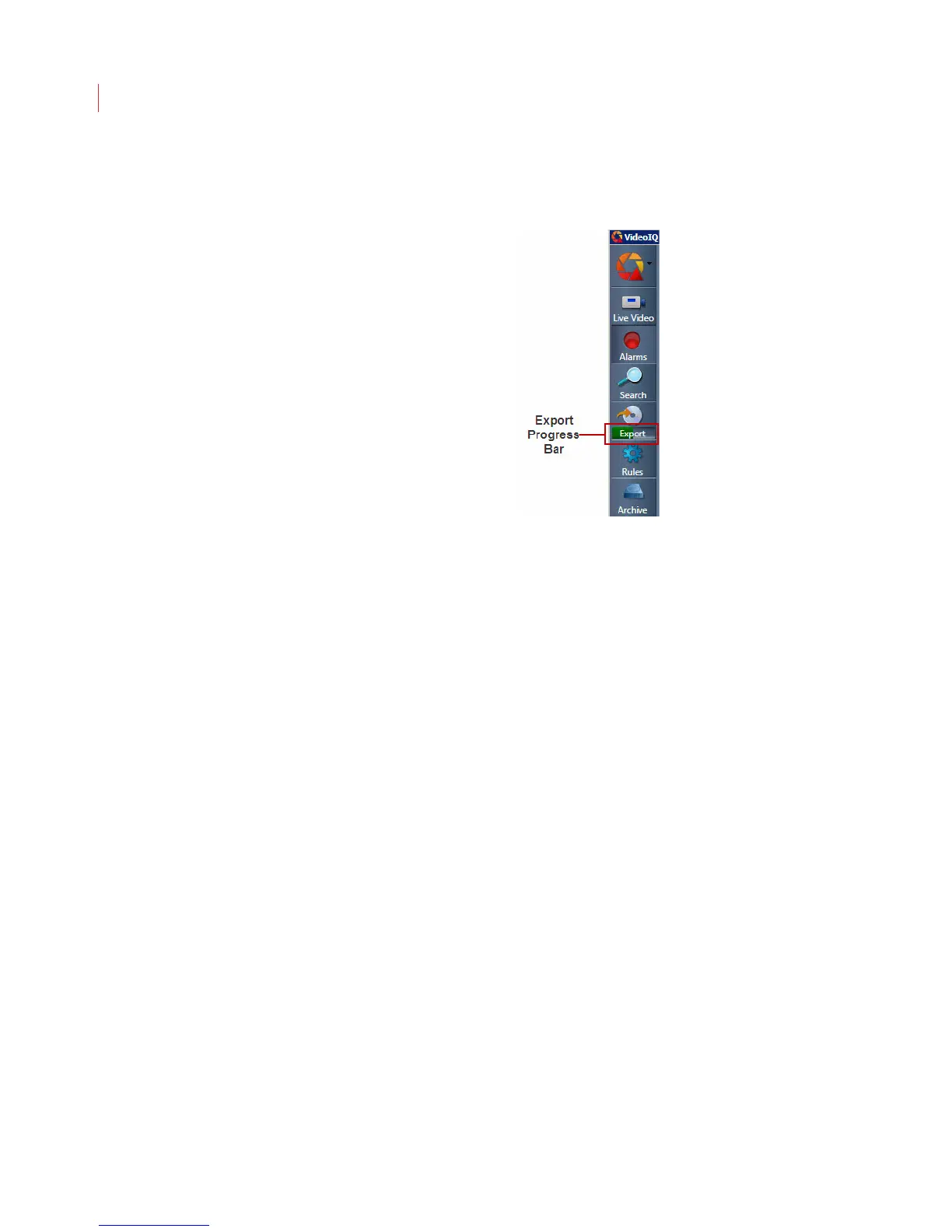
3. As the files for each alarm event are copied from the camera to a local
directory, track the status of the export by viewing the progress bar on the
Export button:
After the export is completed the files will show on the Export page.
4. Repeat steps 1-3 for all alarm events you want to export.
5. Once you have exported all alarm events required, click the Export icon to go
to the Export page.



 To Next Page