VideoIQ User Guide157
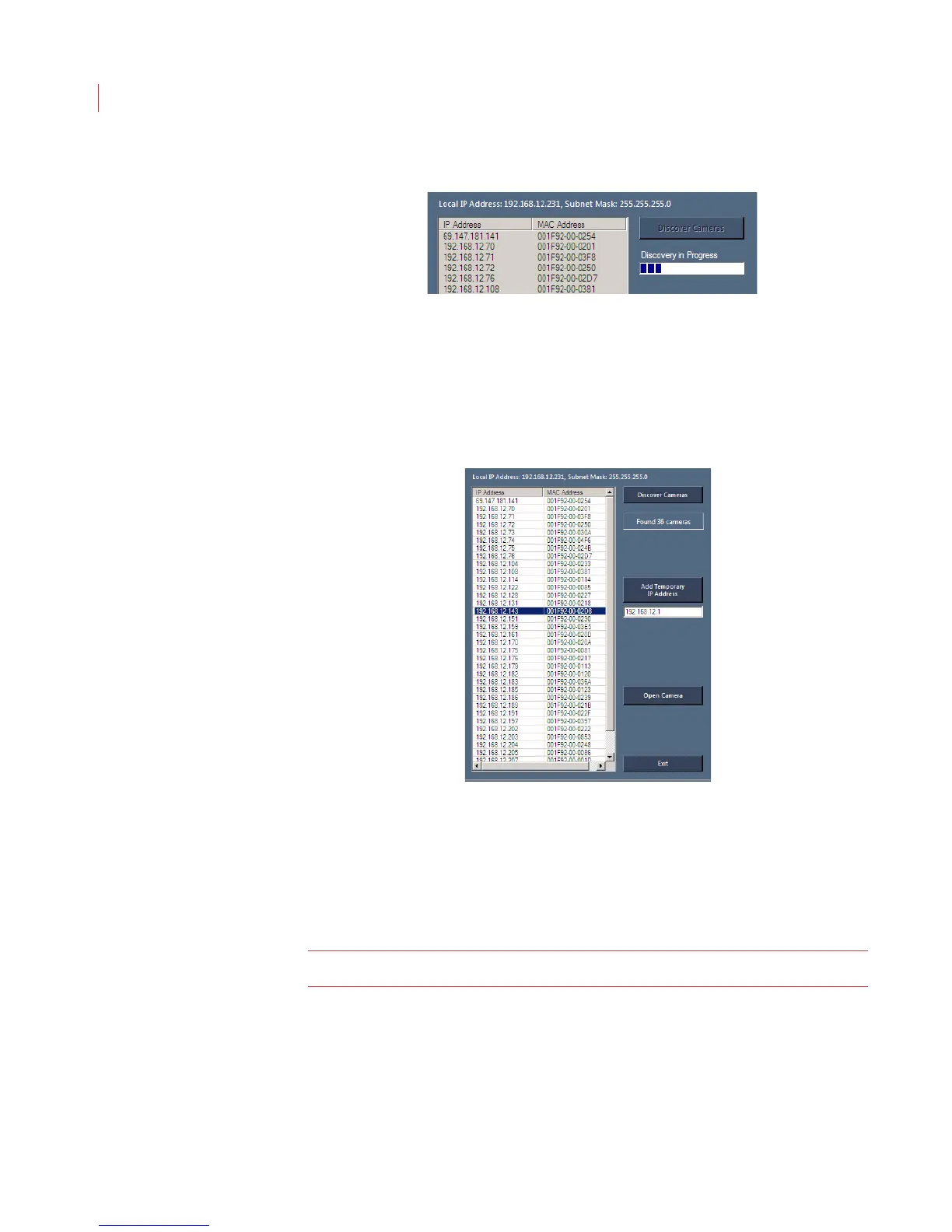
3. Click the Discover Cameras button.
4. The Discovery in Progress status bar displays under the button. The number
of cameras found displays once the discovery process is complete.
5. Select the iCVR from the list. If you don’t know the IP address of the camera,
compare the MAC address on the camera with those in the camera list.
6. If your PC and the iCVR are not on the same subnet, enter a temporary IP
address that’s in the same subnet as your PC and click Add Temporary IP
Address.
An example of a PC and an iCVR on two different subnets is:
PC IP address: 192.168.1.7
Camera IP address: 10.1.1.6
To access this camera you must use a temporary IP address in the format of
192.168.1.X where X is an unused IP address.
Note: The temporary IP address is only valid for 10 minutes.



 To Next Page