Recorded take settings
Setting how recorded scenes are named and numbered (Scene)
42
Setting how recorded scenes are named and numbered (Scene)
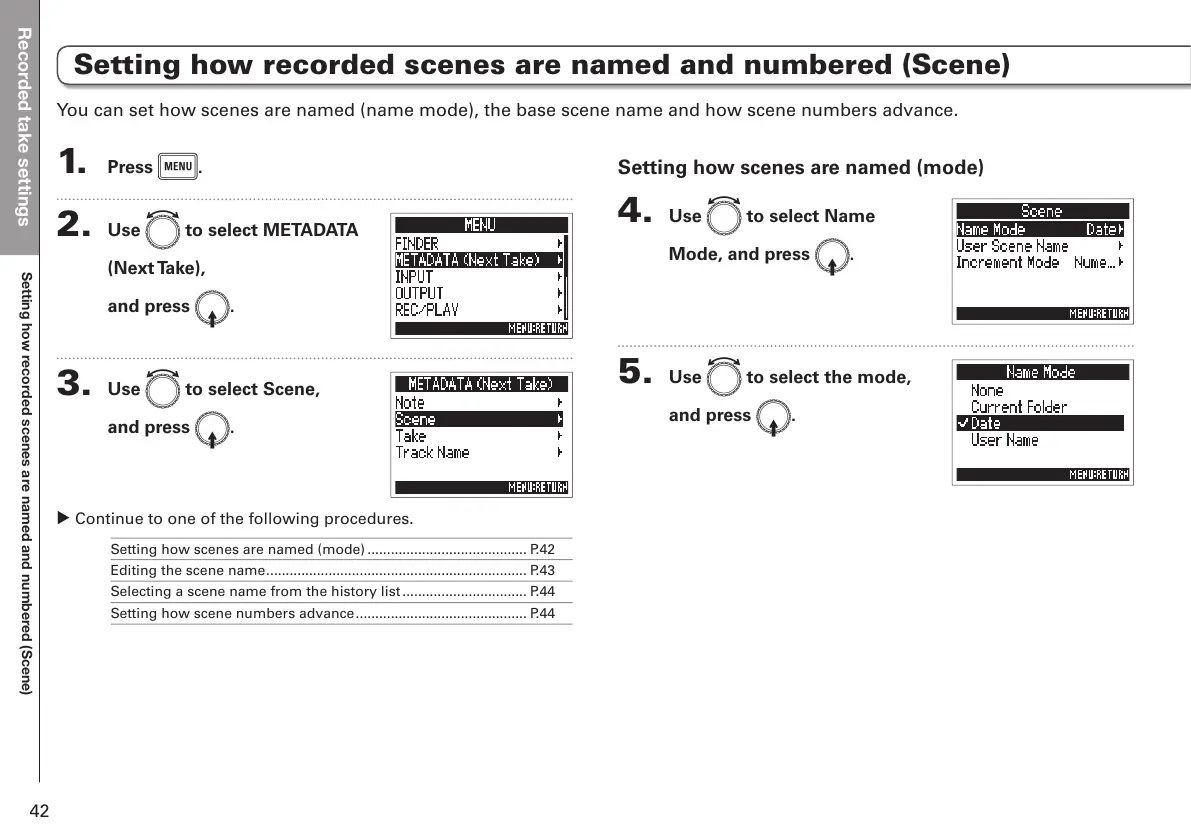
1. Press m.
2. Use e to select METADATA
(Next Take),
and press E.
3. Use e to select Scene,
and press E.
▶ Continue to one of the following procedures.
Setting how scenes are named (mode) ......................................... P.42
Editing the scene name ................................................................... P.43
Selecting a scene name from the history list ................................ P.44
Setting how scene numbers advance ............................................ P.44
Setting how scenes are named (mode)
4. Use e to select Name
Mode, and press E.
5. Use e to select the mode,
and press E.
You can set how scenes are named (name mode), the base scene name and how scene numbers advance.


 To Next Page