143D Systems, Inc.
NOTE: Connection to a network is conrmed by a checkmark to
the left of the network name. If the network is secure, a lock icon
will appear to the right of the network name.
4. Select the checkmark to continue to the registration and warranty activation
process.
5. Log in to Cubify.com. Go to www.cubify.com, select My Cubify and log in
to your account.
NOTE: You must be logged in to www.cubify.com to activate
your printer. If you have not activated an account, select SIGN
UP and enter the appropriate information.
6. Go to www.cubify.com/activate.
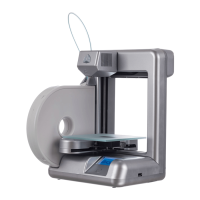
NOTE: The serial number for your printer will appear on the
printer’s touchscreen display. Take note of the serial number.
You will need it to activate your printer.
7. Select the checkmark to continue.
NOTE: This illustration provides an example of a serial number.
Do not use this number to activate your printer.




 To Next Page

