Configuring a New Unit
www.3ware.com 135
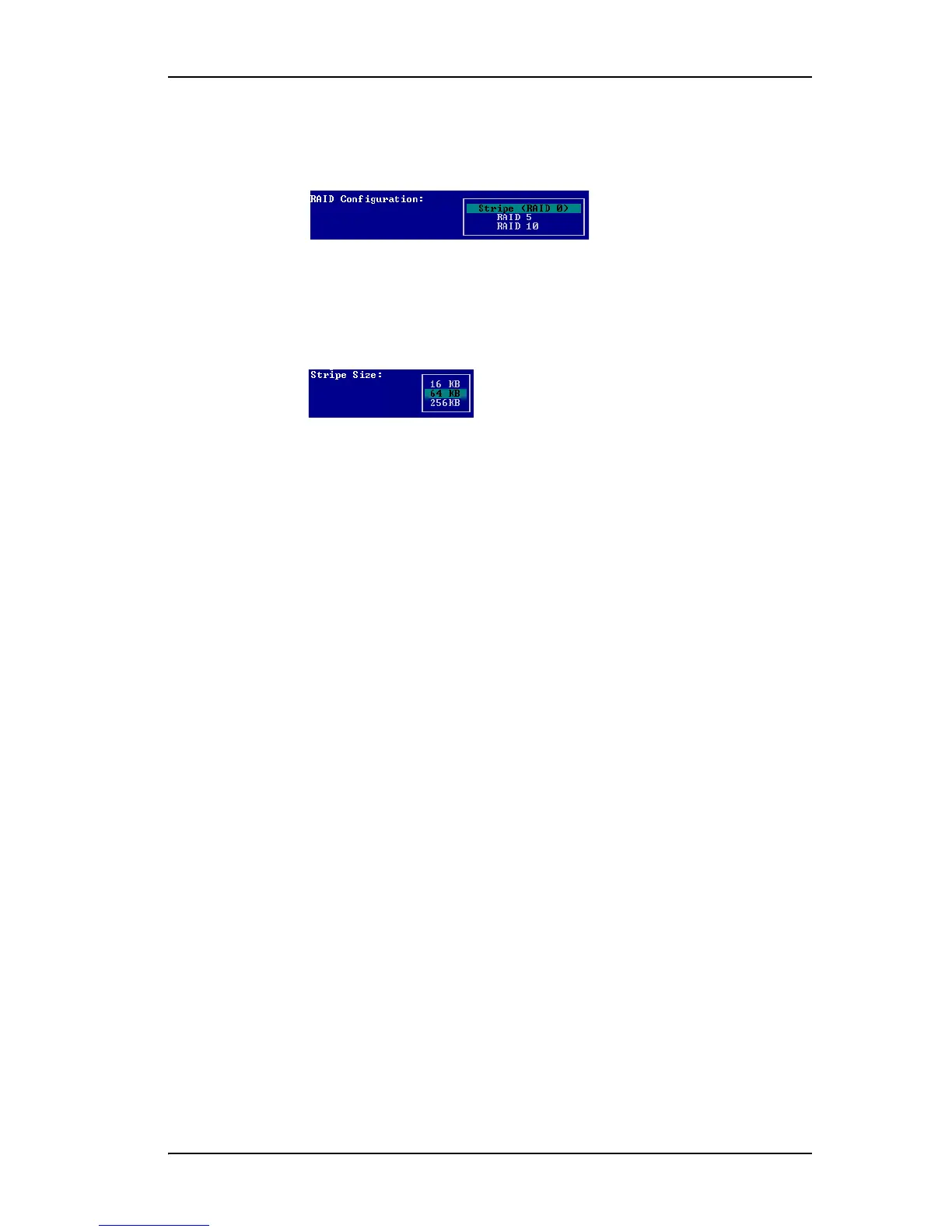
5 Tab to the RAID Configuration field and press Enter to display a list of
available configurations for the number of drives you selected.
Figure 58. Configuration Choices for Four Drives
6 Use the arrow keys to select the configuration you want and press Enter.
7
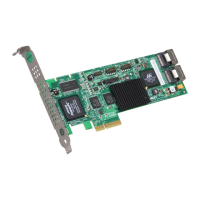
Tab to the field Stripe Size and select the desired striping size (16, 64, or
256 KB).
Figure 59. Stripe Sizes for a RAID 5
8 (Optional) Tab through the policy fields and make any appropriate
changes to the settings for:
•Write Cache Setting
• Drive Queuing Mode
• Continue on Error During Rebuild
• StorSave Policy
For details about these settings, see “Configuration Options When
Creating a Unit” on page 128.
9 (Optional)
Tab to the field Boot Volume Size, press Enter and type the
size for the boot volume (volume 0) in gigabytes; then press
Enter again
to set the size.
10 Tab to the OK button and press Enter to confirm creation of the unit.
11 If the volume summary screen appears, review the information and press
any key to continue.
Multiple volumes will be created if you entered a Boot Volume Size of
greater than zero (0), or if auto-carving is enabled and the combined size
of the drives in your unit is large enough to divide it into multiple
volumes.
If you are not satisified with how the volumes will be split up in the unit,
delete the unit from the main 3BM screen and recreate it using a different
Boot Volume Size. If desired, you can change the auto-carving policy or
the carve size on the Policies page. For more information, see “Using
Auto-Carving for Multi LUN Support” on page 121.
You are returned to the main 3BM screen.



 To Next Page