Managing the terminal | 57
Setting up users
Note: You must login with 'admin' privileges to add, disable, delete a user or change a password.
User groups
There are three pre-defined user groups to allocate access rights to users. These user groups have
associated default user names and passwords of the same name.
User
Group
Default
User Name
Default
Password
Access Rights
View view view Users in this group can only view terminal
parameters.
Modify modify modify Users in this group can view and edit terminal
parameters.
Admin admin admin Users in this group have full access to all terminal
parameters including the ability to add and change
users.
Adding a user
1. Select Local or Remote > Maintenance > User Admin > User Table.
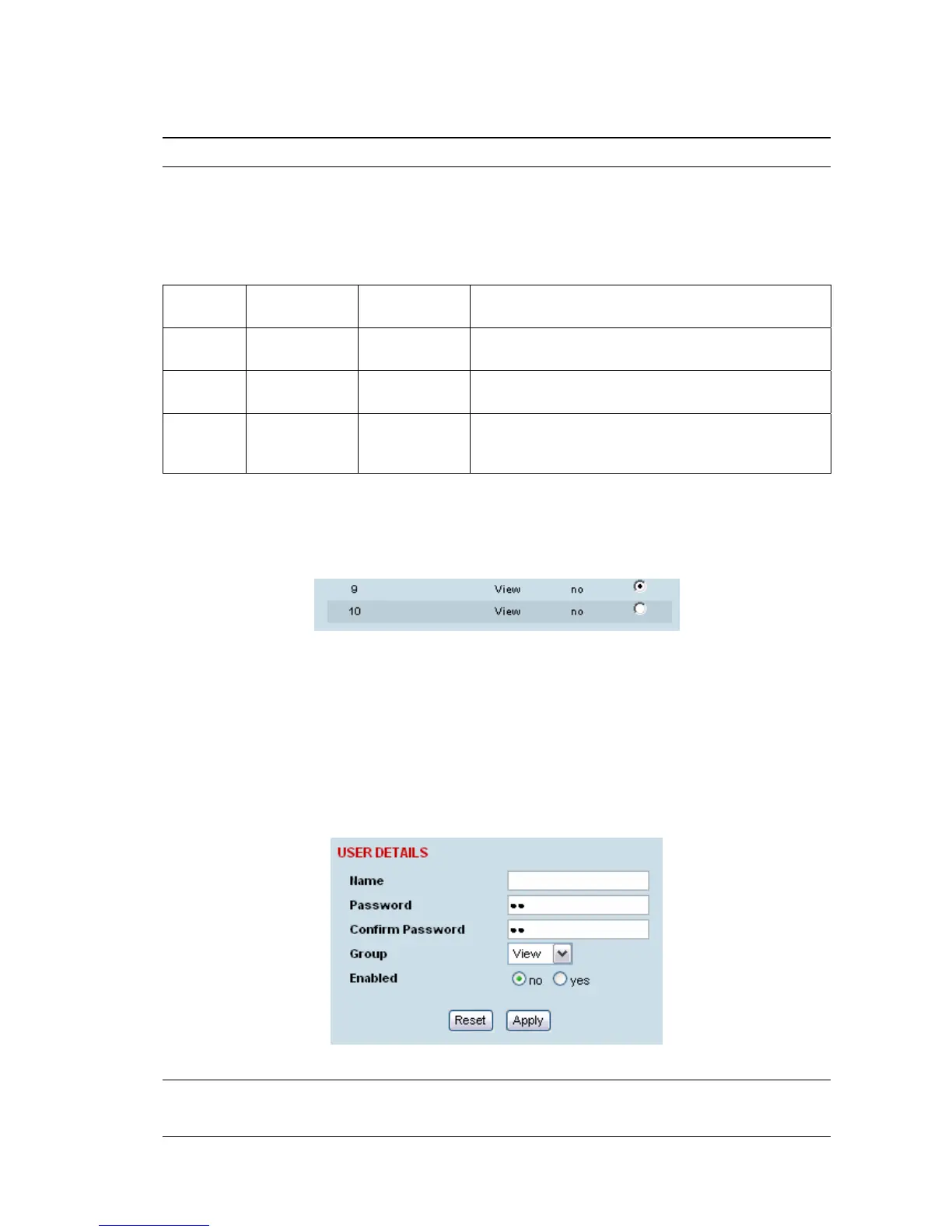
2. Select an empty line (that isn't allocated to an existing user) and then click Edit.
3. Enter the user name.
A user name can be up to 32 characters but cannot contain back slashes, forward slashes,
spaces, tabs, single or double quotes.
4. Enter the Password and the Confirm Password.
A password can be up to 32 characters but cannot contain back slashes, forward slashes, spaces,
tabs, single or double quotes.
5. Select the group that they will belong to (View, Modify, or Admin).
6. If the user requires immediate access, enable the user by clicking on Yes.
7. Click Apply.
Note 1: The new user must be setup on both the Local and Remote terminals.
Note 2: For the changes to take effect, you must reboot the terminal (Local > Maintenance > Reboot).


 To Next Page