Managing the terminal | 59
Changing passwords
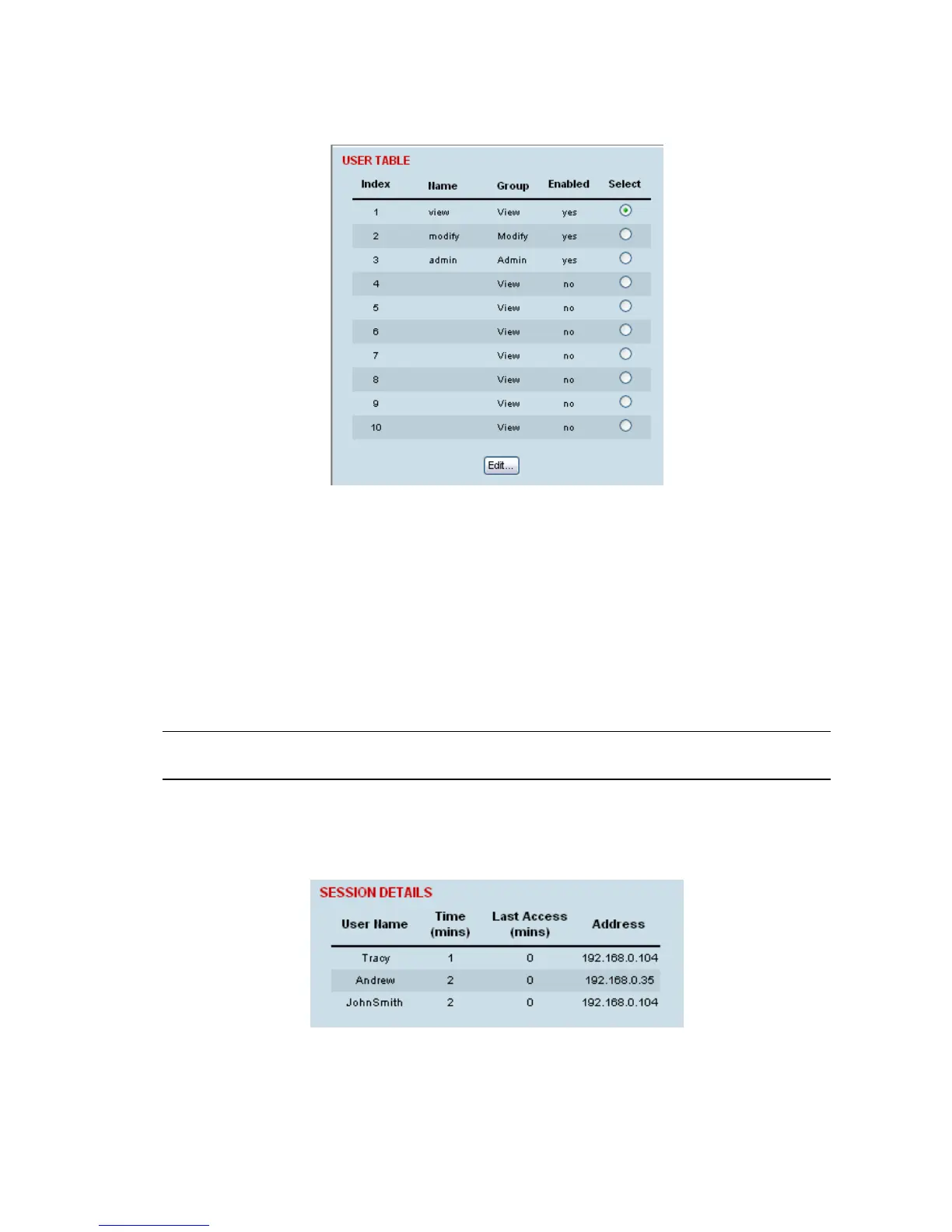
1. Select Local or Remote > Maintenance > User Admin > User Table.
2. Select the user whose password you want to change and click Edit.
3. Enter the new Password and the new Confirm Password.
A password can be up to 32 characters but cannot contain back slashes, forward slashes, spaces,
tabs, single or double quotes.
4. When you have made your changes, click Apply.
Viewing user session details
Administrators can check who is currently logged in, the computer they are logging in from, and how
long they have been logged in for.
Note: A 'session' is the period of time that begins when someone logs into the terminal and ends when
they logout.
To view user session details:
1. Select Local > Maintenance > User Admin > Session Details.
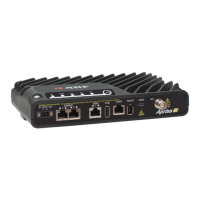
The 'Session Details' shows a list of the current users:
User Name: the User Name logged into the terminal.
Time: the number of minutes the user has been logged in.
Last Access: the number of minutes the user last accessed the terminal in this session.
Address: the address of the computer or proxy server address logged into the terminal.


 To Next Page