Step 5 Install the Operating System and ARMC/2 Drivers, Continued
Installing Virtual Floppy Drivers on Microsoft® Windows Operating Systems, Continued
Step Action
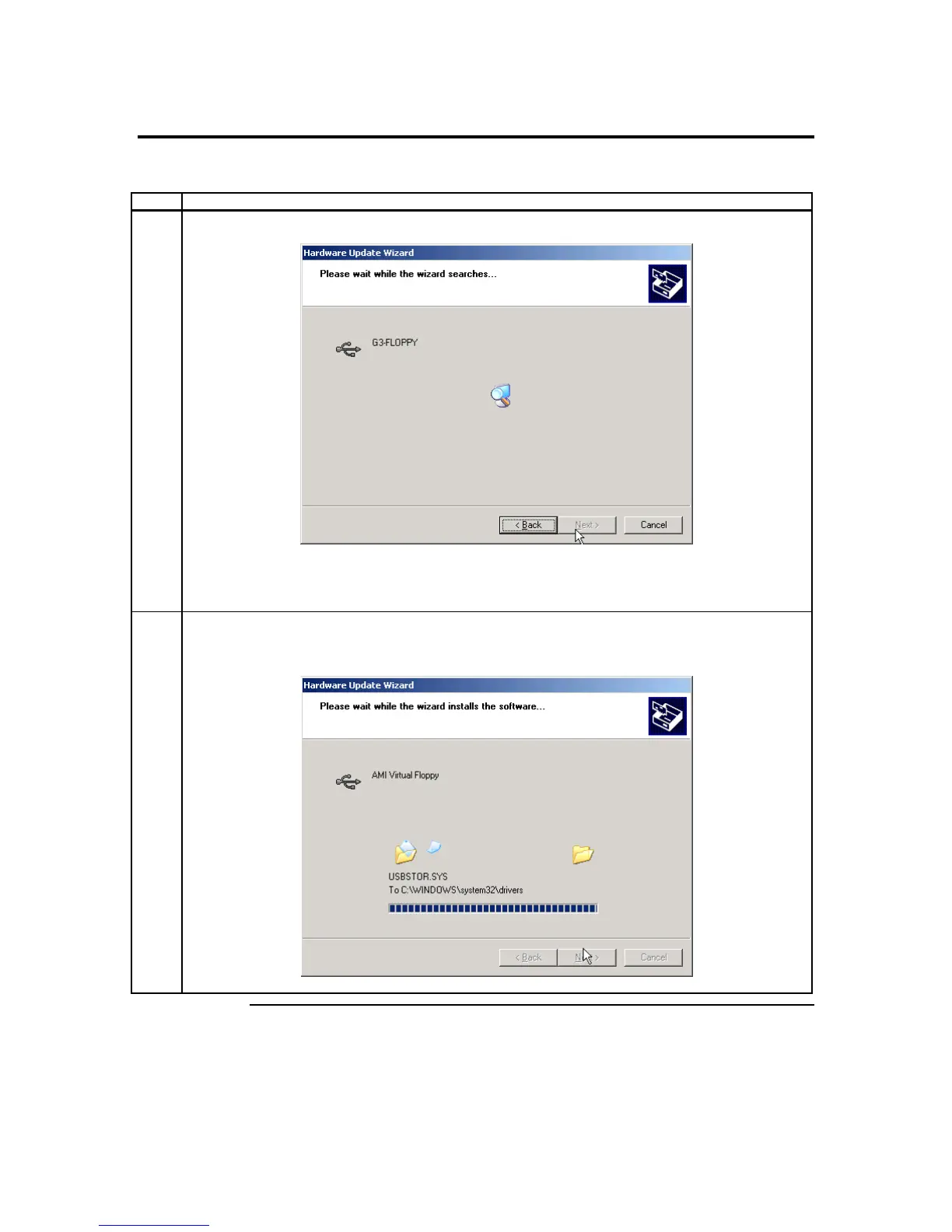
2 The Hardware Update Wizard begins to search for the drives on the ARMC/2 CD.
Note: Do NOT use the default file that the Microsoft® Windows operating system presents when it is
searching for the Virtual Floppy driver. Instead, select the Specify a Location option and select
the .INF file located in the ARMC/2 CD called amivirtfl.inf in the INF directory.
3 The Hardware Update Wizard begins to load the Virtual Floppy driver from the ARMC/2 CD. Its status
is displayed.
Cont’d
Chapter Two : Installing Your ARMC/2 Card
13



 To Next Page