Redirection, Continued
Console Redirection Window, Continued
Dropdown
Menu Item
Description
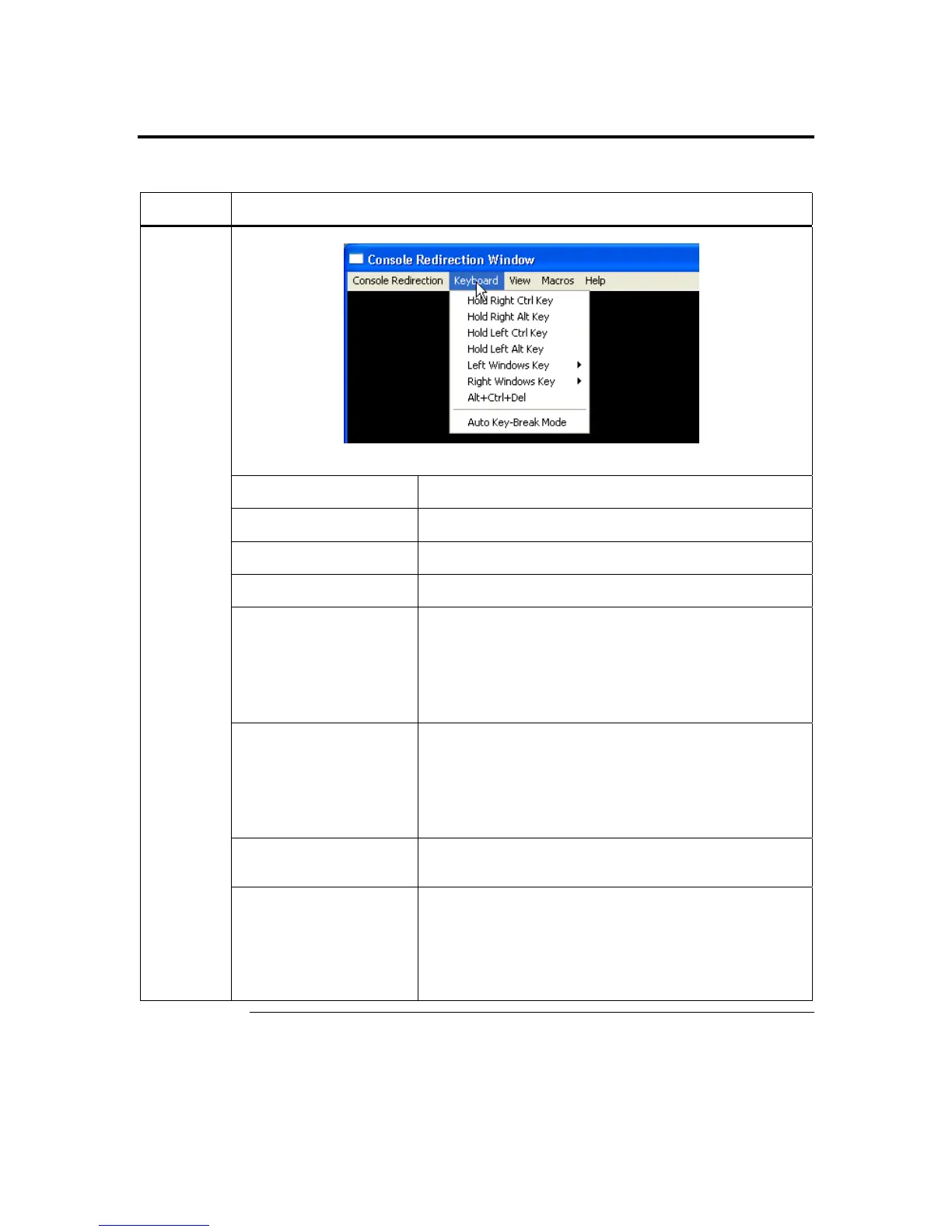
This dropdown menu contains the following dropdown menu items:
Hold Right CTRL Key
This menu item can be used to act as the right-side <CTRL>
key when in Console Redirection.
Hold Right ALT Key
This menu item can be used to act as the right-side <ALT> key
when in Console Redirection.
Hold Left CTRL Key
This menu item can be used to act as the left-side <CTRL> key
when in Console Redirection.
Hold Left ALT Key
This menu item can be used to act as the left-side <ALT> key
when in Console Redirection.
Left Windows Key
This menu item can be used to access the left-side
<WINDOWS> key during a Console Redirection session. The
following actions can be performed:
• Hold Down
• Press and Release
Right Windows Key
This menu item can be used to access the right-side
<WINDOWS> key during a Console Redirection session. The
following actions can be performed:
• Hold Down
• Press and Release
ALT+CTRL+DEL
This menu item can be used to act as if you depressed the
<CTRL>, <ALT> and <DEL> keys down simultaneously on
the host system that you are redirecting.
Keyboard
Auto Key-Break Mode
This feature is used to avoid repeated keystrokes over slow
connections.
Note: Sometimes when performing redirection over a slow
connection, you may see multiple repetitions of a single
key stroke on the host system. If you are experiencing
this type of situation, enable Auto Key-Break Mode.
Cont’d
ARMC/2 User’s Guide
52



 To Next Page