Games
- 115 -
2. Press the number for the game you require.
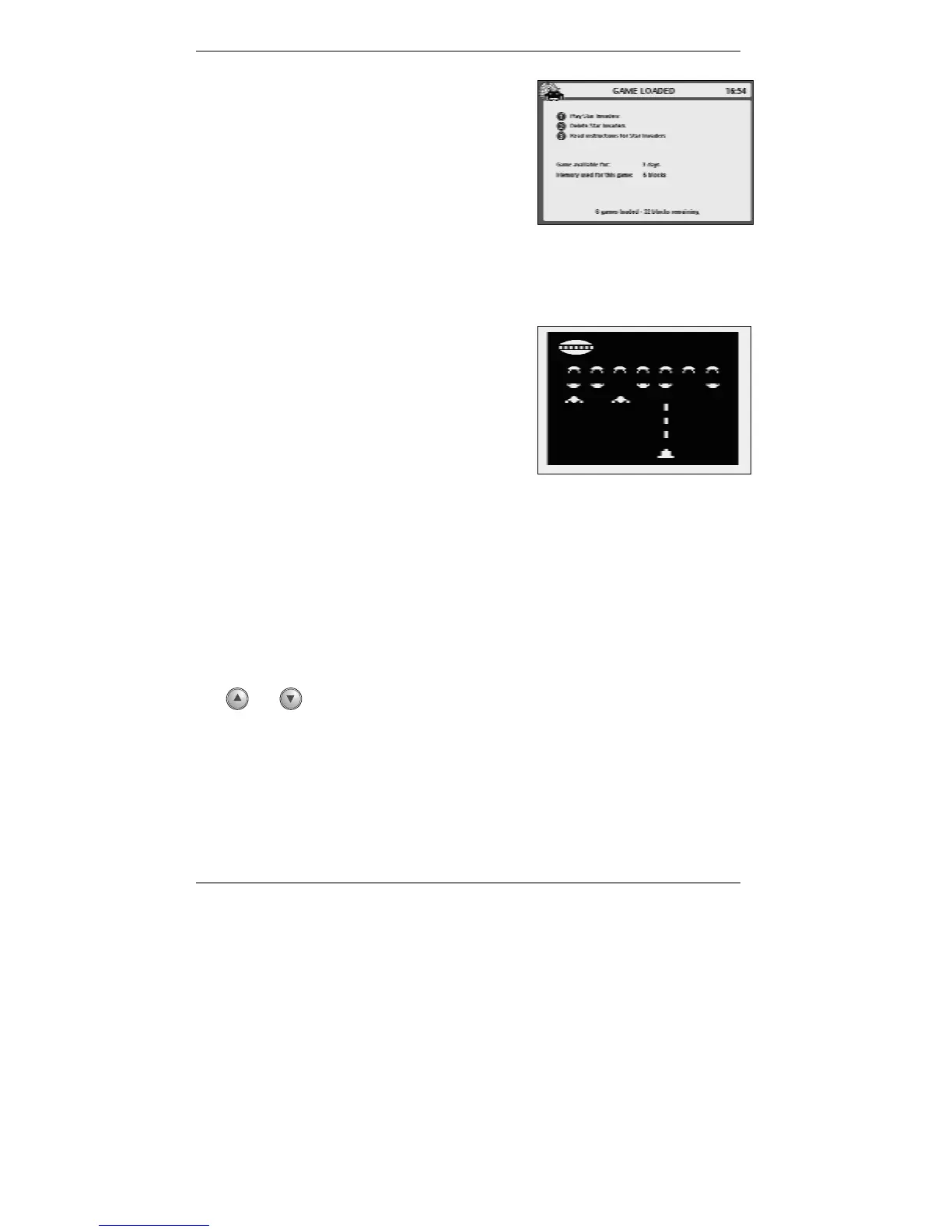
The following display will appear (right).
3. This display shows the available time before
the game will auto-delete. Note this is
regardless of whether you play the game or
not.
♦ Before playing a game, you can press 3 to
read any instructions.
& The instructions page (usually created by the game's authors) provides
details of what keys to press during the game, together with any other useful
information.
♦ To play the game, press 1 to start and follow
any further instructions on the screen.
♦ To pause the game, press STOP once. (To
continue, press any other key.)
♦ To abort the game (and go back to the
previous menu), press STOP again.
Gameplay options
& For some games you may receive the displayed option: Kempston
Joystick – if you select this option, the main game keys will be
L
v
R and
space (fire) on the keyboard or GamePad.
While playing a game, you can select the following options by pressing SYMBOL
together with another key, as follows:
♦ To adjust the volume, use SYMBOL and
U or D. (Alternatively you can press
and on the e-m@iler.)
♦ To mute sound, press SYMBOL and 1. (Press again to restore sound.)
♦ To adjust the brightness, use SYMBOL and
L or R.
♦ To invert screen, press SYMBOL and 2. This feature reverses the playing
screen from positive to negative which may improve the view and playability of
some games. (Press again to restore the original playing screen.)



 To Next Page