Advanced settings
- 131 -
Setting user PIN
➣
FAST TRACK: Press SETUP, 6, 2, select/adjust required option(s), press
STORE.
For confidentiality, any user can set up a PIN (Personal Identity Number) to deny
access to his/her messages by unauthorised users. With a PIN set up, the display will
ask for the user's PIN whenever a user-related function is selected.
Use the following procedure to set up a PIN, or to check it, change it or remove it.
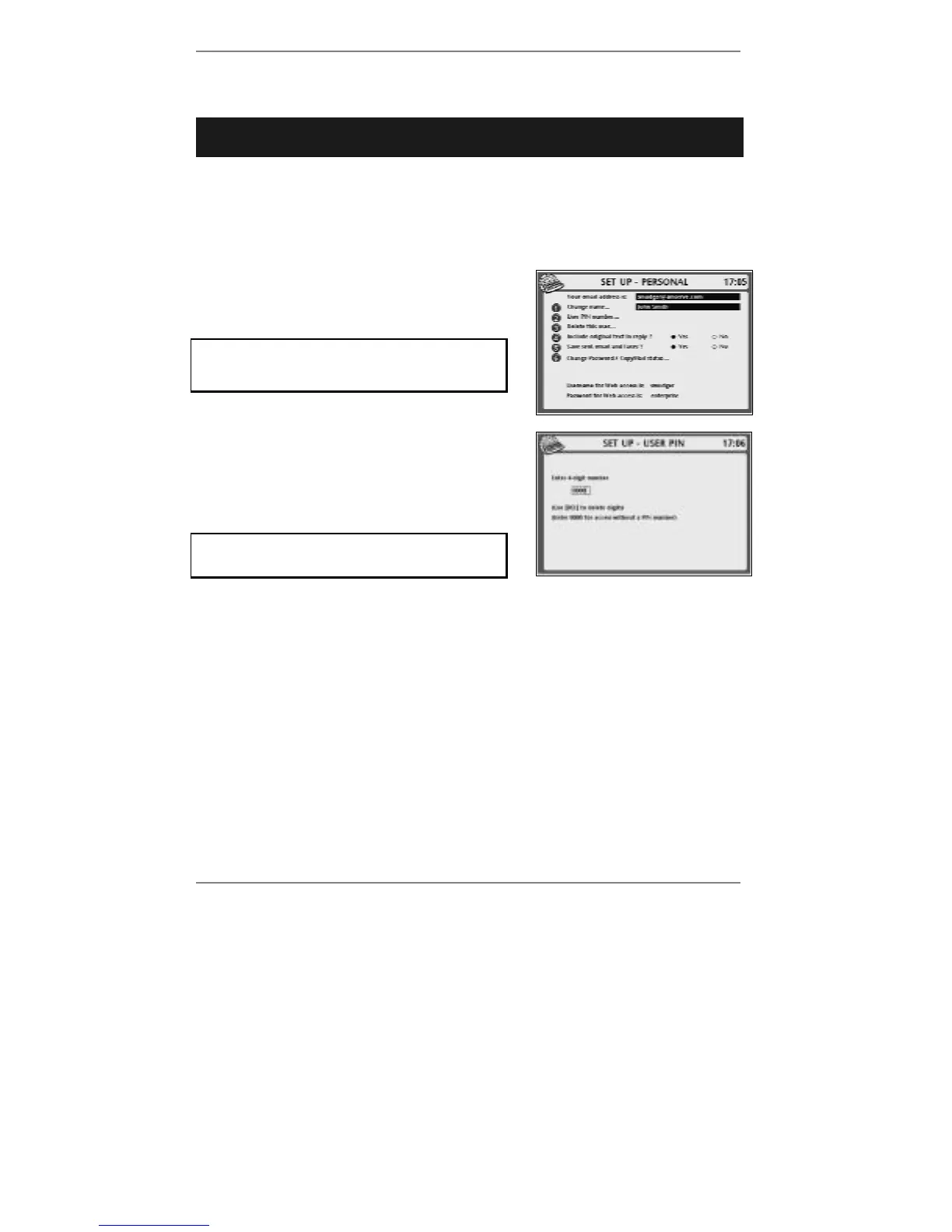
1. Press SETUP, 6 (and select user if
necessary) so that display top line reads
SET UP - PERSONAL:
If you've already set up a PIN, then before
you receive this display you'll be asked to
type in the PIN.
2. Press 2 so that display top line reads
SET UP - USER PIN:
This display allows you to check the current PIN
(inside the box).
Note if the PIN is set to 0000, then
PIN protection is removed.
3. If you wish to set up, change or remove the PIN, press !DEL to delete the
existing PIN.
(If you're just checking the PIN, go to step 5.)
4. Type in the new 4-digit PIN (or type in 0000 for no PIN), then press STORE.
5. Press STOP repeatedly to return to the standby display.
♦ If ever you forget your PIN, there is a way to reset all PINS back to 0000). The
section 'Removing all user PINs' can be found on page 163 of this book – cut out
and keep the section hidden if you don't want others to know about PIN removal.



 To Next Page