Advanced settings
- 133 -
Before carrying out the procedure below, you will need to know the following:
♦ the telephone number where you will be using the
e-m@iler, and
♦ your username and password (you should know this information from when you
originally registered with Amserve).
1. Press SETUP, 8 so that display top line reads SET UP
- REGISTRATION.
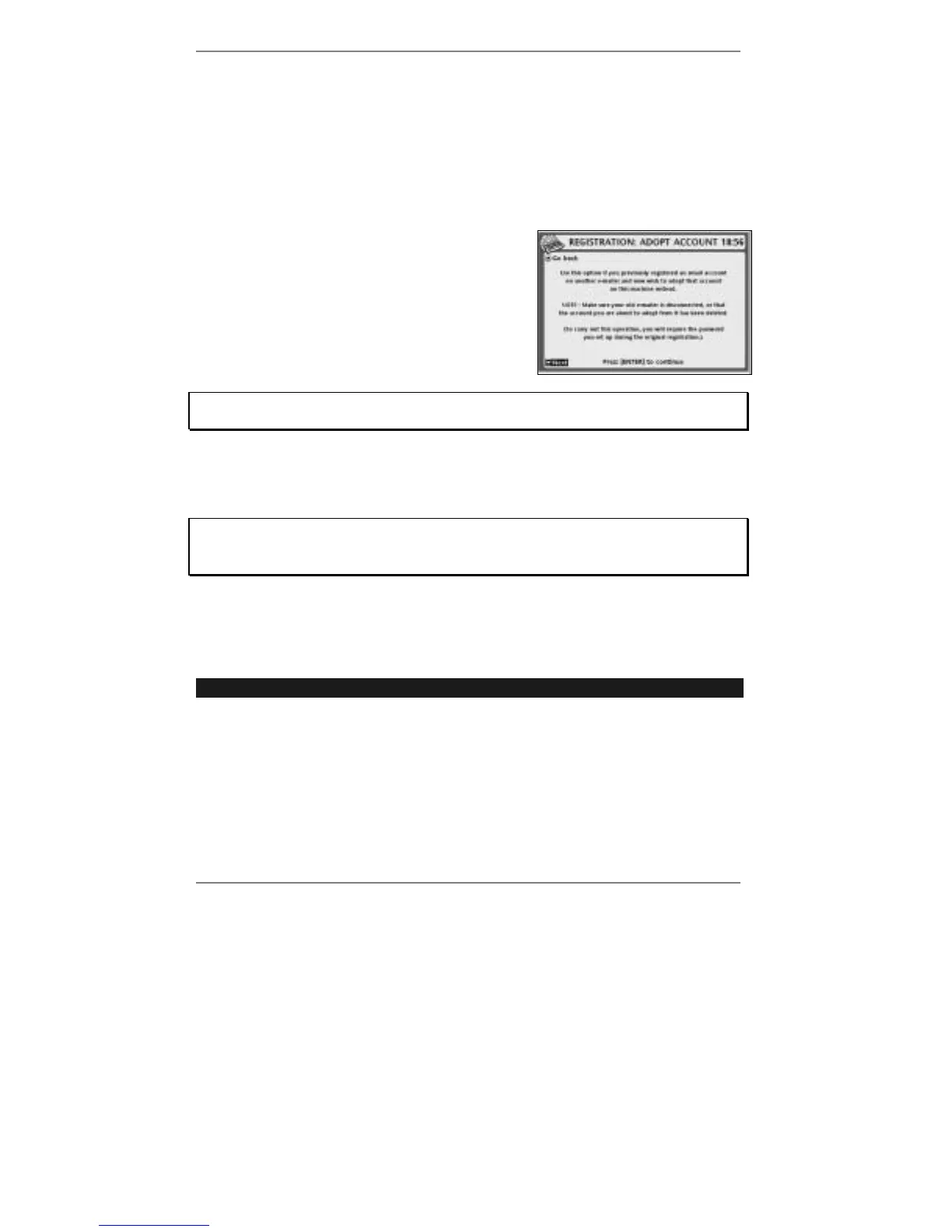
2. Press 2 so that top line reads
REGISTRATION: ADOPT ACCOUNT
(right):
3. Follow the on-screen instructions.
If you get stuck at any point, go back to pages 16 - 24 and look up the screen in
question to find out what action is required by you.
4. Press STOP repeatedly to return to the standby display.
Once you have adopted the old account, the e-m@iler is ready to use for email.
IMPORTANT – If you subscribe to Caller Display, then after adopting an account
you will need to carry out procedure SETUP 8, 3 to restore automatic email
notification for the newly adopted user.
Adding or removing CopyMail
➣
FAST TRACK: Press SETUP, 6, 6, follow on-screen instructions.
CopyMail is a free service which gives you the option of having all your incoming and
outgoing email copied to an additional email address. CopyMail is especially useful if
you wish to use the e-mailer in conjunction with a PC in your home or office.
Use the following procedure if you wish to add or remove CopyMail (or change the
email address to be copied to).



 To Next Page