Advanced settings
- 144 -
Pictures and images
➣
FAST TRACK: Press INTERNET, 5, 3, 1, select required option, select
lUpdatel
.
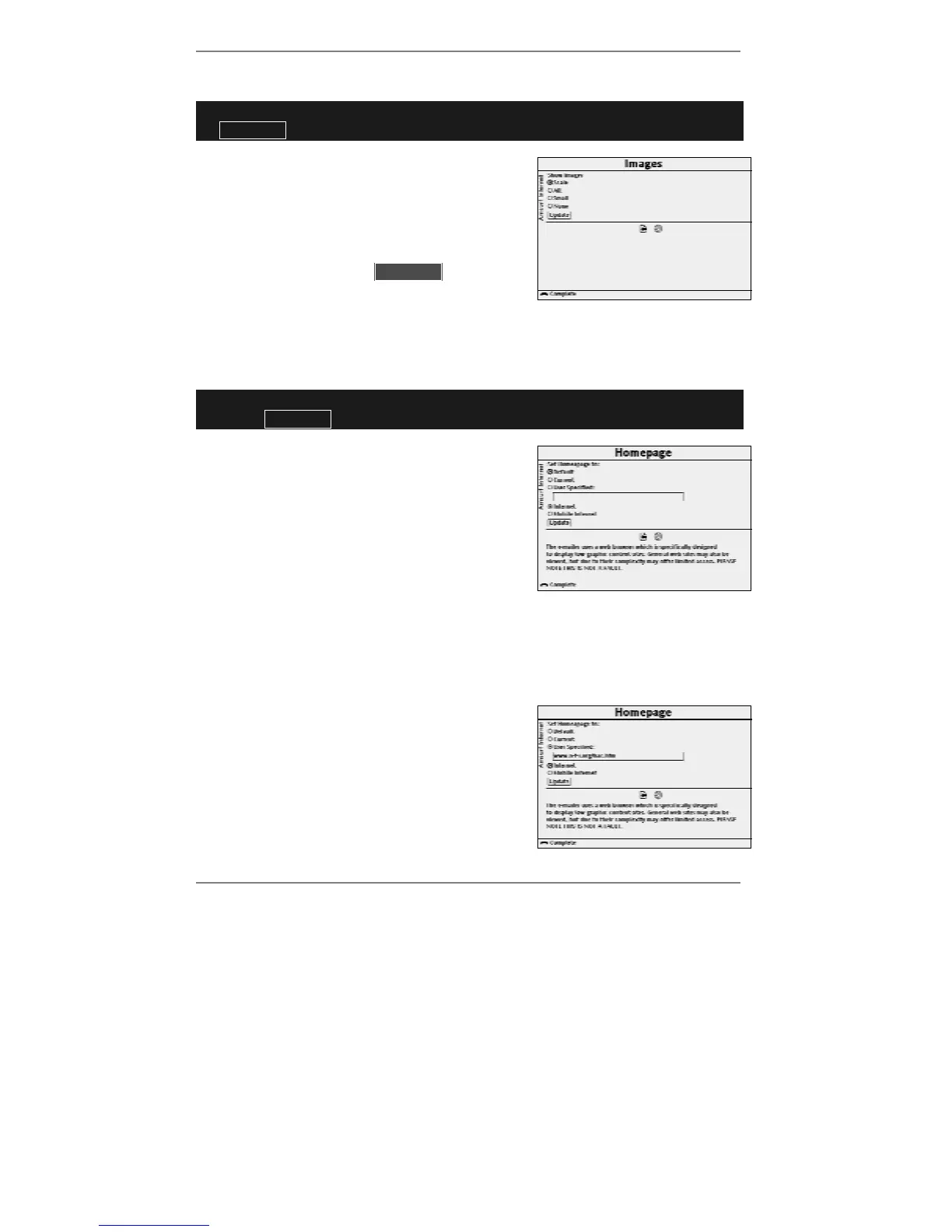
1. Press INTERNET, 5, 3, 1 so that display top
line reads Images:
2. Use
U D and SELECT to highlight and select
)Scale or )All or )Small or )None.
3. Use U D to highlight l lUpdatell then press
SELECT to store your setting. (Press
INTERNET to return to Amsurf menu.)
Changing your home page
➣
FAST TRACK: Press INTERNET, 5, 3, 2, enter/select required option,
select
lUpdatel
.
1. Press INTERNET, 5, 3, 2 so that display top
line reads: Homepage:
2. Use U D and SELECT to highlight and select
the home page you want from the following
options:
♦ If you want your home page to be the Amsurf
home page, select )Default and go straight
to step 5.
♦ If you want your home page to be the current web page, select )Current and go
straight to step 5. (Note, you have to be online to set this option.)
♦ If you want to specify a particular address for your home page, select
)User Specified: and continue to step 3.
3. Use U D to move the cursor into the address
box, then type in the address for the required
home page.
4. Depending on whether you're specifying a
normal web page or a low-graphics web page,
use
U D and SELECT to highlight and select
either )Internet (normal web page) or
)Mobile Internet (low-graphics page).



 To Next Page