Email
- 72 -
♦ Note, when you exit from Amsurf, you will be returned to the original email
message.
& It is not possible to respond directly to weblinks contained within
attachments.
Accessing your email on a PC
Instead of using the e-m@iler to read your email, you can use a PC connected to the
internet. You'll find this feature particularly useful if you’re away from the
e-m@iler but
want to be able to read any uncollected email or send new messages.
Note that once your email has been collected by the e-m@iler, you cannot access
it by PC.
& The PC access web site is not suitable for surfing using Amsurf on the e-m@iler
– the site will not be displayed correctly. (However, you will not need to visit
the site on the
e-m@iler as you can send and receive email directly without
surfing the internet.)
To access your email on a PC, note that you will require your username and the
password you created during registration. (To check your password, see
‘Checking user-personal information’ on the next page.)
1. Start up your PC's web browser (for example Internet Explorer™) and type in the
following web site address:
www.amserve.com
Wait for the web site to load on your PC.
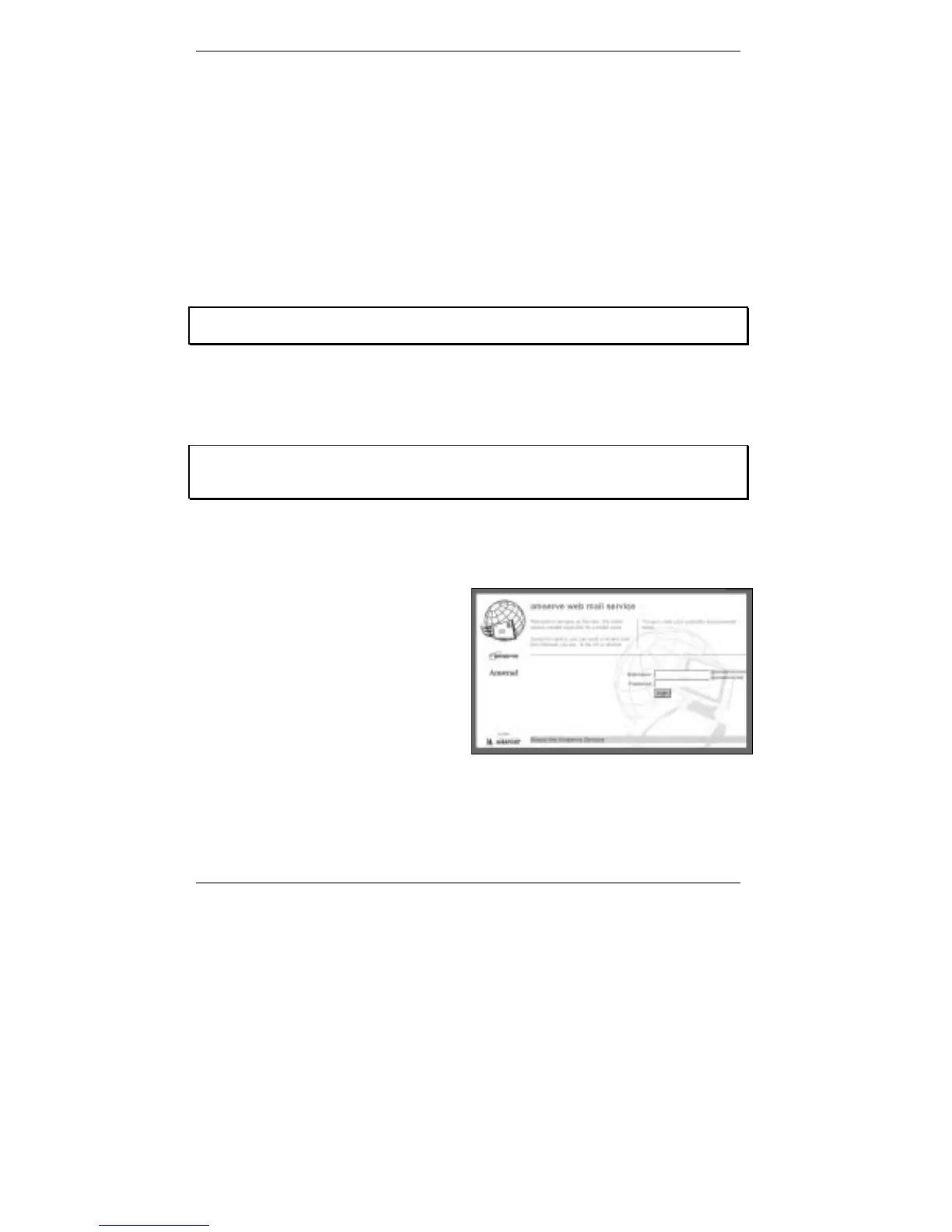
After a while you will see a 'log-in'
screen inviting you to type in your
username and password, for example
(right):
2. Click inside the username box,
then type in your username,
for example: edward.thomas
(don't type in @amserve.com).
3. Click inside the password box, then type in your password. (For secrecy, the
password will be masked, for example:
******
.)



 To Next Page