Text messages
- 77 -
Sending an MMS (text/picture/voice) message
➣
FAST TRACK: Press MOBILE MSG, 2, type in mobile phone number and
message, add picture and/or voice attachment(s), press MOBILE MSG to
send.
If you intend to add a picture and/or voice attachment, ensure that the mobile
phone you’re sending to is equipped with picture/voice messaging.
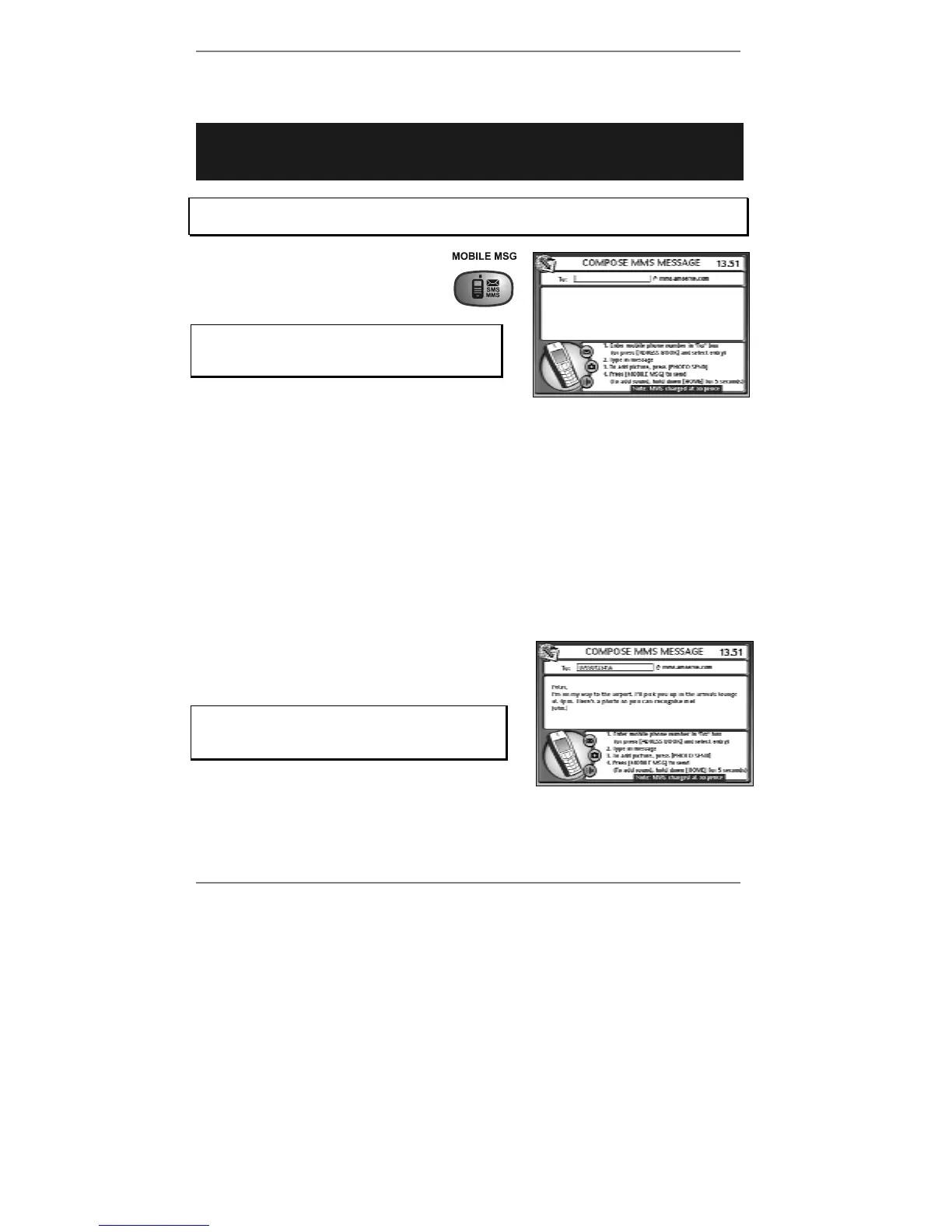
1. Press MOBILE MSG then
press 2 to start composing the
message (see example right):
If you've set up two or more email users,
then before you receive this display you'll
be asked to select a user.
Note the cursor
| is in the To: box.
The cost of your SMS/MMS message is indicated at the bottom of the
COMPOSE MMS MESSAGE screen. Note, the price will vary depending on
the length of your message and whether you add a picture and/or voice
attachment.
2. Using the keyboard (not the number buttons on the phone), type in the mobile
phone number you wish to send this message to (or see note* below).
& *Note – to send the message to a mobile phone number you've previously
stored, press ADDRESS BOOK, start typing in the name, then use
U D and
press ENTER to insert the required mobile phone number in the To: box.
3. Move the cursor down to the message area of
the display, then type in the message (see
example right):
Note, if the message is longer than 160
characters, the price may increase. Always
check the bottom line of the display.



 To Next Page