74
MENU | SERVICE
4.4.2. SOFTWARE
UPGRADE
MIXER FIRMWARE UPGRADE
must connect the OXYGEN to the internet. To do this using the DHCP or static IP address, go to:
MENU / GENERAL SET. / COMMUNICATIONS / TCP-IP / ADDRESS-1 or 2 / DHCP [MORE INFO ]
Active it by selecting (ON) or setting the static IP that is given by your IT MAN. then go to
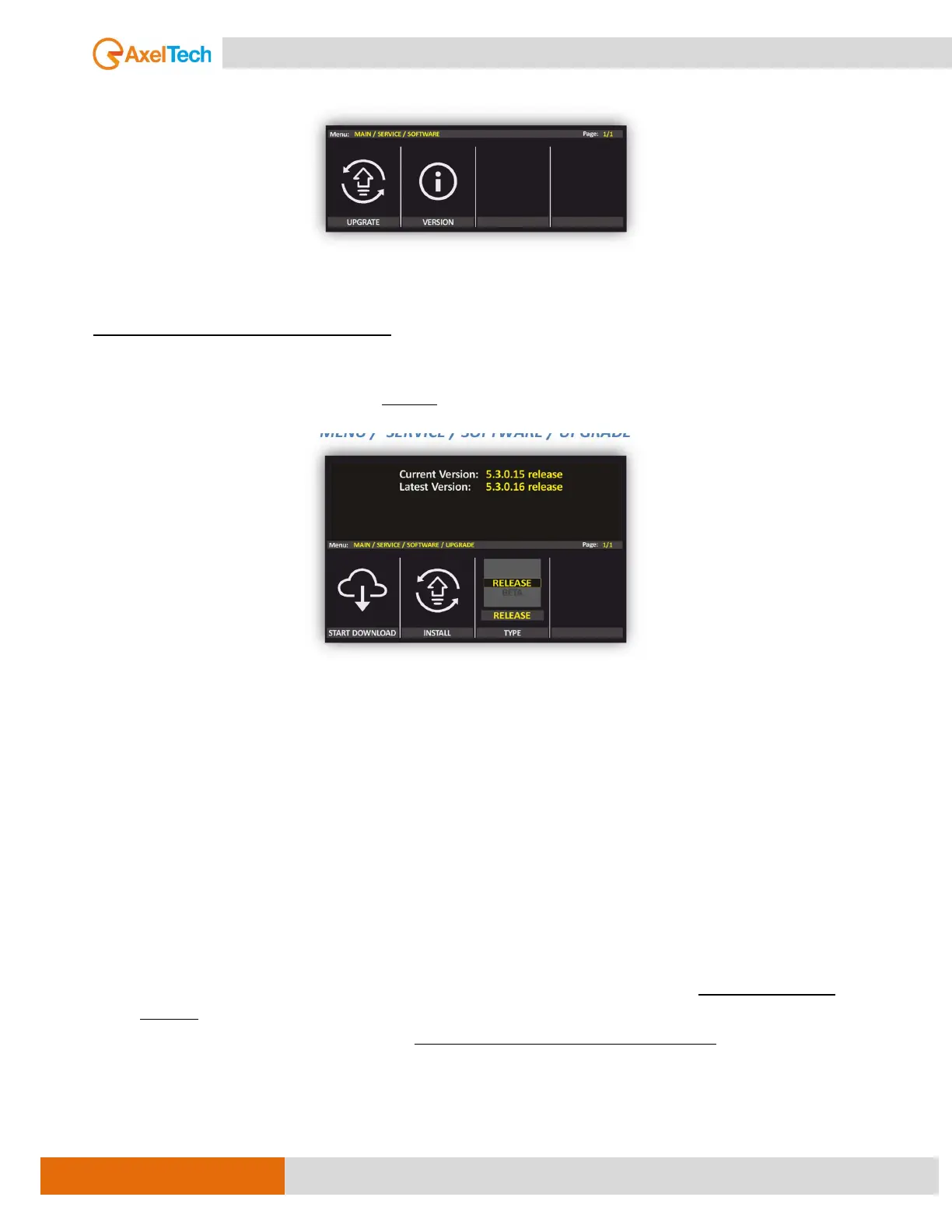
MENU / SERVICE / SOFTWARE / UPGRADE
START DOWNLOAD: By pushing the knob of it, will start downloading the latest version available on the
internet and it will show up the percentage of the processing.
INSTAL: When the download of the new version is done will see the message “Upgrade is ready, install
when ready”. at this point, the icon of install will show in white color to indicate that is active,
then you can push the knob to start installing the new version.
TYPE: By switching between RELEASE and BETA can know the latest version available and in the upper
part of the display show up the number of the version.
UPGRADING PROCEDURE
1. Press the first knob (start download) to download the latest version.
2. When it is finished downloading, just click on the INSTALL knob to start the updating process.
ATTENTION:
- You have to wait until the system will finish the Upgrade. The system requires more or less than 6
minutes. DO NOT PROCEED WHEN THE MIXER IS ON-AIR.
- At the end of the upgrade, the system will ask to REBOOT from the power switch. Oxygen firmware
is upgraded.
- If the process is not completed correctly and the OXYGEN is not ready for operation, you should
contact the customer support department of AXEL TECHNOLOGY.


 To Next Page