Starting the cytometer and computer
Introduction
This topic describes how to start the cytometer and turn on the computer.
Note: If your system is using the FFSS, make sure that the FFSS is powered on before the cytometer.
Procedure
To start the cytometer:
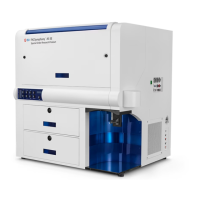
1. Turn on the power to the flow cytometer.
2. Turn on the computer and log in to Windows.
Note: You can turn on the power to the flow cytometer and the workstation in any order.
3. Turn on the lasers.
4. Allow 30 minutes for the optical system temperature to stabilize.
Failure to warm up and stabilize the instrument could affect sample data.
5. Start BDFACSDiva™ software by double-clicking the shortcut on the desktop, and log in to the software.
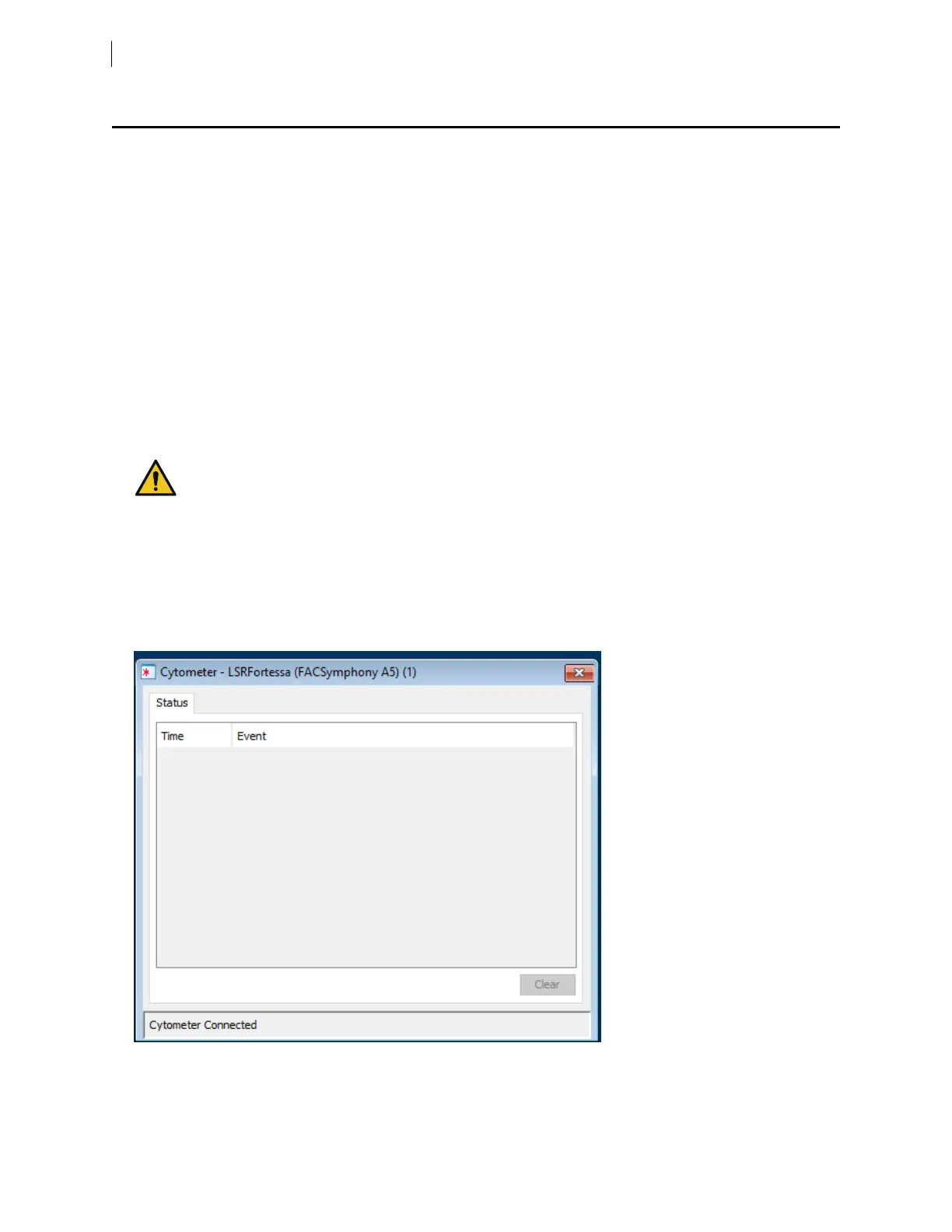
6. Check the Cytometer window in BDFACSDiva™ software to ensure that the cytometer is connected to the
workstation.
The cytometer connects automatically. While connecting, the message “Cytometer Connecting” is displayed
in the status area of the Cytometer window. When connection completes, the message changes to
“Cytometer Connected.”
If the message does not change from “Cytometer Connecting”, see Electronics troubleshooting (page 109).
24 BD FACSymphony™ A5 SE User's Guide



 To Next Page