Setting up a new spectral experiment
The following procedure references buttons on the Workspace toolbar in BDFACSDiva™. These are:
l
Browser
l
Cytometer
l
Inspector
l
Worksheet
l
Acquisition Dashboard
When you add elements or make selections in the Browser, the Inspector displays details, properties, and
options that correspond to your selection.
1. Create a new experiment and rename it:
a. Click Browser in the Workspace toolbar.
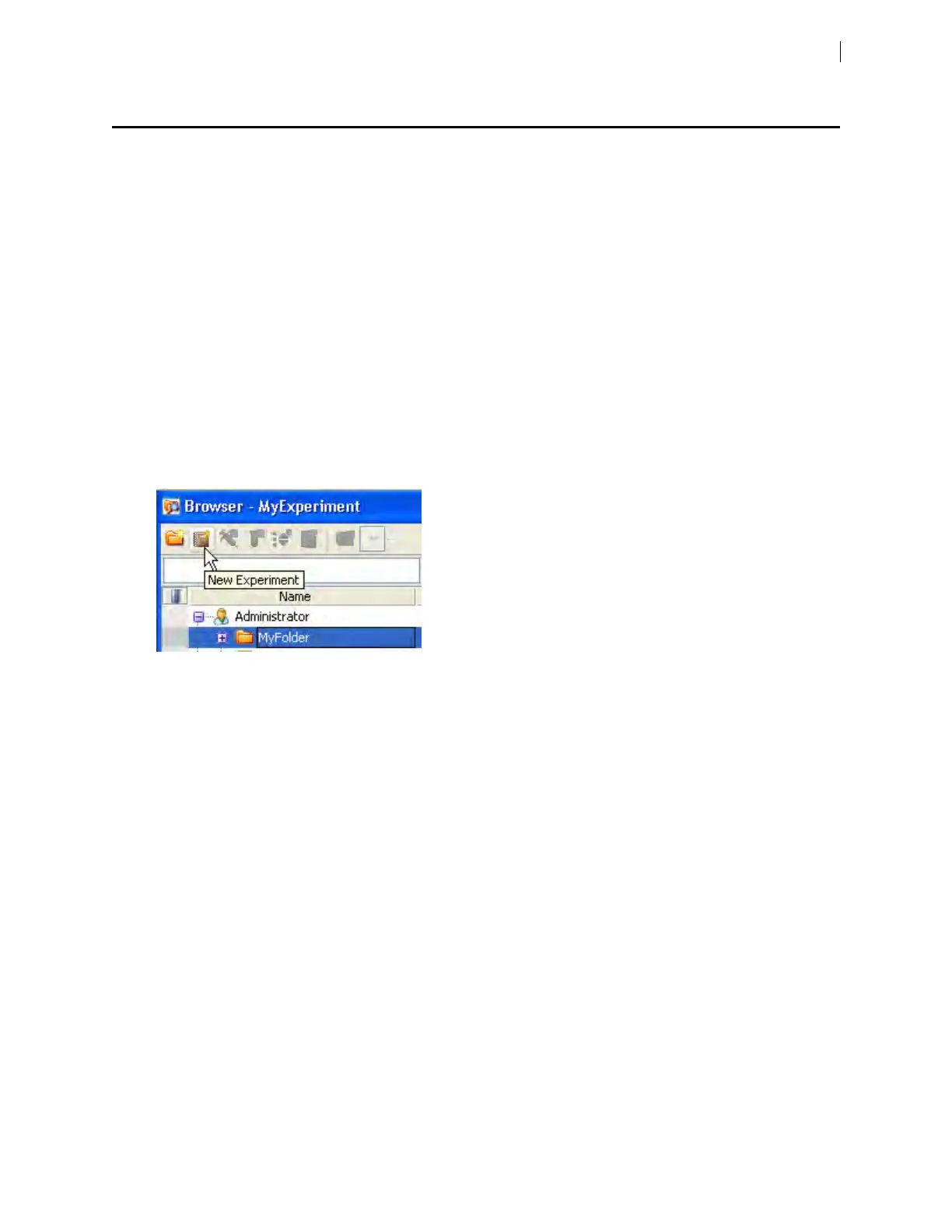
b. Click the New Folder button in the Browser toolbar.
c. Click the folder and rename it.
d. With the renamed folder still selected, click the New Experiment button on the Browser toolbar.
e. Click the new experiment entry in the Browser and rename it
2. Create a new specimen by clicking the New Specimen button on the Browser toolbar and rename it.
3. Verify that the base configuration, FACSymphony A5 SEDefault Configuration, is selected as described in
Verifying the configuration and user preferences (page 69).
Chapter 5 Spectral functions 57



 To Next Page