9-14
TotalAlert Innity™ HTM Medical Gas Notication System
4107 9016 60.01
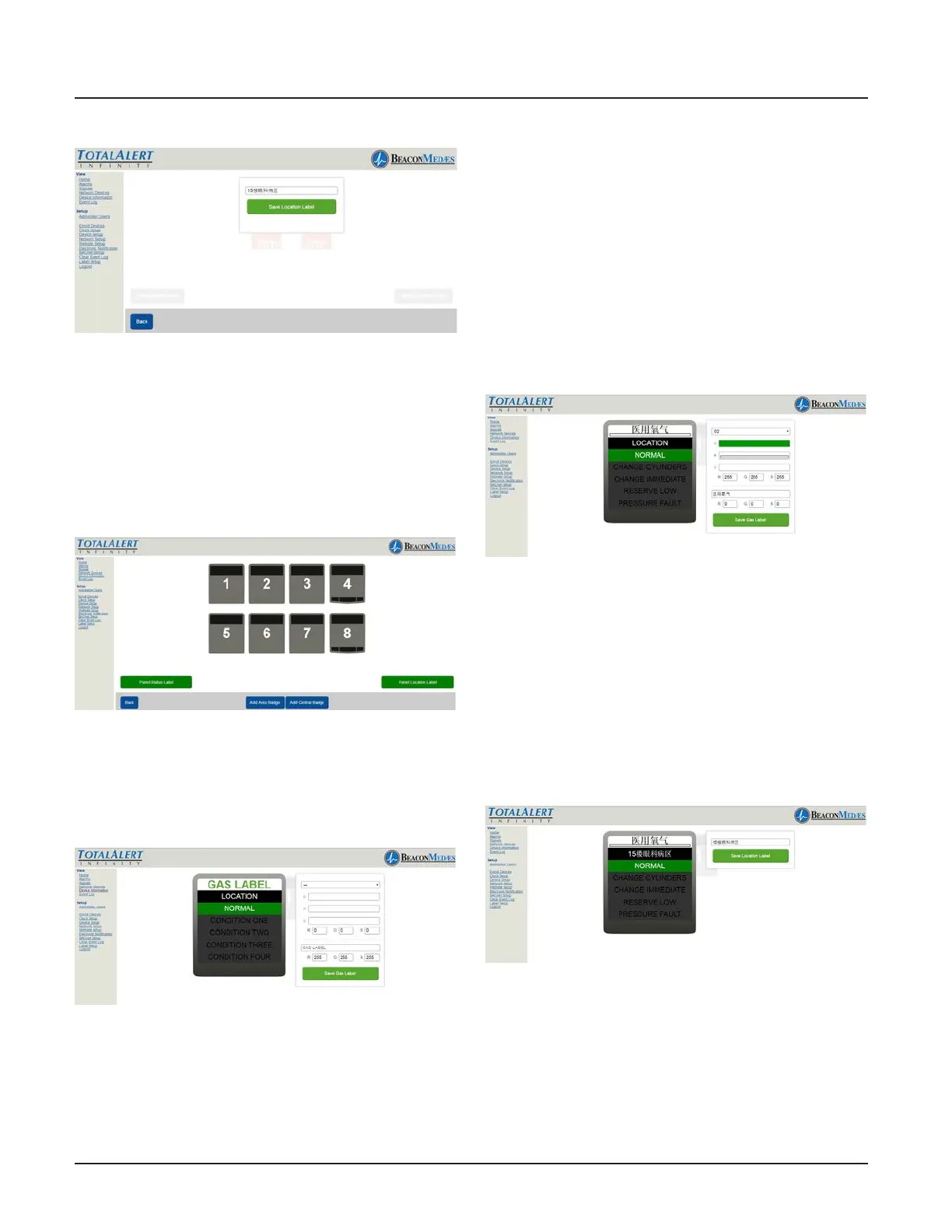
Figure 287
5. To setup the Central badge select the
source badge number 1. (See Figure 288)
Use the “Add Area Badge” or “Add Central
Badge” for the correct number of central
and area badges to match the alarm display
needed.
Figure 288
6. From home screen, Click on the central
badge to setup non-latin language param-
eters. (See Figure 289)
Figure 289
7. Starting at the top of the Central Badge
parmeter box, select gas type from pull
down menu (Gas color options will be up-
dated by default). Then select the Gas color,
based from the required standard (NFPA,
HTM, ISO). Custom colors can also be added
by entering the RGB numbers.
The non-latin language input eld (located
at the bottom of the parameter tab) de-
faults in English with the gas previously se-
lected. Enter the non-latin language in this
eld. The badge will update with the new
input on the website page. (See Figure 290)
8. To save, select “Save Gas Label” button.
Figure 290
9. To setup location of gas monitored,
select Location tab on badge (located just
under the gas label). Enter non-latin lan-
guage characters for the location of gas
being monitored. (See Figure 291)
10. To save, select “Save Location Label”
button.
Figure 290
11. To enter a non-latin language for the
meaning of the word “NORMAL” pertain-
ing to alarm condition, select Normal tab
on badge (located just under location tab).


 To Next Page