932 655 638 2014-02-14| Beissbarth GmbH
36 | MT 788 | Operationen
7. Operation
i After switching on the MT 788 the software version
appears on the displays of the control/display panel
for a few seconds. The two displays then show the
value
0.
7.1 Control/display panel
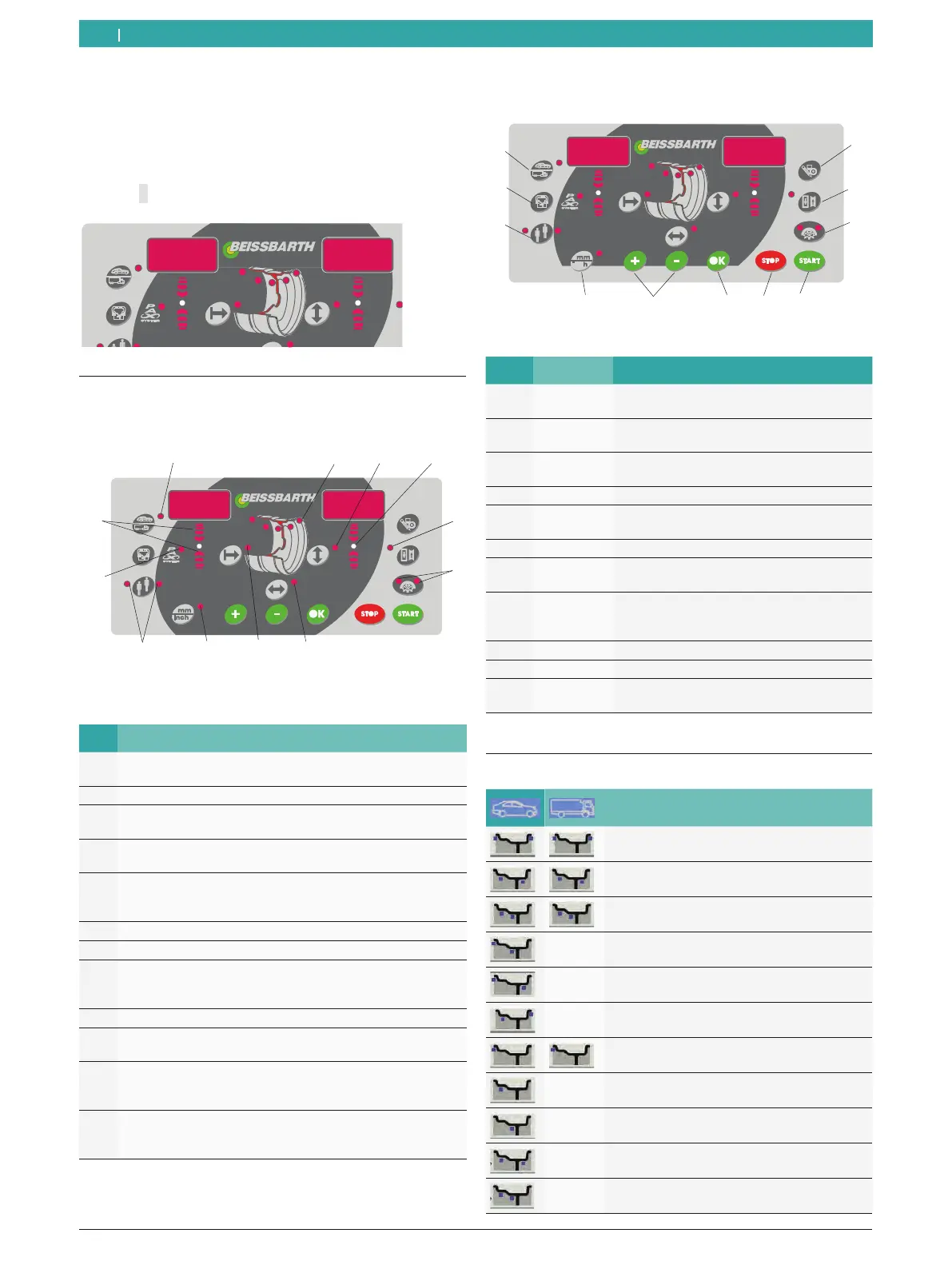
7.1.1 Overview of LEDs
10
11
651009-04 _Cv
Fig. 4: LEDs on control/display panel
Item Description
1 Display of active (selected) balancing program and
balancing positions (refer to Section 7.2)
2 Rim diameter display
3 Balancing location display,
lights in green on attaining balancing position
4 Matching program display, lights when matching pro-
gram is active
5 Split program and matching program display, lights if
programs are active (refer to Section 8.4.2/ and
Section 9)
6 Rim width display
7 Display of distance from MT 788
8 Display of unit for rim width and rim diameter
lit = mm
not lit = inch
9 Operator selection display
10 Balancing program display,
lights if pax program selected
11 Display of direction to be turned for balancing position
up = turn clockwise
down = turn counter-clockwise
12 Indicator for wheel to be balanced
lit = passenger vehicle wheel
not lit = commercial vehicle wheel
7.1.2 Control keys
1
2
3
9
10
11
651009-05_Cv
Fig. 5: Control/display panel keys
Item Key Description
1 <MENU> Performance of basic settings and confir-
mation of data input.
2 <
MAT-
CHING>
Selection of matching program (unbalan-
ce minimization).
3 <
SPLIT> Call-up and termination of program for
splitting balance weights.
4 <START> Start of measurement.
5 <STOP> End of measurement,
blocking of MT 788 in an emergency.
6 <OK> Confirmation of data input
7 <-> or <+> Alteration of values for rim distance, rim
diameter and rim width.
8 <mm/inch> Selection of unit for manual input of rim
diameter and rim width.
No function for rim distance.
9 <
Operator> Operator selection
10 <MODE> Selection of balancing program.
11 <Wheel ty-
pe>
Passenger vehicle / commercial vehicle
wheel switching
T
ab. 1: Function of keys
7.2 Balancing programs
Button
Standard program for clip-on weights
Alu1: Standard program for adhesive
weights
Alu2: Concealed adhesive weights
Alu3: Inside clip-on weights /
outside concealed adhesive weights
Alu4: Inside clip-on weights /
outside adhesive weights
Alu5: Inside adhesive weights /
outside clip-on weights
Static balancing on level 1
Static balancing on level 2
Static balancing on level 3
Pax1: (Pax rim) for adhesive weights
Pax2: (Pax rim) for concealed adhesive
weights


 To Next Page
 Loading...