Using the System
T3300 Diagnostic Ultrasound System | 44 | B00601-010 4/10/17
5.4.1 Gestures for Controlling the Real-time/Frozen Imaging Screens
5.4.2 Gestures for Controlling the Real-time Imaging Screen
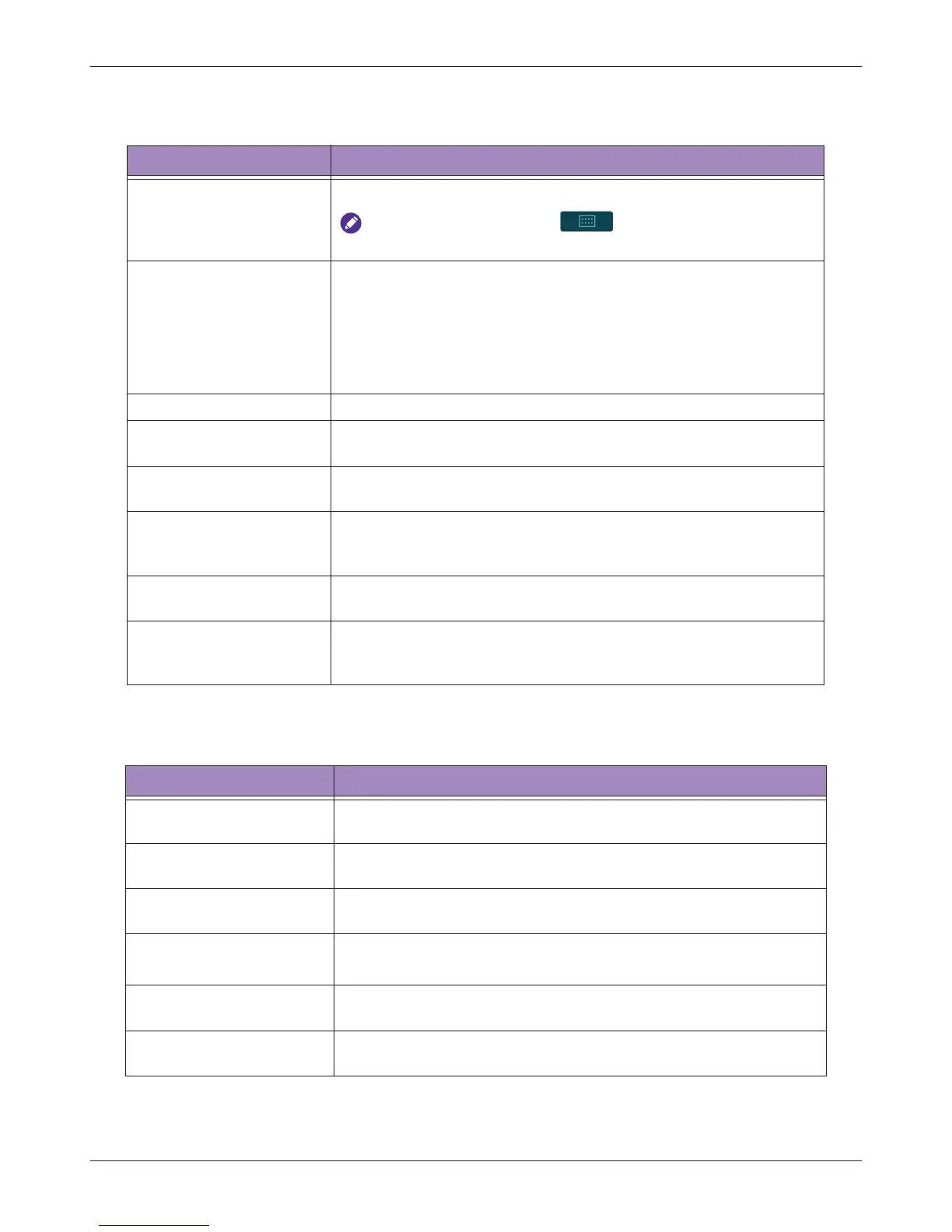
Table 2 Gestures for Controlling the Real-time/Frozen Imaging Screens
Action Gesture
Toggle between Real-time
and frozen imaging
screens
Double-tap on the scan area.
To use this gesture, go to > Settings > General >
(Enable freeze gesture) > Yes.
Save a single image/cine
loop
(Available in full screen mode only)
• Touch and hold on the scan area of the real-time/frozen imaging
screens to save a cine loop/single image.
• On the frozen imaging screen, two-finger tap on the scan area to
play an image loop, then touch and hold on the scan area to
save the image loop.
Zoom/unzoom Spread two fingers apart/pinch two fingers together.
Move the zoomed image
Touch and hold the zoomed image until the navigation button
appear, then drag to move the image.
Move and resize ROI
Touch inside the ROI and drag to move it. Touch on the four corners
of the ROI and drag to resize it.
Move the BDMK/
annotatioN/Arrow
indicators
Touch and hold the indicator, and drag to move it.
Scroll the thumbnail list
Flick vertically on the thumbnail area to scroll through the thumbnail
list.
Display the second control
panel page/Return to the
first control panel page
On the control panel area, flick up to display the next page, flick
down to return to the previous page (See "Switching the Control
Panel Pages" on page 52).
Table 3 Gestures for Controlling the Real-time Imaging Screen
Action Gesture
Adjust depth
Flick vertically on the scan area to increase (flick down) or decrease
(flick up) depth.
Adjust gain
Flick horizontally on the scan area/time series window to increase
(flick right) or decrease gain (flick left).
Adjust the sample volume
size
1. Touch and hold one finger on the Spectral Doppler cursor.
2. Flick another finger up or down.
Move the Spectral Doppler
cursor/sample volume
• Touch the Spectral Doppler cursor and drag it horizontally.
• Touch the sample volume and drag it vertically.
Adjust the PW/CW
correction angle
1. Touch and hold one finger on the Spectral Doppler cursor.
2. Flick another finger to the left or right.
Adjust the PW/CW baseline
1. Touch and hold on the baseline.
2. Flick vertically to change the baseline position.


 To Next Page