Performing an Exam
T3300 Diagnostic Ultrasound System | 63 | B00601-010 4/10/17
6.7.1 Enlarging an Area of the Image
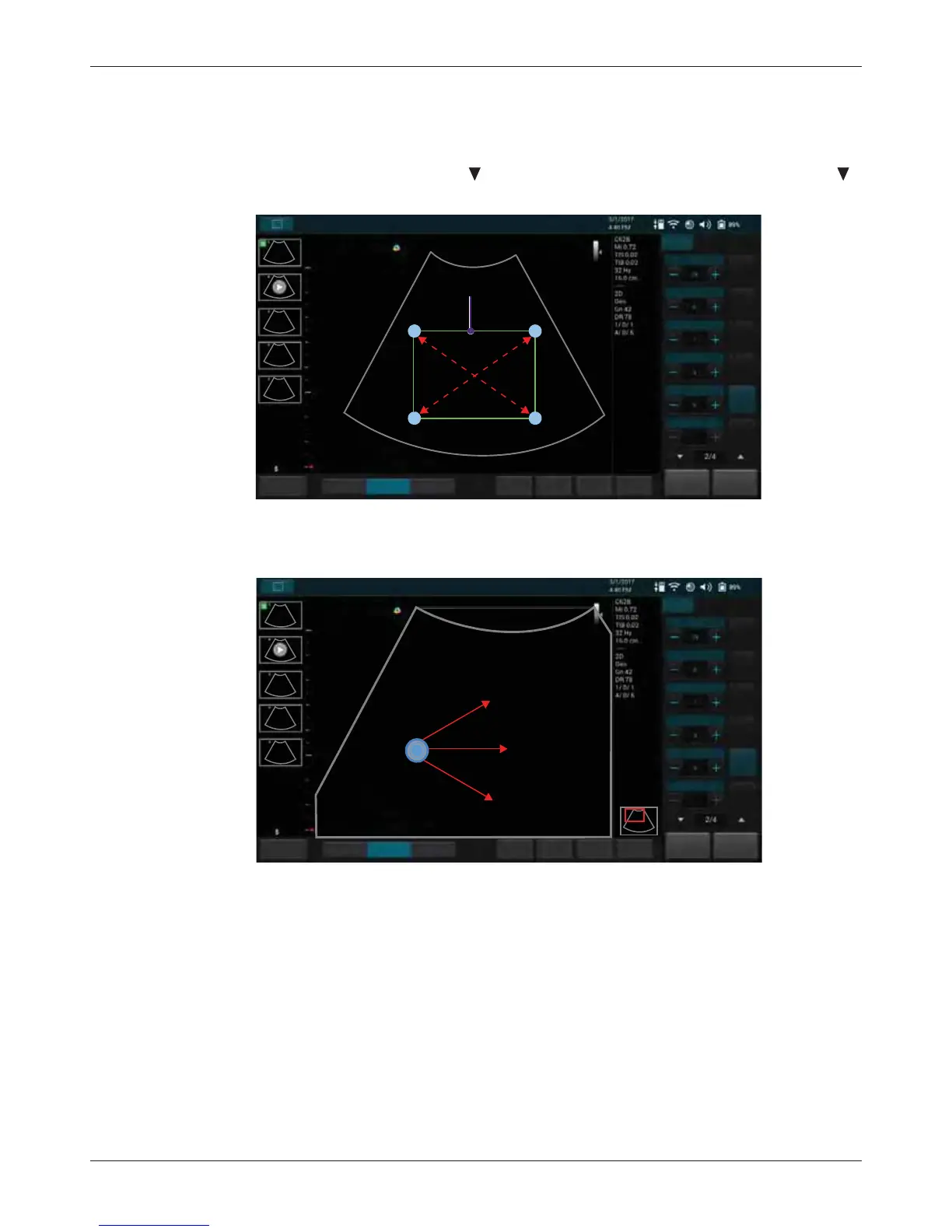
To further examine the anatomy by enlarging a region of the image (real-time or frozen), use the
zoom function.
1. On the real-time imaging screen, touch > Zoom, or on the frozen imaging screen, touch >
Zoom. The ROI (Region of Interest) box appears on the center of the image.
Touch and drag inside of the ROI box to move it to the area to enlarge. Touch on any of the box’s
four corners and drag to resize the ROI box.
2. Touch anywhere outside the ROI box to enlarge the selected area.
3. To move the enlarged area, touch and hold anywhere on the image until the navigation button
appear, then drag to move it.
6.7.2 Splitting the Imaging Screen
The system allows splitting the imaging screen into two sections to view two current scans for a
patient. You can acquire one scan for the patient, enable dual screen, then acquire another scan
from a different angle, location or with a different scan mode. This function is only available in B,
B+Color and B+Power modes.
6.7.2.1 When in B-Mode:
On the real-time imaging screen, touch Dual. The system immediately freezes the current scan, and
copies the current settings for the image to the second screen. Two yellow bars will be added to the
End Exam
Penetration General Resolution
Freeze
Save
Fn Key Tuning
TGC
Home
B
Dyn Range
Persist
QScan
Gray Map
Chroma
Dual
Toggle
L/R
U/D
Steering
Abdomen
Zoom
Density
High
ROI box
End Exam
Penetration General Resolution
FreezeSave
Fn Key Tuning TGC Home
B
Dyn Range
Persist
QScan
Gray Map
Chroma
Dual
Toggle
L/R
U/D
Steering
Zoom
Density
High
Abdomen
Zoom View :3.3X


 To Next Page