Performing an Exam
T3300 Diagnostic Ultrasound System | 61 | B00601-010 4/10/17
You can directly use the optimized presets, or adjust any of the image control settings as necessary
for the specific patient and the specific exam.
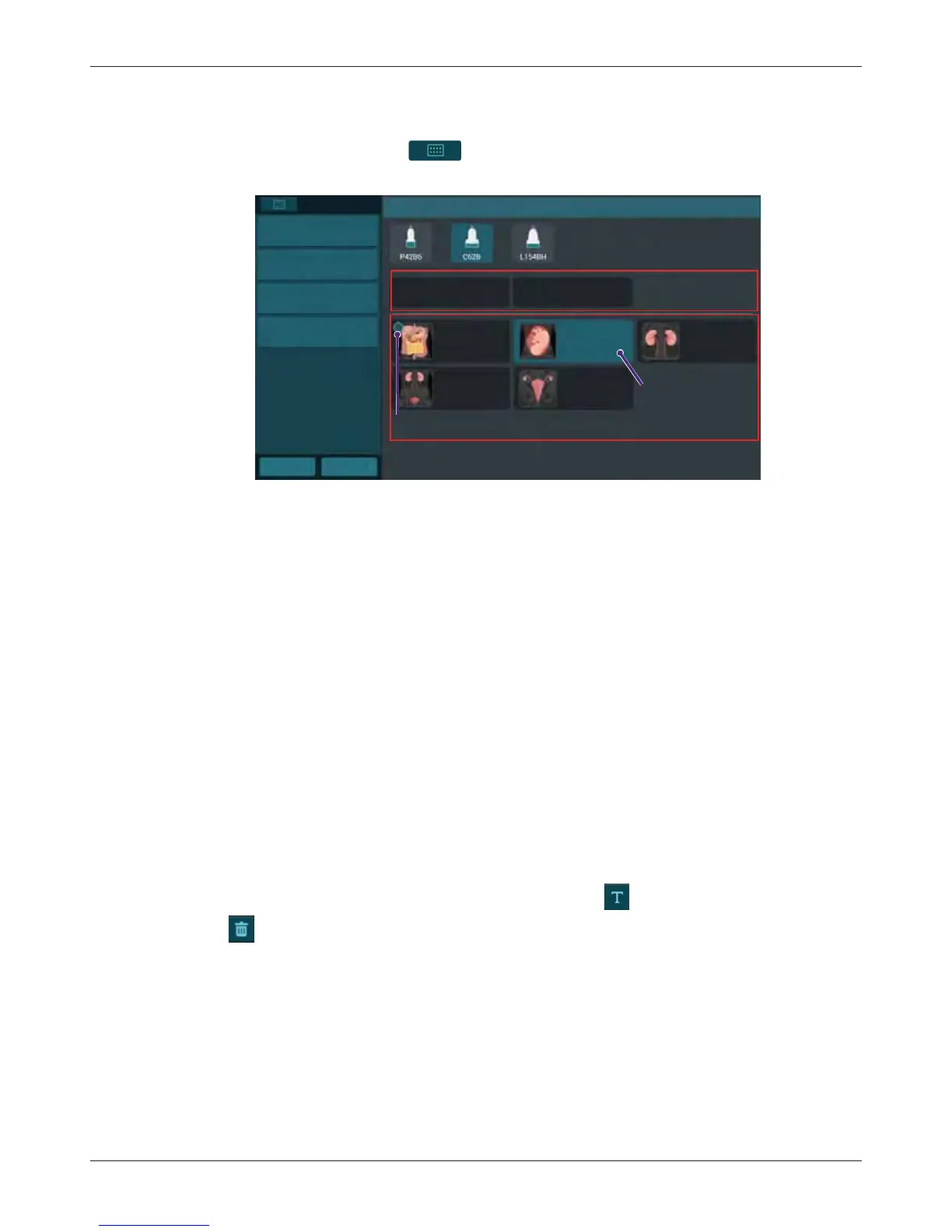
1. On the imaging screen, touch > Preset. All the available presets compatible with the
connected transducer display on the Preset screen.
2. Touch the preset to scan, and you will be redirected automatically to the real-time imaging
screen.
6.4.1 Customizing a Preset
1. On the Preset screen, touch Create New.
2. Enter a name for the customized (currently used) preset and touch Save.
6.4.2 Modifying a Preset
If you have modified the parameters of an existing customized preset, go to the Preset screen and
touch Modify Current to save changes.
6.4.3 Managing Presets
1. On the Preset screen, touch Management.
• Touch Move, and drag to re-arrange the order of the presets.
• To set a frequently used preset as default, touch Set default > the desired preset.
• To hide an unwanted predefined preset, touch Hide & Show and touch Off on the preset.
• To further edit customized presets, touch Edit and touch on the preset to edit its name;
touch on the unwanted preset to delete it.
2. Touch Save to save changes.
6.4.4 Exporting and Importing Customized Presets
On the Preset screen, touch Export/Import to export/import customized presets to/from your
external storage.
GYN
Preset
Select Preset
Create New
Management
Export
Import
Abdomen OB Renal
Urology
Custom1 Custom2
Home
Previous
Default preset
Currently used preset
Predefined presets
Customized presets


 To Next Page