Using the System
T3300 Diagnostic Ultrasound System | 56 | B00601-010 4/10/17
3. Enter the IP Address, Port and AE Title specified by your network administrator in the
respective fields.
4. To test the server connection, touch Test in the Echo Test section. A verification message
confirms a successful connection within a few seconds.
NOTES
• To start exams by loading patient information in a worklist, you need to configure the worklist
SCP first.
• Consult your network administrator about the appropriate settings.
5.11.2 Local Host
In the Local Host section, touch Edit.
The system’s default Name and IP Address, if connected successfully to the network, display in the
respective fields.
In the AE Title field, enter the application entity title of your system, which identifies you as the
sender and must be unique on its network.
Consult your network administrator about the appropriate settings.
5.11.3 Managing Outgoing Queue
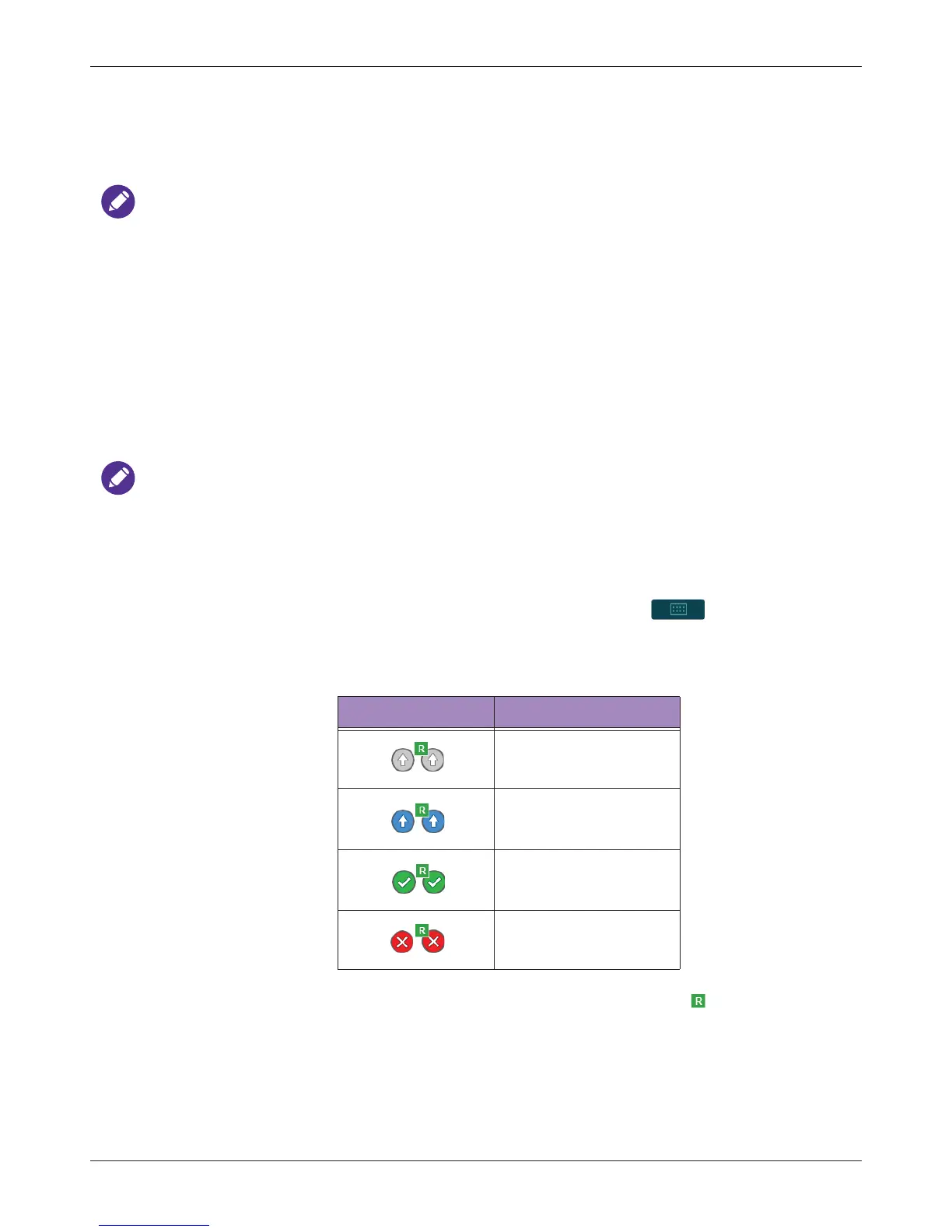
When you export an exam or an image/video to the DICOM server, you can monitor its status on the
upper right side of the imaging screen or in the outgoing queue (from > Settings > DICOM
>(Outgoing Queue) > Edit). The system provides three ways of exporting the exam. For more
information, see "Exporting the Exam" on page 75.
*If you export the report to the DICOM server, the task status icon includes .
In the Outgoing Queue section, touch Edit.
• To re-send the task to the DICOM server, touch Retry.
• To cancel the ongoing task, touch Stop.
• To clear all tasks from the outgoing queue, touch Clear all history.
Table 11 Task status
Task status icon* Description
Upload is pending.
Upload is processing.
Upload is complete.
Upload failed.


 To Next Page