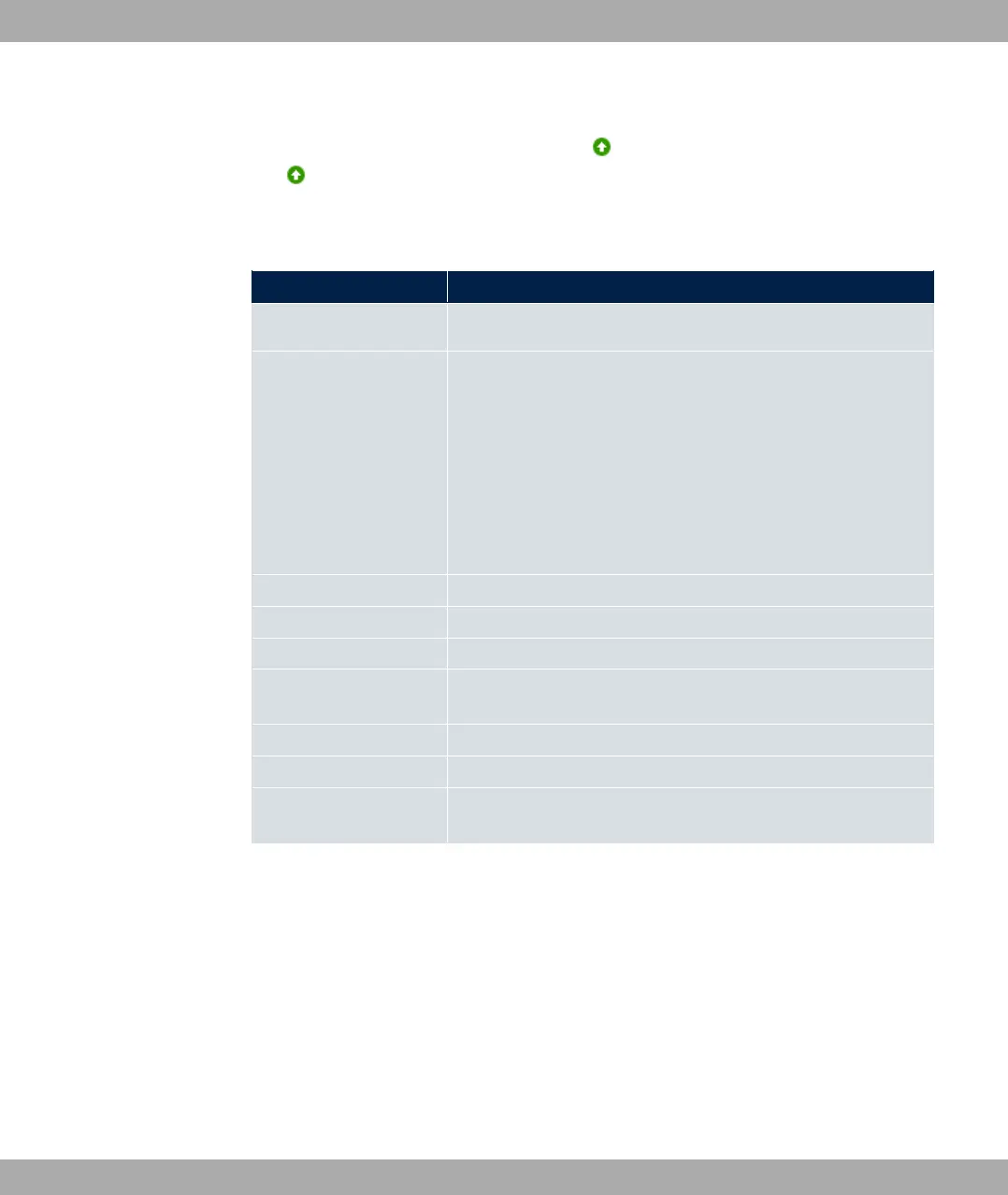
list. In the Action column, click Select to connect the local clients with this client. If the
partners are connected with one another, the icon appears in the Connected column.
The icon appears in the Connected column if the connection is active.
The Wireless LAN->WLAN->Client Link->Scan menu consists of the following fields:
Fields in the Scan menu.
Field Description
Client Link Description Displays the name of the client link you configured.
Action Start the scan by clicking on Scan.
If the antennas are installed correctly on both sides and LOS is
free, the client finds available clients and displays them in the
following list.
If the partner client cannot be found, check the line of sight and
the antenna installation. Then carry out the Scan. The partner
should then be found.
AP MAC Address Shows the MAC address of the remote client.
Network Name (SSID) Displays the name of the remote client.
Channel Shows the Channel used.
Mode Shows the security mode (encryption and authentication) for the
wireless network.
Signal Displays the signal strength of the detected client link in dBm.
Connected Displays the status of the link on your client.
Action You can change the status of the client link. The available ac-
tions are displayed in this field.
10.2 Administration
The Wireless LAN->Administration menu contains basic settings for operating your gate-
way as an access point (AP).
bintec elmeg GmbH
10 Wireless LAN
bintec RS Series 199


 To Next Page