102 Biodex Medical Systems, Inc. © 2017
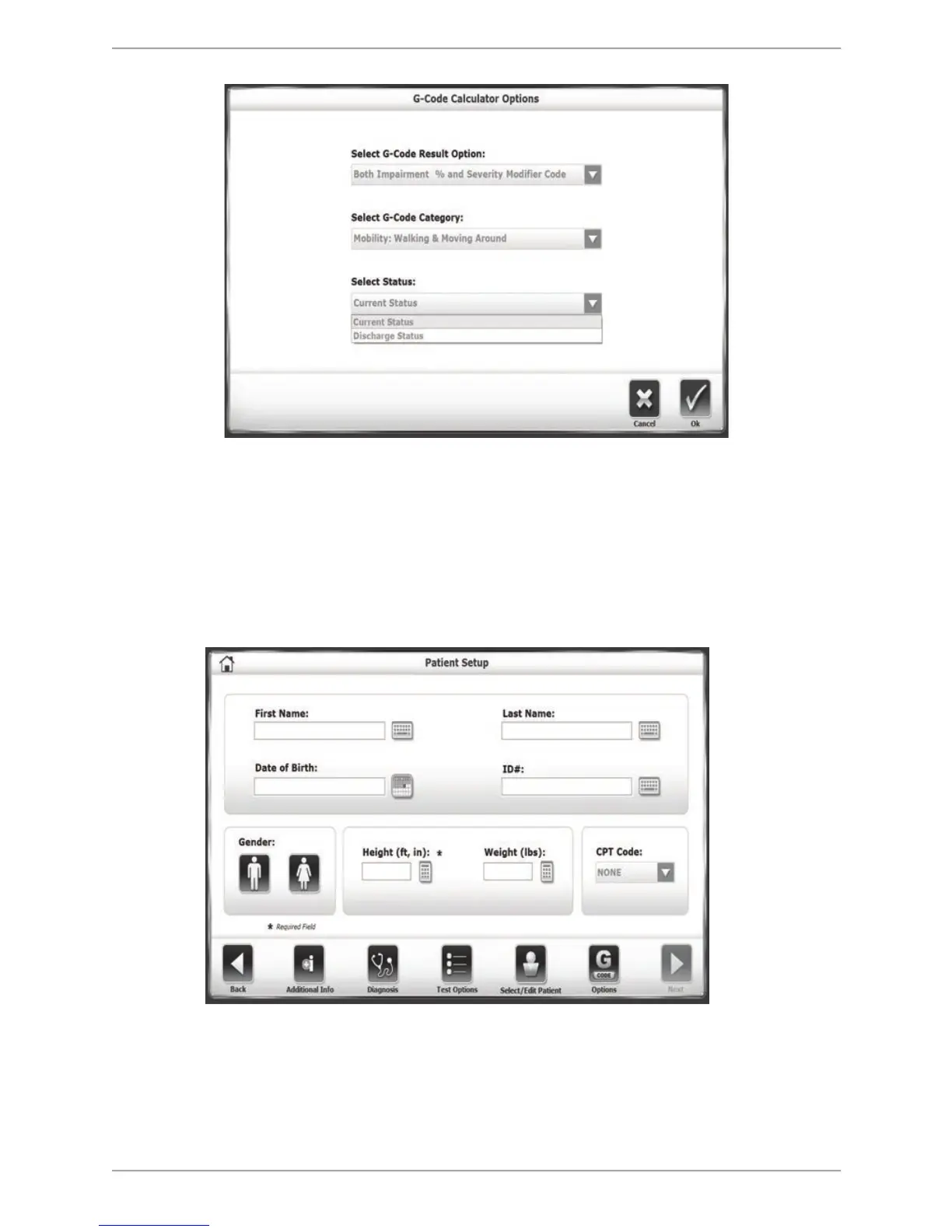
Figure 10.4. The G-Code Calculator Options screen--Status.
6. The Status drop-down menu relates to the patient’s treatment timeline. If this is the
patient’s first treatment, or one in a series of treatments, the status is set to
Current Status. If it is the last treatment, the Discharge Status is selected.
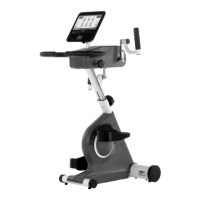
7. When a selection has been made from all three of the drop-down menus, touch
<OK> to return to the Patient Setup screen. The <G-CODE> button is green, instead
of red.
Figure 10.5. Patient Setup screen. The G-CODE button is now green in color, meaning it has been
configured.
8. After the test completes, select the test to be viewed from the Utilities> Patient
Management >Select a Patient >Select a Test path.
9. Touch <Edit> to display the stored training results for the desired test.


 To Next Page