Built-in LUTs
Your URSA Mini provides a number of built-in LUTs, that allow you to preview different looks
when shooting in 'film' dynamic range, CinemaDNG or Blackmagic RAW.
4.6K Film to Extended Video – Displays a wider dynamic range than the '4.6K Film to
Video' LUT, and applies a mild contrast change with a smooth roll off in thehighlights.
4.6K Film to Video – Similar to the REC 709 color standard for high definition video,
andhas a high level of contrast and saturation. You may find this setting useful when
using URSA Mini alongside other broadcast cameras using the REC 709 color space.
4.6K Film to Rec 2020 Hybrid Log Gamma – Displays a hybrid between REC 709 and
alog image.
4.6K Film to Rec 2020 PQ Gamma – Displays a gamma curve that is based on what we
can perceive with our eyes, for efficient encoding of HDR images.
LUTS buttons
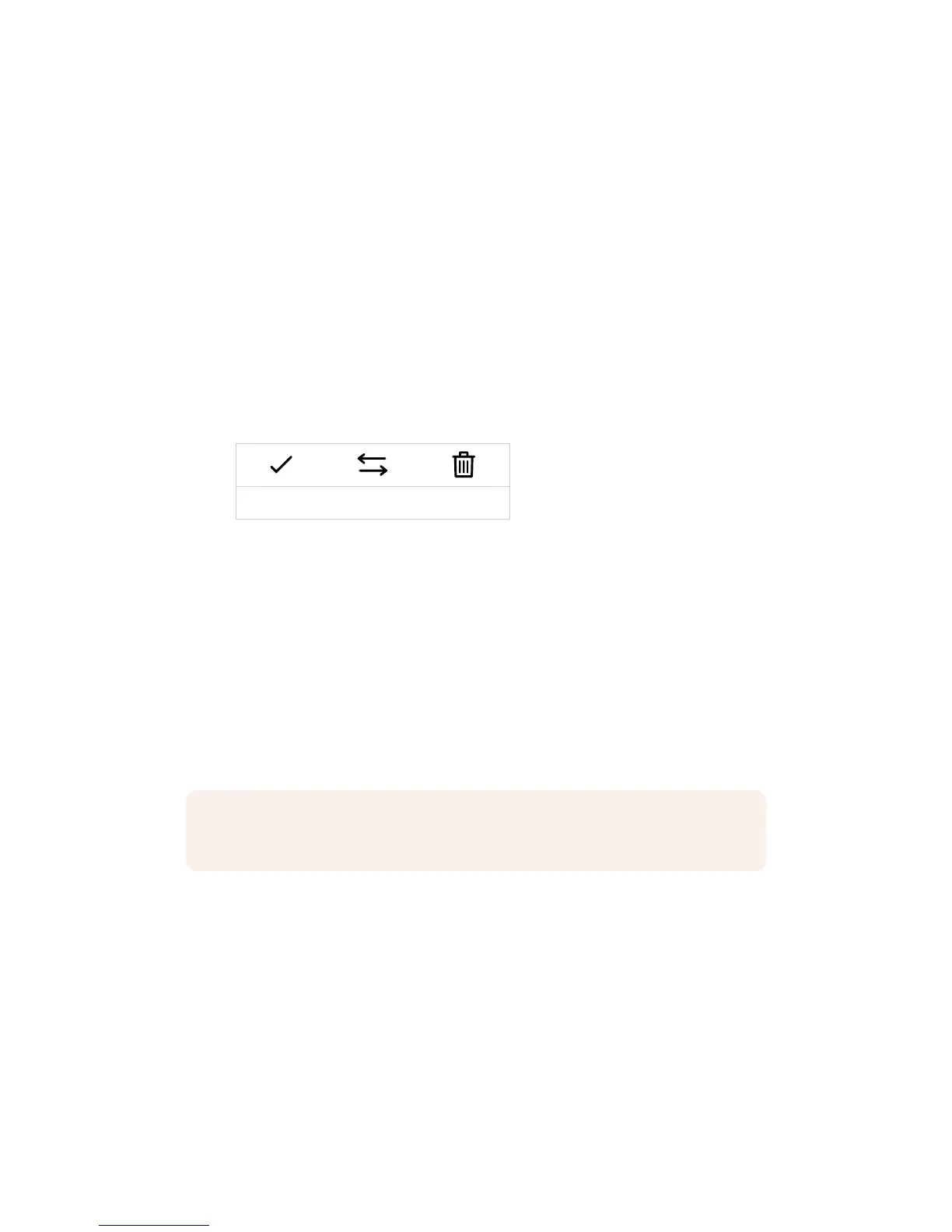
The button icons along the bottom of your URSA Mini's 'LUTS' screen correspond to the
following functions:
Load Manage Delete
Importing LUTS
To import a 3D LUT, tap the 'manage' icon at the bottom of the LUT menu, and tap 'import LUT'
to confirm.
This will bring up the import screen. On URSA Mini Pro 4.6K select either SD or CFast with the
storage media selection switch, depending on where your LUTs are saved. You can also import
LUTS stored on an SSD if you are using URSA Mini SSD recorder. Choose ‘card 1’ or ‘card 2’ at
the top left of this screen to display any available 3D LUTs on those cards.
Your URSA Mini will search the root directory and '3DLUTS' folder on your selected CFast or
SDcard. Any LUTs you have saved elsewhere will not be visible.
Tap a LUT to select it and tap 'import' to confirm your selection. The LUT will be saved to your
URSA Mini.
If the LUT you want to import has the same name as a LUT already saved to your camera,
youwill be prompted to overwrite the existing LUT or keep both. At the top right of this screen,
you’ll see the number of remaining empty LUT slots available on your camera. You will only be
able to import as many LUTs as you have free slots on your camera.
NOTE If your URSA Mini’s six 3D LUT slots are full, you will not be able to import until
you delete some existing LUTs to make space.
124Settings










 To Next Page