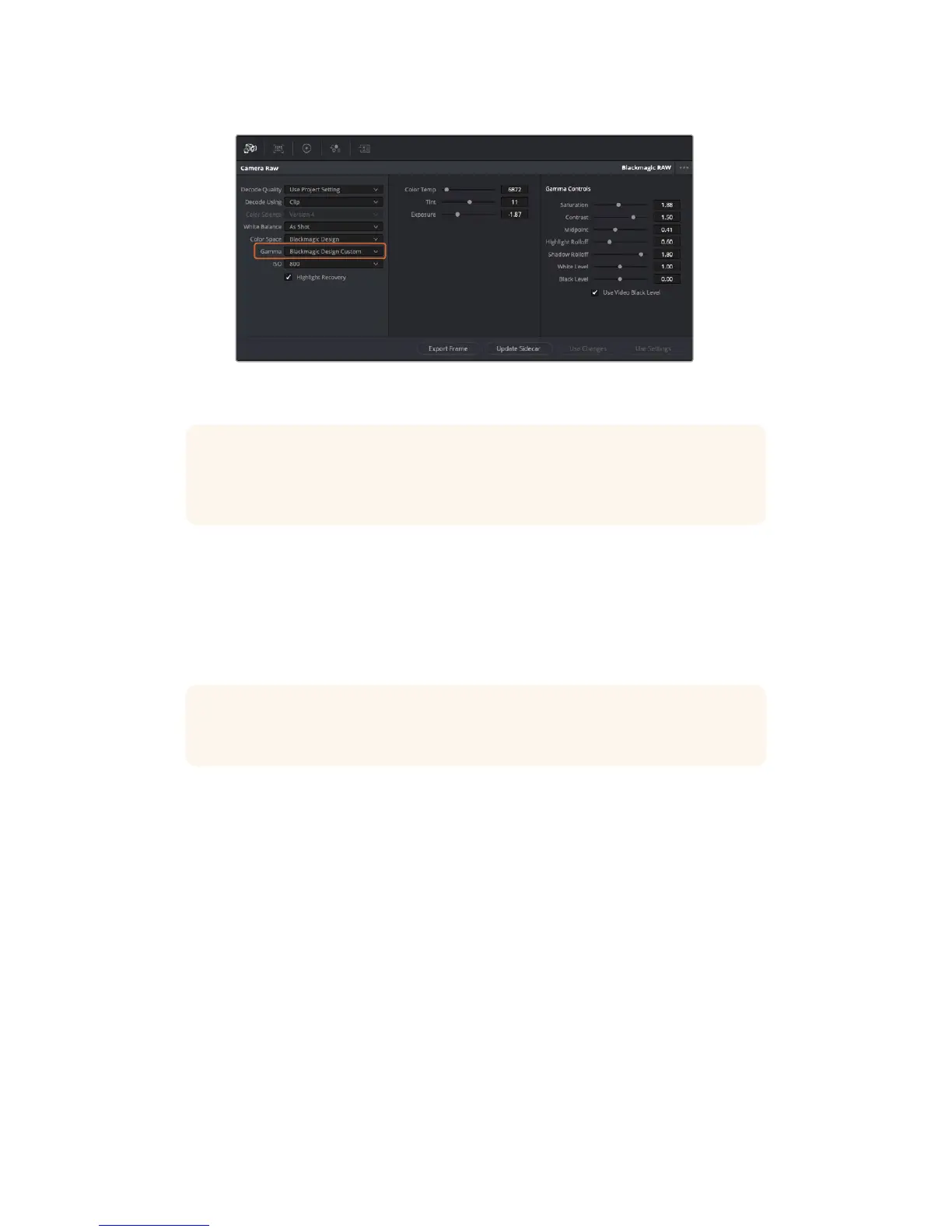
If you want to revert your clip to one of the default gamma options
available, simply select it from the gamma dropdown menu.
TIP Gamma controls are disabled for footage shot with the ‘video’ dynamic range, but
you have not lost your RAW data. Simply select Blackmagic Design Film orBlackmagic
Design Extended Video from the dropdown gamma menu and make your adjustments.
Saving your Blackmagic RAW changes
1 Adjust the gamma controls for your Blackmagic RAW clip.
2 Click the ‘update sidecar’ button.
A ‘sidecar’ file will now be created in the same folder as your .braw file. When another user
imports the Blackmagic RAW files, the sidecar files will automatically be read by DaVinci
Resolve. If you make additional adjustments, press ‘update sidecar’ again.
TIP To remove your sidecar file, you can simply delete it from its location on your
media drive.
Project RAW Settings
If you need to make a setting change that is common to all the clips, for example a global
change to the white balance or ISO setting, you can set the clips to use the project
RAWsettings and make global changes from there.
To set project RAW settings:
1 Enter the project settings menu by clicking ‘file,’ and selecting ‘project settings.’
2 In the ‘Camera RAW’ tab, you’ll see a dropdown menu next to RAW profile. Click on the
arrow to select CinemaDNG or Blackmagic RAW from the list.
3 Select ‘project’ in the ‘Decode Using’ dropdown menu.
4 Set the white balance setting to ‘custom’.
5 If you’re using Blackmagic RAW, select ‘Blackmagic Design Custom’ from the dropdown
gamma menu. For CinemaDNG, set the color space to ‘Blackmagic Design’. This will
also set the gamma setting to ‘Blackmagic Design Film’.
215Using DaVinci Resolve










 To Next Page