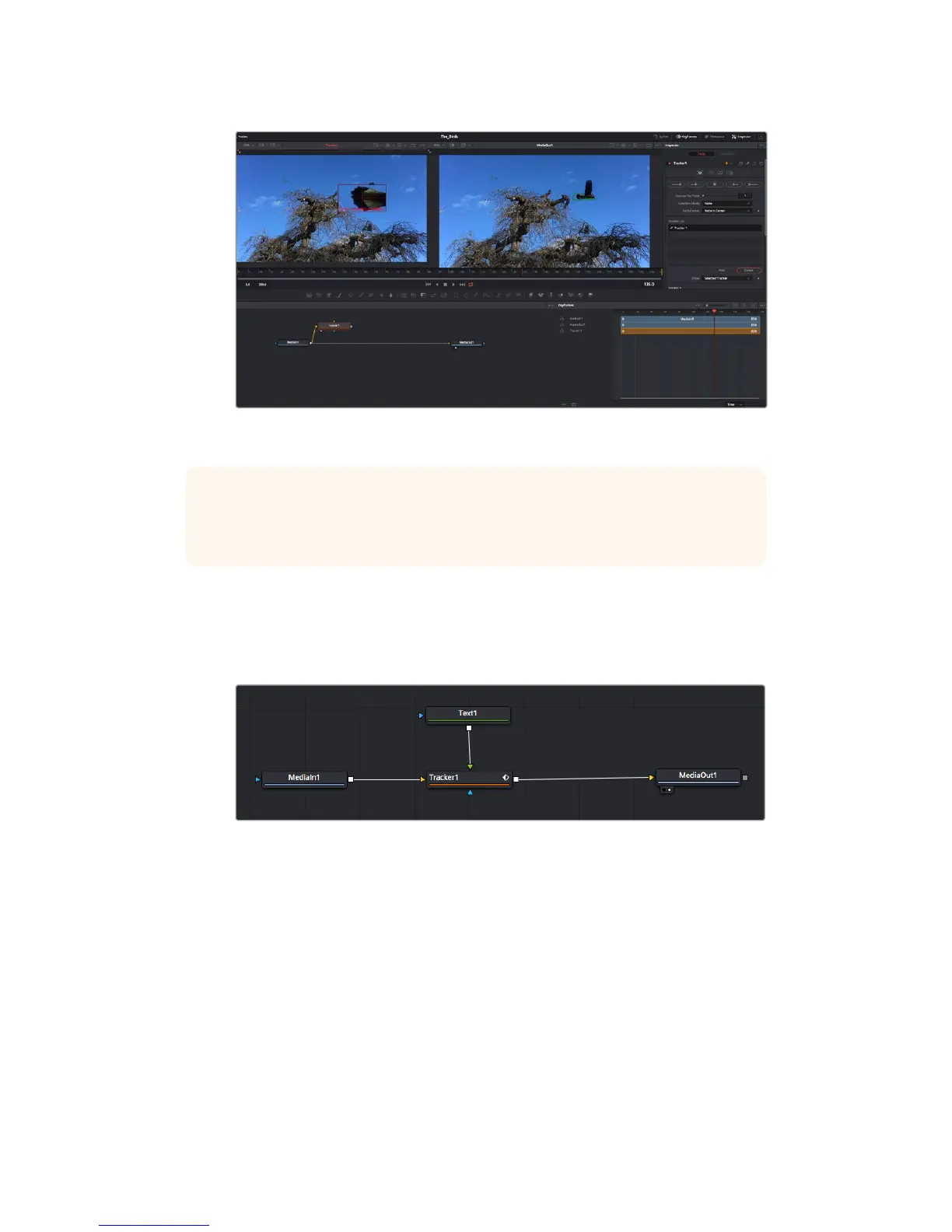
Tracking options in the inspector panel include track reverse from last frame
orcurrent frame, stop track or track forward from current frame or first frame.
TIP Track reverse or forward from current frame is great for situations where your area
of interest disappears during the render range, such as a car or bird moving out of
frame. This lets you track only the relevant footage.
Now you can take that tracking data and apply the motion path to a text tool.
1 Click on the ‘text+’ node icon from the toolbar of commonly used nodes and drag it to
the node panel near the ‘tracker’ node. Connect the ‘text’ output square to the green
foreground input on the ‘tracker’.
2 Click on the ‘tracker’ node and type ‘1’ so you can see the merged results on your left
hand viewer. In the ‘tracker’ inspector panel, click on the ‘operations’ tab. You can see
the tab’s name by hovering the mouse pointer over it. Click the dropdown menu next to
operation and select ‘match move’.
3 Click the ‘text’ node to reveal the properties in the inspector. Type your text into the
text box and change the font, color and size to suit your composition.
This will apply the tracking position data from your tracker to your text. If you want to change
the text offset, click on the ‘trackers’ tab back in the inspector panel and use the x and y offset
scroll wheels to modify the position.
239Using DaVinci Resolve










 To Next Page