CD
A
B
113
4.6 "Service" menu 4.7 "Maps" menu
4.7 "Maps" menu
Download maps onto the computer and
then install on Nyon
1. In the "Settings" menu, select the storage location
for the maps (see p. 114).
2. Select the "Maps" menu by clicking on it.
3. Click on the "Download maps from Internet" button
(A). The window for map selection opens.
4. Select the desired card and click "OK" (B).
5. Maps are now downloaded and stored at the
selected location.
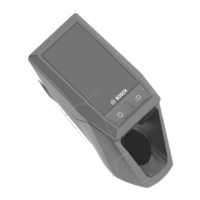
6. Connect Nyon with a computer. Nyon does not need
to be inserted in the mount.
7. Then click on the button with the green arrow (C) to
transfer the maps to Nyon. The button is only active
when at least one map is selected and sufficient
memory is available on Nyon (D) (maximum memory
for maps: 6 GB, Nyon model year 2015: 500 MB)
X The download may take considerable time
depending on the size of the map selected
and the Internet speed available. Therefore
the map material should first be downloaded
for the home region.
X When transferring the maps, all maps previ-
ously saved on Nyon are overwritten. Alterna-
tively, install maps via
WiFi. Using this
method, previously saved map material
remains available.
4
DIAGNOSTICS









 To Next Page