A
119
4.11 Remote Diagnostics 4.11 Remote Diagnostics
Starting a remote diagnostics session
1. Ensure that the Internet connection is active.
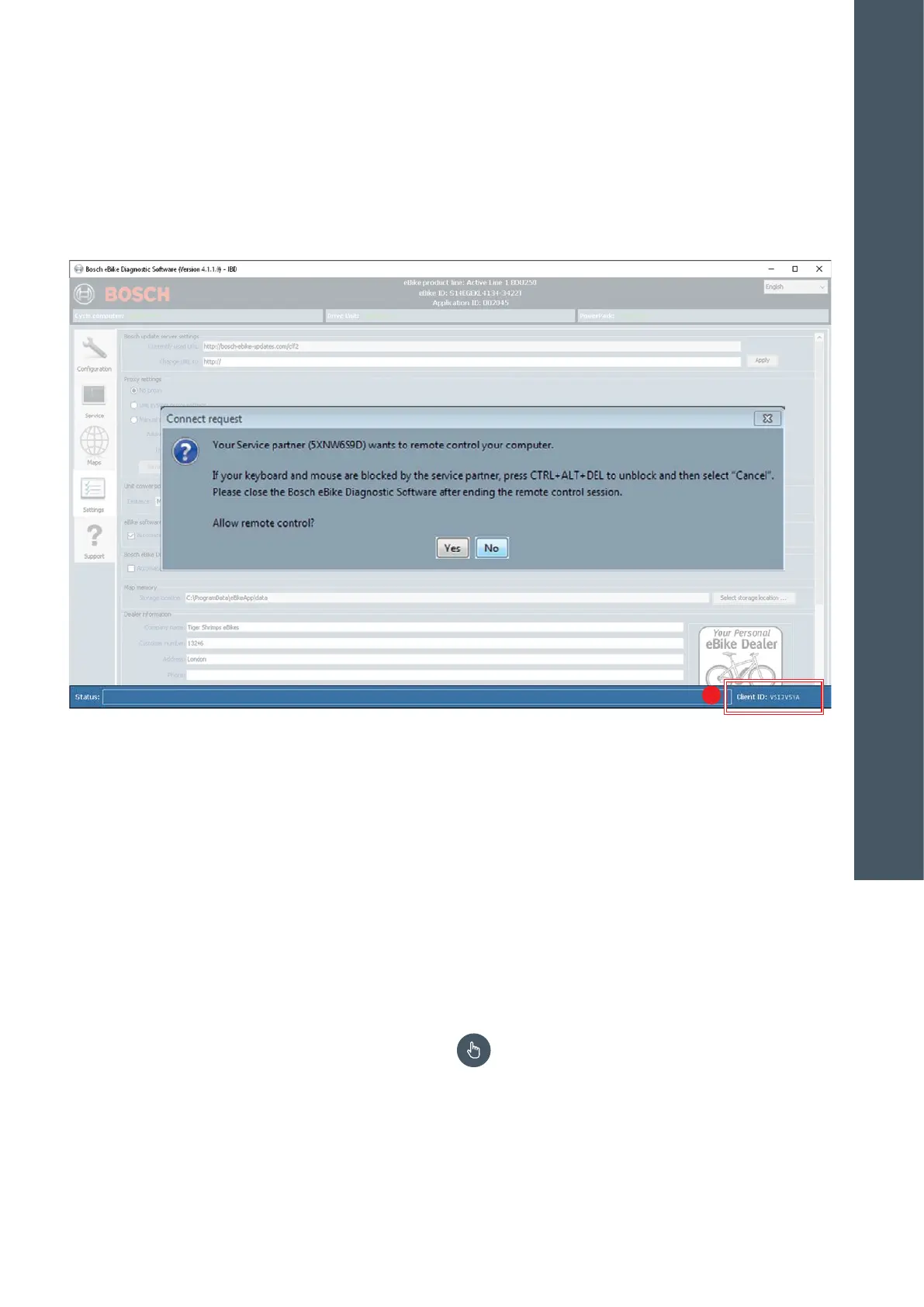
2. Check whether the personal Client ID (A) is dis-
played in the lower right of the DiagnosticTool. This
Client ID is generated every time the DiagnosticTool
is started.
If there is no Client ID available, "Not connected"
will be displayed. If this is the case, then either the
linked server is not available or the computer is not
connected to the Internet.
3. Communicate the personal Client ID via telephone
or e-mail to a Service employee.
4. The Service employee starts the remote diagnostics
session.
5. A window is displayed in which it is queried whether
permission for the remote diagnostics session is
given.
6. If the "Yes" button is clicked, then the remote diag-
nostics session can start. The Service employee can
now view the screen on the bicycle dealer's diagnos-
tics computer.
7. If needed, the bike manufacturer may also transfer
additional program authorizations. The mouse and
keyboard are temporarily disabled.
8. Disabling of the mouse and keyboard can be can-
celled by simultaneously pressing CTRL+ALT+DEL
and then "Cancel".
To completely terminate the remote diagnostics
session, close DiagnosticTool.
Do not leave the computer unattended during
the remote diagnostics session!
4
DIAGNOSTICS






 To Next Page