M610 Label Printer User Manual 92
B Using IME for Asian Text
Printers with an Asian keyboard come with an Input Method Editor (IME) for including Asian language
characters on labels. The IME converts text to one of the following languages as you type: Chinese
Simplified, Chinese Traditional, or Japanese.
To use IME:
1. In the Setup menu, make sure the font is set to the character set that you want to use: Chinese
or Japanese. (Select Chinese for either simplified Chinese or traditional Chinese.) See “Font”
on page 10.
2. After setting the font, press the Setup + Clear keys to execute a Clear All.
3. Return to the Setup menu and make sure the language is set to simplified Chinese, traditional
Chinese or Japanese. See “Language” on page 8.
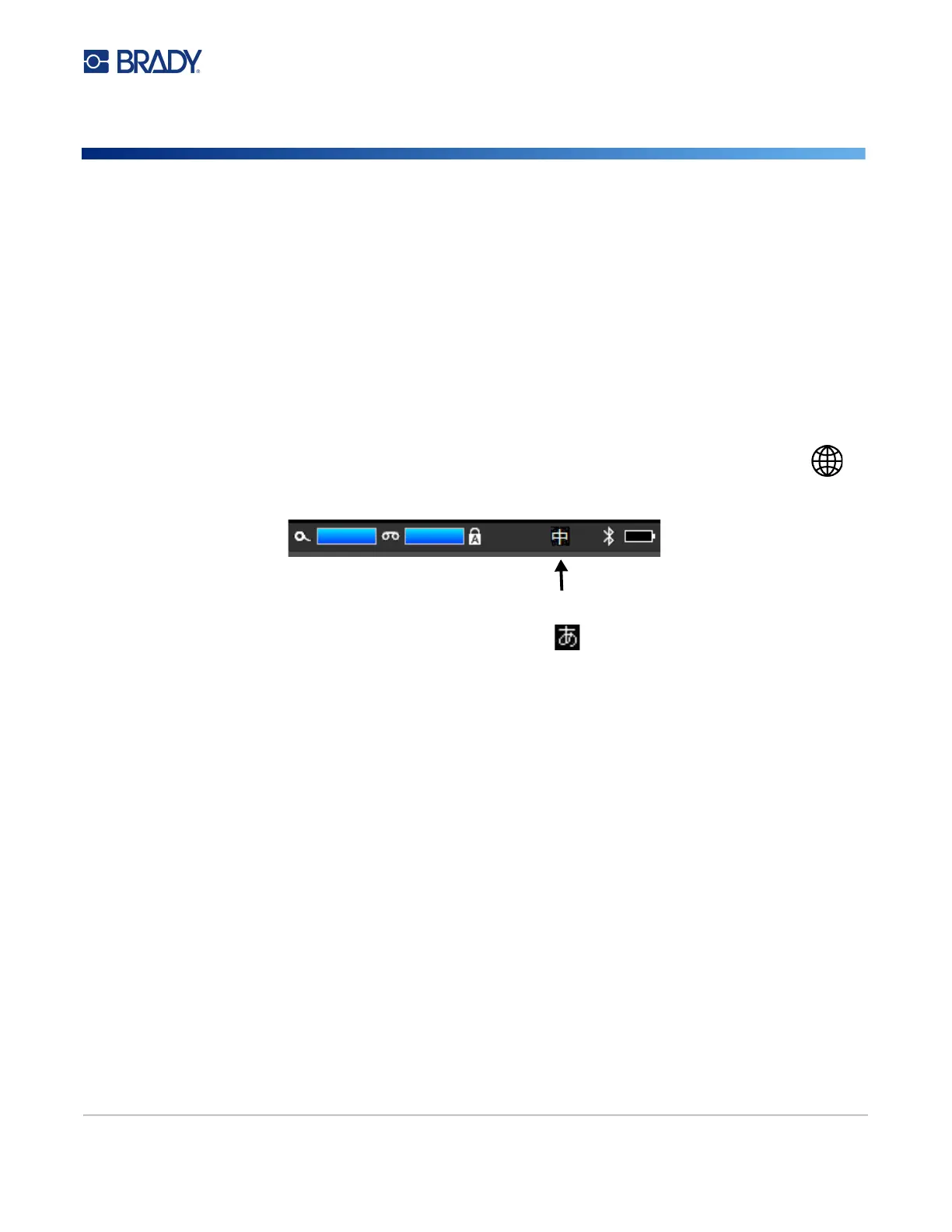
4. Check the status bar to see whether the IME is active. If it is not, press the globe key to
switch to IME. Pressing the globe key toggles between typing the Latin letters on the keyboard
and using the IME.
For Japanese, the character in the status bar is .
5. Start typing and the printer displays a list of characters to choose from. For each letter typed,
the IME predicts a set of characters based on the entered text. For frequently selected
characters, the printer "learns" the characters and moves them up the list of character options.
6. Use the arrows to see more characters. Highlight the character that you want to place on the
label and press ENTER.
IME is active for Chinese.



 To Next Page