M610 Label Printer User Manual 37
Editing Labels on the Printer
Labels and Areas
3. Enter the desired length of the label into the field.
4. Press ENTER.
Note: The minimum and maximum values for the label supply installed are shown to the left and
right of the type-in field.
Go to Label or Area
To move to another label:
1. Press the LABEL key.
2. Select Go to, then enter the number of the label desired.
3. Press ENTER.
To move to another area on a label with multiple areas:
Note: Areas can only be used on continuous label supply.
1. Press FN and AREA keys.
2. Select Go to, then enter the number of the area desired.
3. Press ENTER.
Shortcut Keys
• Press NEXT LABEL to go to the next label in the file.
• Press FN and PREV LABEL to go to the previous label in the file.
• Press NEXT AREA to move to the next area within a label with multiple areas configured.
• Press FN and PREV AREA to move to the previous area within a label with multiple areas
configured.
• Press FN and the left navigation key to move to the previous label or area within a label with
multiple areas configured or FN and the right navigation key to move to the next label or area.
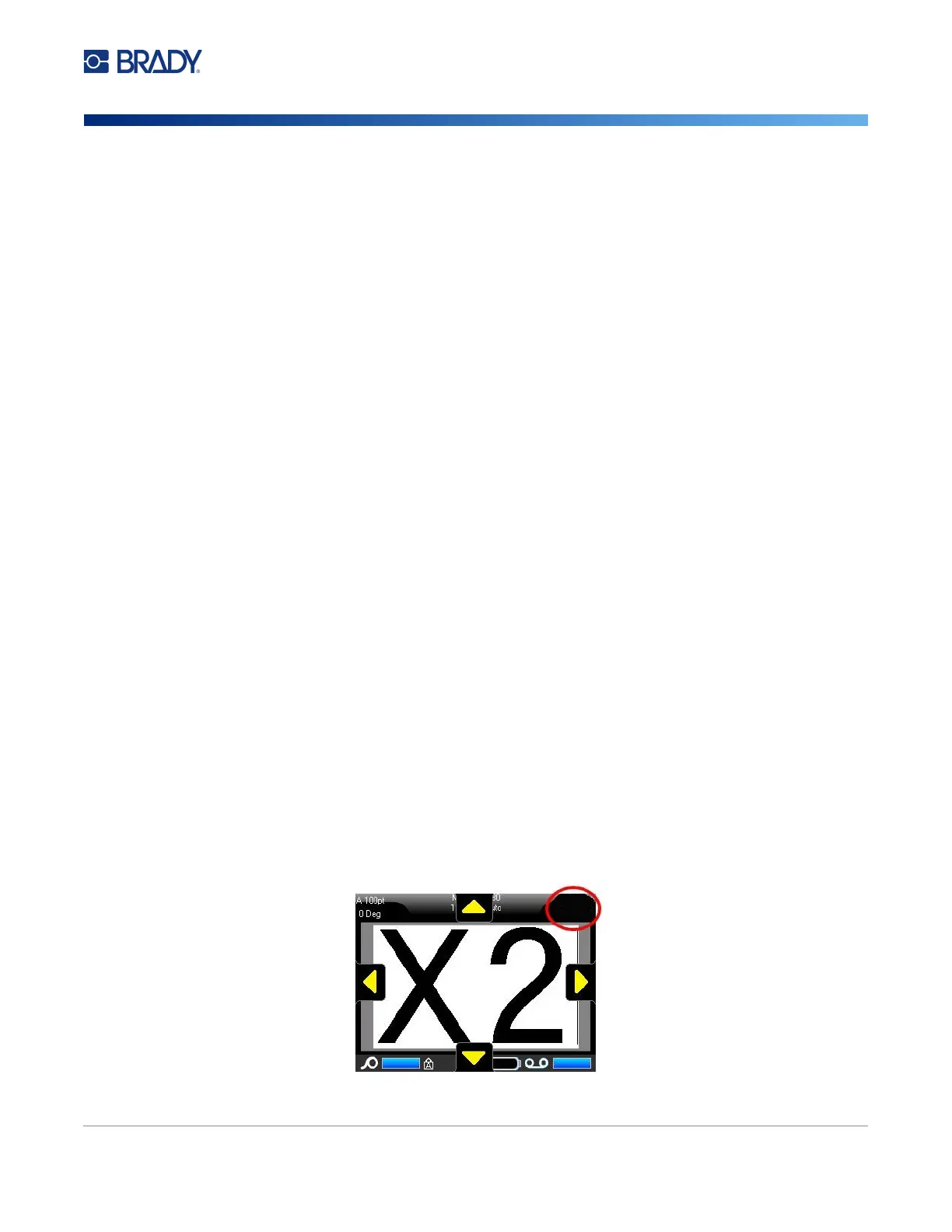
Shortcuts on the Screen
Scroll through labels on the screen.
• Use the up and down arrows to access the next or previous label in the sequence.
• Use the right and left arrows to access the next area in the sequence.
If there are not multiple areas on a label or multiple labels in a file, the arrows are grayed out.
Area
2 of 3
Label 3 of 5



 To Next Page