M610 Label Printer User Manual 34
Editing Labels on the Printer
Formatting Text
•
Auto:
To have text automatically size as you type, select
Auto
. Autosize starts with the largest
font size that fits on the label. When a line of text reaches the edge of a label it scales downward
until you press
ENTER
or the minimum font size is reached. When working with autosize and
multiple lines of text, all lines on a label maintain the same size. Autosize is the default setting
for all labels and is displayed as an ‘A’ in the upper left corner of the screen.
4.
Press
ENTER
after selecting or inputting the size.
Font Attributes
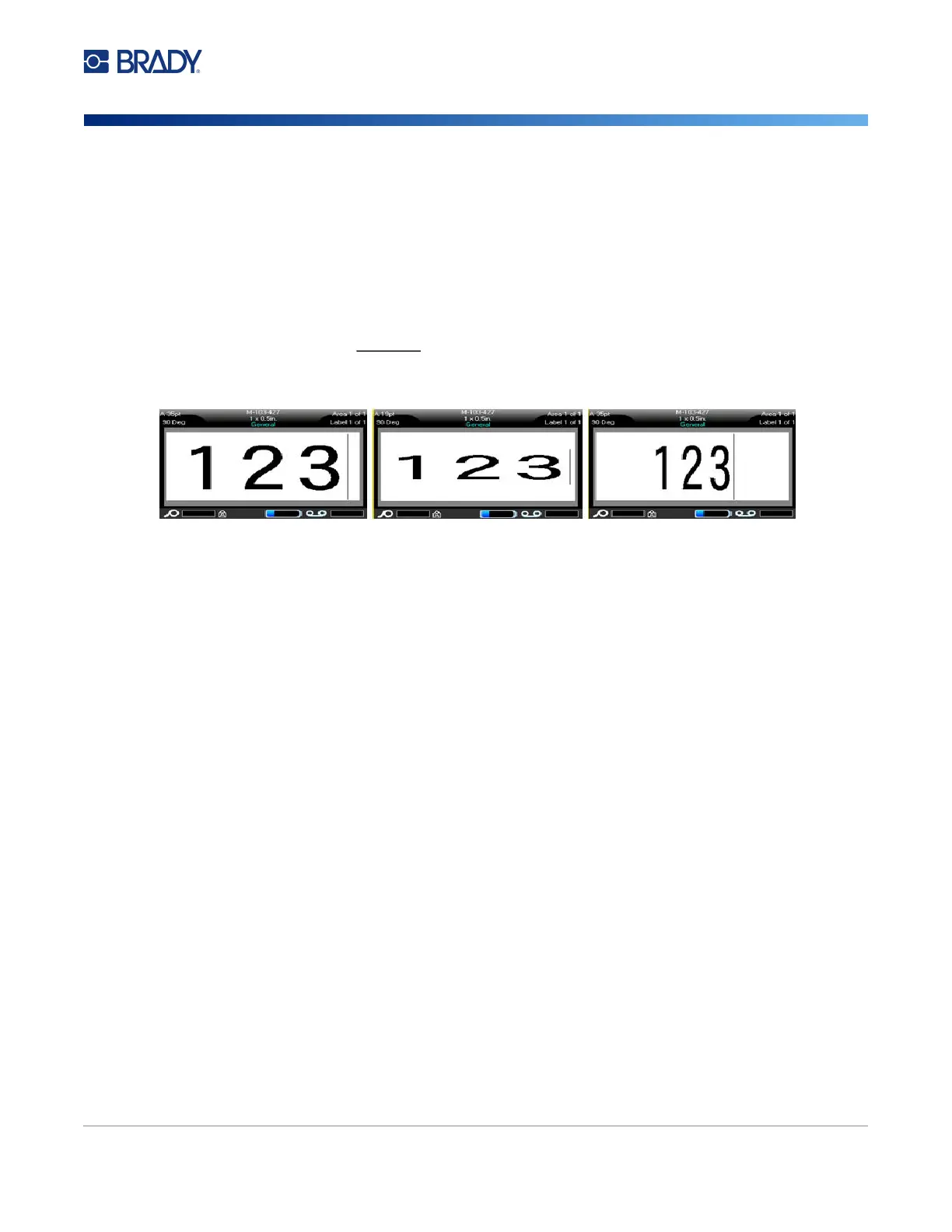
Font attributes (bold, italic, underline, expanded, or condensed) can be applied to an entire line of text
or to individual characters within a line of text. The attributes can be turned on before entering the text
or after the text has already been entered.
New Text
To turn an attribute on before entering the text:
1. Position the cursor where the attribute should take affect.
2. Press FONT.
3. Select the desired attribute, then select ON (bold, italics, and underline) or the percentage of
expanded or condensed text.
4. Enter the text to be affected by the attribute.
5. If you want to continue typing without the attribute, press FONT again and turn the attribute off.
For expanded or condensed text, change the percentage to 100% to return to normal.
When applying the attribute to text as it is being typed, the attribute stays on until it is turned off or until
you move to a new area or label.
Standard
Expanded
Condensed



 To Next Page