M610 Label Printer User Manual 28
General Operation
Printing
Printing
Print
To print a label created on the printer:
1. Press PRINT on the keyboard to print
the label.
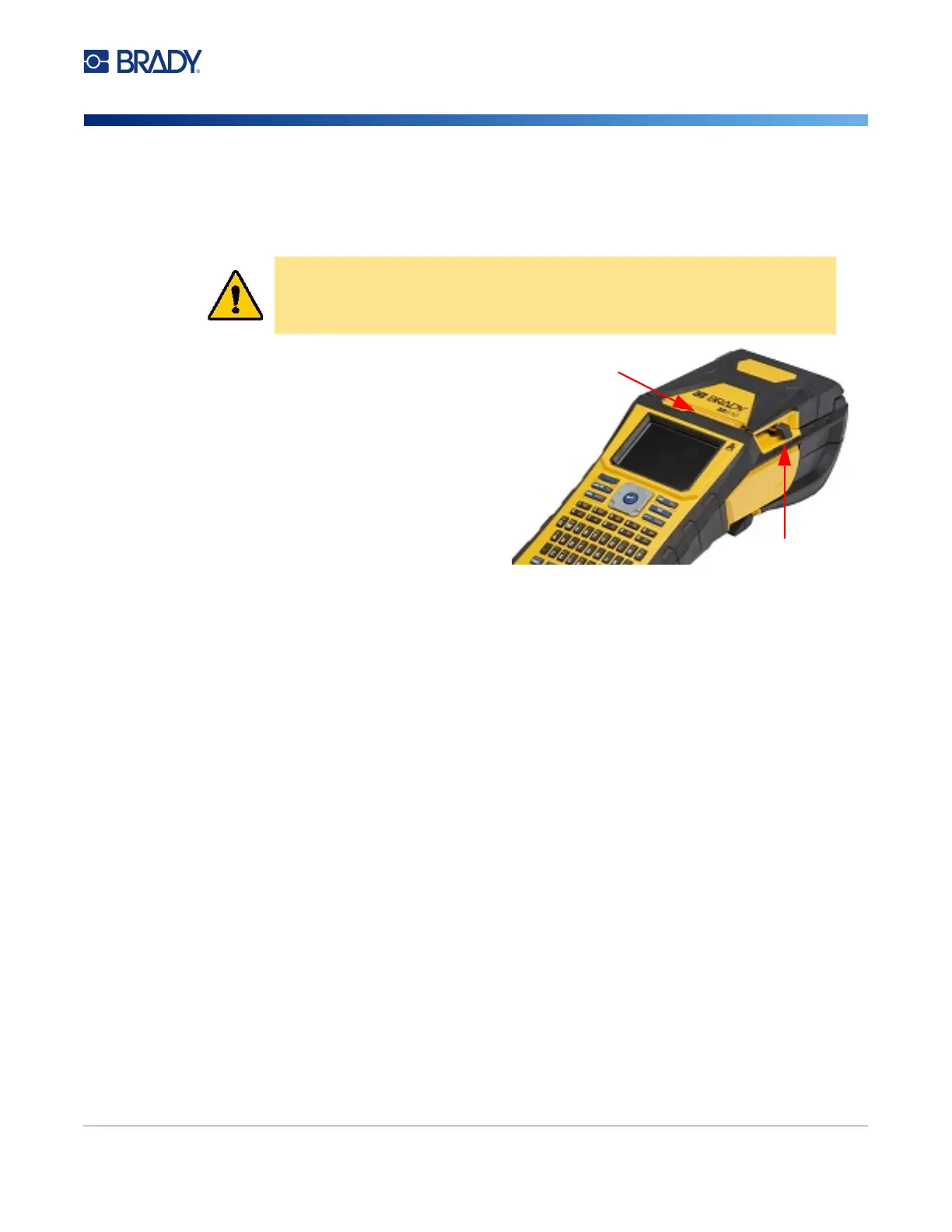
2. When the label is done printing, pull the
cutter lever towards you as far as it will
go to cut the label.
Printing occurs in the background, meaning you
can continue to edit or create new labels while
the file is printing.
If a print job is interrupted, for instance when labels or ribbon runs out, or you intentionally open the
cover, the system automatically stops the print job and displays a message. Follow the instructions on
the display to resume printing.
Preview
Use the preview feature to view your label file prior to printing.
Preview the label:
• Press FN + PREVIEW.
Scroll the labels:
• Use the navigation keys to scroll through multiple labels.
Print directly from the preview:
• Press the PRINT key.
Exit the preview and return to the editing screen:
• Press the Backspace key.
Multiple Print
Multiple print lets you print multiple copies of a label or print a range of labels rather than all of the
labels in the file.
To use the multiple print options:
1. Press FN + MULTI. The Multiple Print screen displays.
CAUTION! Do not insert fingers near cutter. It could pinch or cut.
Label exit
Cutter lever



 To Next Page