M610 Label Printer User Manual 27
General Operation
Creating a Simple Text Label
Creating a Simple Text Label
Creating your first label is as easy as starting to type! You don’t need special software and you don’t
have to be connected to a computer to create or print labels.
This section describes the process of creating a text label with minimal formatting, using basic editing
techniques, and printing the label. For more detailed information, see “Editing Labels on the Printer” on
page 31.
To create a text-only label:
1. Be sure the ribbon and labels are loaded and the power is on.
The screen displays an image of a label. The blinking vertical line is the cursor and is the
starting point for every label you create using the printer.
2. Type the desired text.
The cursor moves across the screen as you enter data. The standard font, as defined in the
printer setup, is in effect. See “Font” on page 10.
When the maximum character limit is reached an error message displays. To remove the error
message, press the ENTER key.
3. Press the ENTER key on the keyboard to start another line of text.
4. If you wish to insert, delete, or format text, see “Editing Text” on page 32 and “Formatting Text”
on page 33.
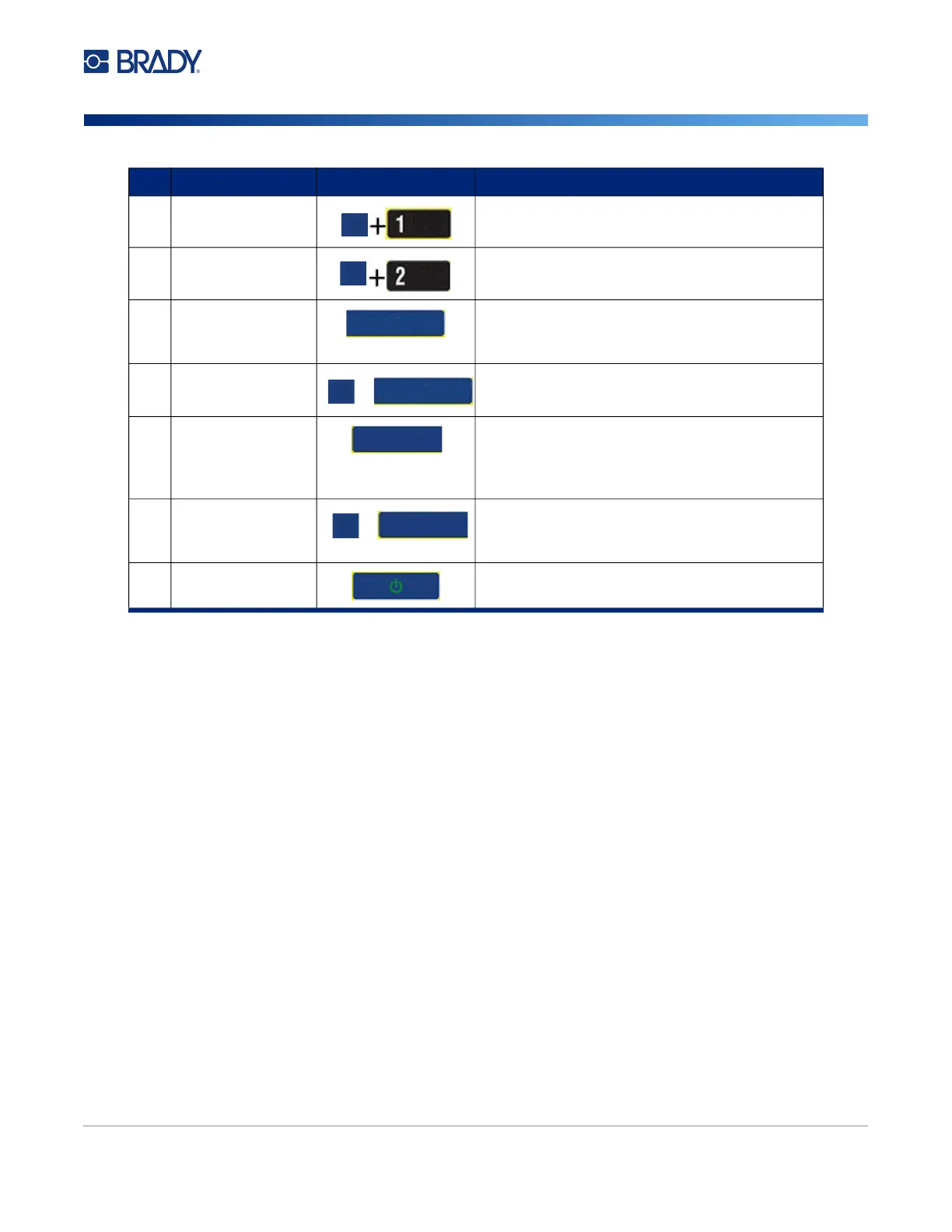
17 Insert Time Prints the time at the time the printer prints.
Insert Date Prints the date at the time the printer prints.
18 Serial Sets the values for single, multiple, or linked
serialization. (Refer to “Serialization
(Sequential Data)” on page 47.)
Preview Previews the label as it will look when printed.
(Refer to “Preview” on page 28.)
19 Label Type Accesses the different applications/label types
installed (i.e., wiremarker, flags, terminal
blocks, etc.). (Refer to “Label Types” on
page 55.)
File Saves, opens, or deletes a label or set of
labels. (Refer to “File Management” on
page 66.)
20 Power Turns the printer on and off.
Function Key Description
FN
INSERT
TIME
FN
INSERT
DATE
SERIAL
PREVIEW
SERIAL
PREVIEW
FN
+
LABEL TYPE
FILE
FN
+
LABEL TYPE
FILE



 To Next Page