255
You can edit out the first and last scenes of a movie in 1-sec.
increments.
1
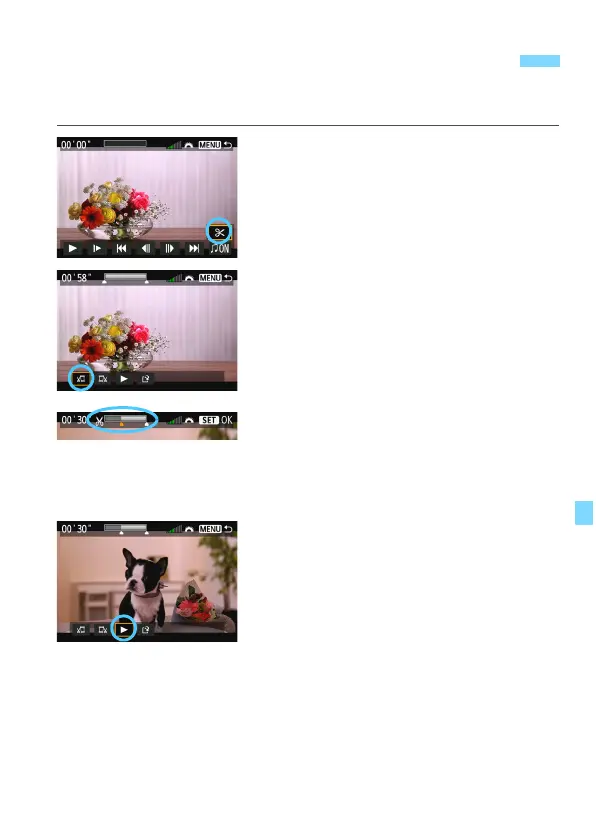
On the movie playback screen,
select [X].
X The movie editing panel will be
displayed at the bottom of the screen.
2
Specify the part to be edited out.
Select either [U] (Cut beginning) or
[V] (Cut end), then press <0>.
Press <U> (fast forward) or
turn
the <5> dial (frame-by-frame) to
specify the position where you want
to delete the scene. On the bar at the
top of the screen, you can see which
part (indicated in orange) and how
much will be deleted.
A
fter deciding which part to edit out,
press <0>.
3
Check the edited movie.
Select [7] and press <0> to play
back the edited movie.
To change the editing, go back to step 2.
To cancel the editing, press the
<M> button, select [OK
] on the
confirmation screen.
X
Editing a Movie’s First and Last Scenes






 To Next Page