87
In the <2>, <3>, <4>, and <5> Basic Zone modes, you can shoot
while the settings match the lighting or scene type. Normally, [
Default setting] is adequate, but if the settings match the lighting
condition or scene, the picture will look more accu
rate to your eye.
For Live View shooting, if you set both [Light/scene-based shots] and
[Ambience-based shots] (p.84), you should first set [Light/scene-
based shots]. This will make it easier to see the resulting effect on the
LC
D monitor.
1
Set the shooting mode to <8>.
Set one of the following: <2>, <3>,
<4>, or <5>.
2
Set the Live View shooting/Movie
shooting switch to <A>.
3
Display the Live View image.
Press the <0> button to display the
Live View image.
X You can check the resulting effect on
the screen.
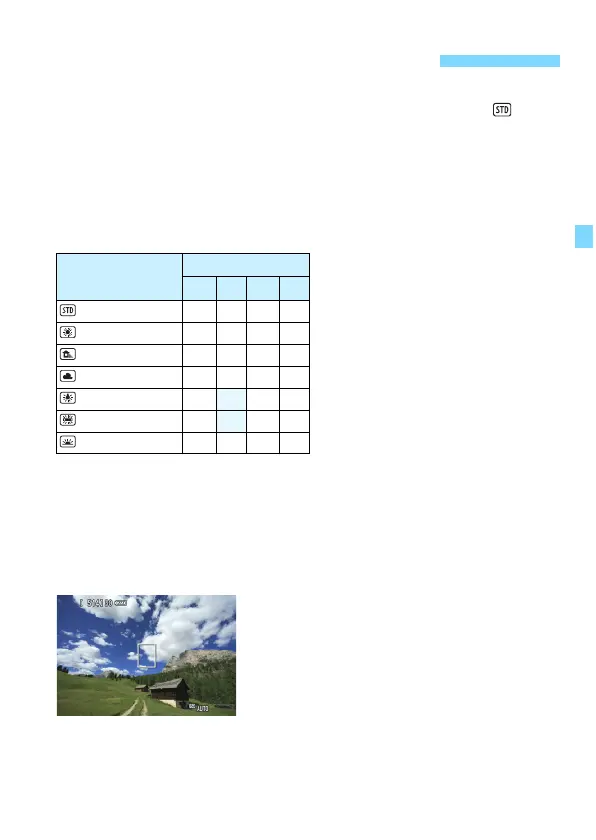
Shoot by Lighting or Scene Type
Lighting or Scene
8
2 3 4 5
Default setting
k k k k
Daylight
k k k k
Shade
k k k k
Cloudy
k k k k
Tungsten light
k k k
Fluorescent light
k k k
Sunset
k k k k






 To Next Page