Home
Canon
Printer
LBP3000
Page 105
Canon LBP3000 - Page 105
328 pages
Manual
Save Page as PDF
To Next Page
To Next Page
To Previous Page
To Previous Page
Loading...
Installing the CAPT Software
3-8
Setting Up the Printing Environment
3
8
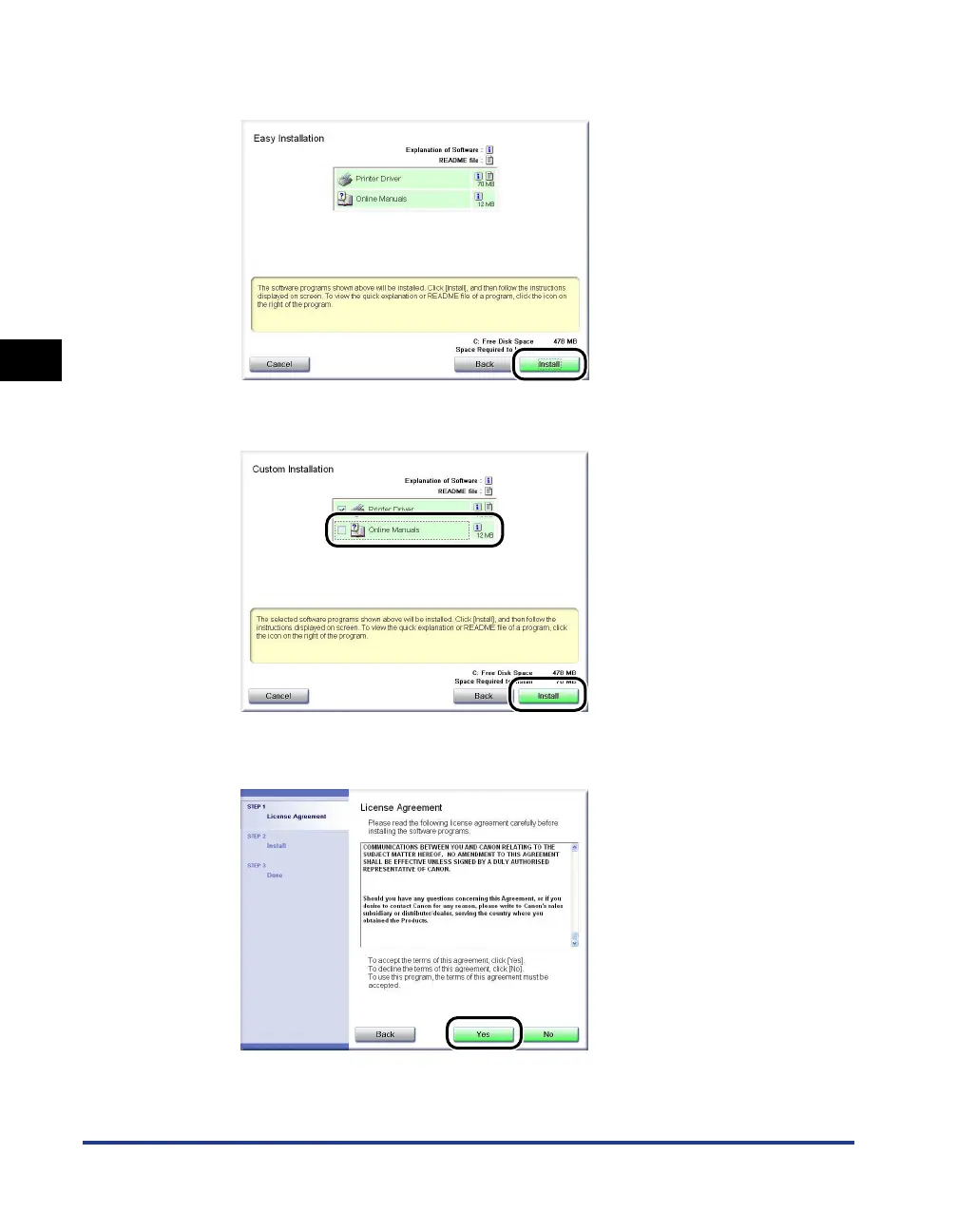
Click [Install].
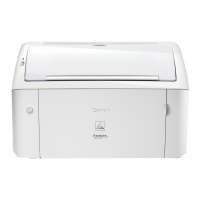
If you selected [Custom Installation] in Step 7, clear the [Online Manuals] check
box, and then click [Install].
9
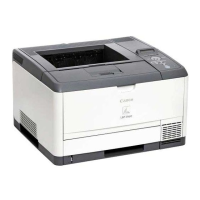
Confirm the contents,
then click [Y
es].
104
106
Table of Contents
Main Page
Default Chapter
4
Default Chapter
4
How this Manual Is Organized
4
Table of Contents
5
Introduction
10
How to Use this Manual
10
Conventions
10
Notation for Keys and Buttons
10
Displays Used in this Manual
11
Abbreviations Used in this Manual
11
Legal Notices
12
Model Name
12
FCC (Federal Communications Commission)
12
EMC Directive (220 - 240 V Model)
13
Laser Safety (110 - 127/220 - 240 V Models)
13
International Energy Star-Program
14
WEEE Directive
15
Trademarks
15
Copyright
15
Disclaimers
16
Legal Limitations on the Usage of Your Product and the Use of Images
16
Important Safety Instructions
17
Installation
17
Power Supply
18
Handling
19
Maintenance and Inspections
21
Consumables
22
Other
22
Chapter 1 Before You Start Using this Printer
24
Printer Features
25
Component Names and Functions
27
Front View
28
Rear View
29
Inside the Printer
30
Indicators and the Paper Key
31
Connecting the Power Cord
32
Connecting to a Computer
35
Turning the Printer on and off
38
Turning the Printer on
38
Turning the Printer off
39
Chapter 2 Loading and Delivering Paper
40
Paper Requirements
41
Usable Paper
41
Paper Sizes
41
Paper Types
42
Plain Paper
42
Label Paper
42
Index Card
43
Abbreviations of Paper Sizes
44
Printable Area
44
Paper You Cannot Use
45
Storing Blank Paper
46
Storing Printed Paper
47
Paper Sources
48
Paper Source Types
48
Paper Source Capacities
49
Paper Output
50
Output Tray Types
50
Output Tray Capacities
52
Printing on Plain Paper, Heavy Paper, Label Paper, and Transparencies
53
Loading the Paper
53
Loading Paper into the Multi-Purpose Tray
54
Loading Paper into the Manual Feed Tray
59
Selecting Printer Driver Settings and Printing
62
Printing on Index Card
66
Loading Index Cards
66
Loading Index Card into the Manual Feed Tray
66
Selecting Printer Driver Settings and Printing
69
Printing on Envelopes
73
Loading Envelopes
73
Loading Envelopes into the Multi-Purpose Tray
74
Loading Envelopes into the Manual Feed Tray
77
Selecting Printer Driver Settings and Printing
80
Printing on Custom Paper Sizes (Non-Standard Sizes)
84
Loading Custom Paper Sizes
84
Loading Custom Paper into the Multi-Purpose Tray
84
Loading Custom Paper into the Manual Feed Tray
90
Selecting Printer Driver Settings and Printing
93
Chapter 3 Setting up the Printing Environment
98
Introduction
99
After Installing the Printer
99
Each Time You Print
99
System Requirements
99
Installing the CAPT Software
101
Installing from CD-ROM Setup
102
Installing with Plug and Play
109
For Windows 98/Me
109
For Windows 98/Me
112
For Windows 2000
118
For Windows Xp/Server 2003
125
For Windows Vista
130
After Completing Installation
137
Printing a Test Page
141
Printing from a Network Computer Using a Shared Printer
144
Configuring the Print Server
145
For Windows 98/Me
145
Printer Sharing Settings
147
For Windows 2000/Xp/Server 2003/Vista
150
Installing the Client
158
Installing from CD-ROM Setup
159
Installing from the [Printers and Faxes] Folder or the [Printers] Folder
166
Installing Using [Windows Explorer]
170
Uninstalling the CAPT Software
172
Chapter 4 Printing a Document
176
Printing from an Application
177
Specifying Printing Preferences
182
For Windows 98/Me
182
Opening the [Document Properties] Dialog Box from an Application
182
Opening the [Printer Properties] Dialog Box from the [Printers] Folder
184
For Windows 2000/Xp/Server 2003/Vista
185
Opening the [Document Properties] Dialog Box from an Application
186
Opening the [Document Properties] Dialog Box from the [Printers and Faxes] or [Printers] Folder
188
Opening the [Printer Properties] Dialog Box from the [Printers and Faxes] or [Printers] Folder
190
Canceling, Pausing and Resuming Printing
192
Using the Printing Functions
194
Tab Sheets in the Printer Driver
194
[Page Setup] Sheet
195
Output Size
196
Page Size
196
[Finishing] Sheet
198
[Paper Source] Sheet
199
Paper Type
199
[Quality] Sheet
200
[General] Sheet
202
[Details] Sheet (Windows 98/Me Only)
202
[Sharing] Sheet
203
[Ports] Sheet (Windows 2000/Xp/Server 2003/Vista Only)
203
[Advanced] Sheet (Windows 2000/Xp/Server 2003/Vista Only)
204
[Color Management] Sheet (Windows 2000/Xp/Server 2003/Vista Only)
204
[Security] Sheet (Windows 2000/Xp/Server 2003/Vista Only)
205
[Configuration]/[Device Settings] Sheet
205
[Profile] Sheet (Windows 2000/Xp/Server 2003/Vista Only)
206
Preview
208
Printing Multiple Pages on One Sheet
209
Scaling Printer Output
211
Scaling a Document Automatically
211
Scaling a Document Manually
212
Poster Printing
213
Specifying a Custom Paper Size (Non-Standard Paper)
214
Specifying the Finishing Method
216
Specifying the Print Quality
219
Grayscale Settings
221
Working with Profiles
222
Adding a Profile
223
Editing/Deleting a Profile
225
Editing Print Jobs
227
Viewing Printer Settings/Restoring the Default Settings
229
Viewing Printer Settings
229
Restoring the Default Settings
230
Manuals
231
Installing the Manuals
231
Uninstalling the Manuals
234
Printer Status Window
235
Using the Printer Status Window
236
Other Functions
237
Displaying the Printer Status Window
238
The Options Menu
239
Setting Preferences
239
[Cleaning]
241
[Refresh]
241
[Resolve Error]
241
Displaying Printer Status When Using a Print Server
242
Chapter 5 Routine Maintenance
244
Replacing the Toner Cartridge
245
Before Replacing the Toner Cartridge
245
Open the Top Cover
246
Replacing the Toner Cartridge
250
The Toner Cartridge
254
Cleaning
257
Precautions for Handling the Toner Cartridge
259
Storing Toner Cartridges
261
Clean the Outside of the Printer
262
Moving the Printer
264
Moving the Printer
265
Handling the Printer
270
Precautions for Handling the Printer
270
Precautions for Storing the Printer
271
Chapter 6 Troubleshooting
272
Troubleshooting Map
273
Paper Jams
274
Close the Top Cover
288
Service Call
289
When a Fixing Unit Error Appears
290
When a Scanner Error or Service Error Appears
291
Print Quality Problems
293
Paper Problems
296
When Nothing Prints
297
Installation Problems
298
If Uninstallation Fails
299
Uninstalling the USB Class Driver
301
Problems During Local Installation
305
Problems Installing a Shared Printer
305
Miscellaneous Problems
307
Chapter 7 Appendix
310
Specifications
311
Hardware Specifications
311
Software Specifications
312
Printer Dimensions
313
Optional Accessories
314
Network Adapter
314
Netspot Device Installer
316
Windows Firewall
317
Configuring Windows Firewall to Unblock Communication with Client Computers
318
Configuring Windows Firewall to Block Communication with Client Computers
320
Configuring Windows Firewall to Unblock Communication with the Server
321
Index
323
Locating the Serial Number
327
Related product manuals
Canon LBP3010 Series
146 pages
Canon LBP3460
296 pages
Canon LBP351 Series
191 pages
Canon LBP3100 Series
146 pages
Canon LBP3200 Series
17 pages
Canon LBP3150 Series
146 pages
Canon LBP3250 Series
98 pages
Canon LBP3300 Series
97 pages
Canon LASER SHOT LBP3500
454 pages
Canon Laser Shot LBP3200
30 pages
Canon imageCLASS LBP325dn
252 pages
Canon Color imageRUNNER LBP3460
12 pages




 To Next Page