Printing from a Network Computer using a Shared Printer
3-54
Setting Up the Printing Environment
3
NOTE
If you are using Windows Vista and the [User Account Control] dialog box appears,
click [Continue].
3
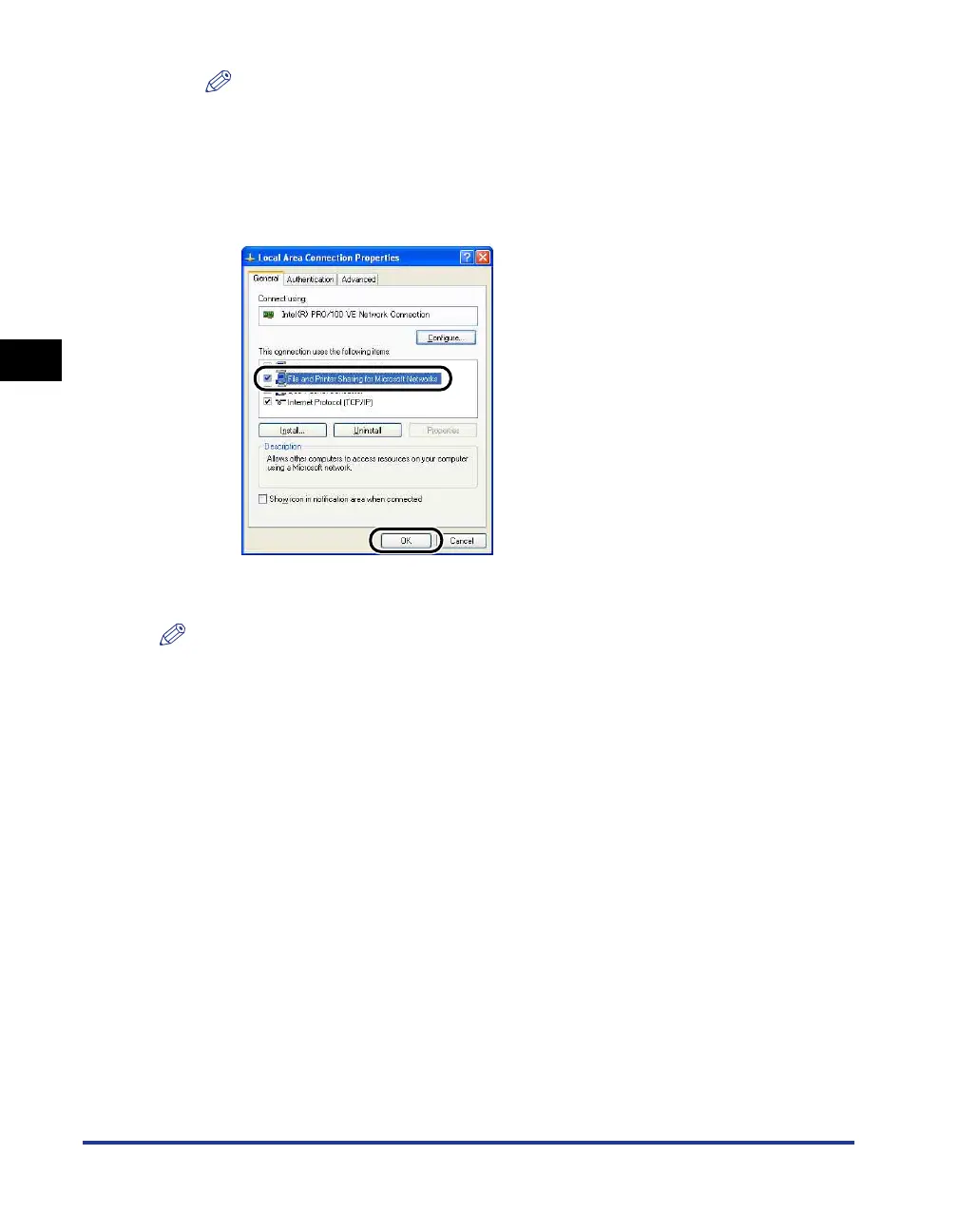
Check that [File and Printers Sharing for Microsoft Networks]
is selected, then click [OK].
■ Printer Sharing Settings
NOTE
For Windows XP, the printer cannot be shared over a network using the default settings
(the settings immediately after installation).
To use the printer sharing settings, you need to run [Network Setup Wizard] and enable
printer sharing.
For more details, see the Windows online help.
1
Open the [Printers and Faxes] or [Printers] folder.
For Windows 2000: Select [Settings] ➞ [Printers] from the [Start] menu.
For Windows XP Professional/Server 2003: Select [Printers and Faxes] from the
[Start] menu.
For Windows XP Home Edition: Select [Control Panel] from the [Start] menu, then
click [Printers and Other Hardware] ➞ [Printers and Faxes].
For Windows Vista: Select [Control Panel] from the [Start] menu, then click
[Printer].
The [Printers and Faxes] or [Printers] folder is displayed.




 To Next Page