20060301
13-4-28
Editing Cell Contents
(5) To search for the next instance of the search string, tap [Search Again] on the [Edit]
menu or tap the toolbar
r
button.
• Each time you tap the [Search Again] command or the
r
toolbar button, the search
will jump to the next cell that contains the specified search string.
• The message “Search String not found in range.” will appear if the string you specified
does not exist within the specified range of cells. Tap [OK] to clear the message from
the screen.
Example
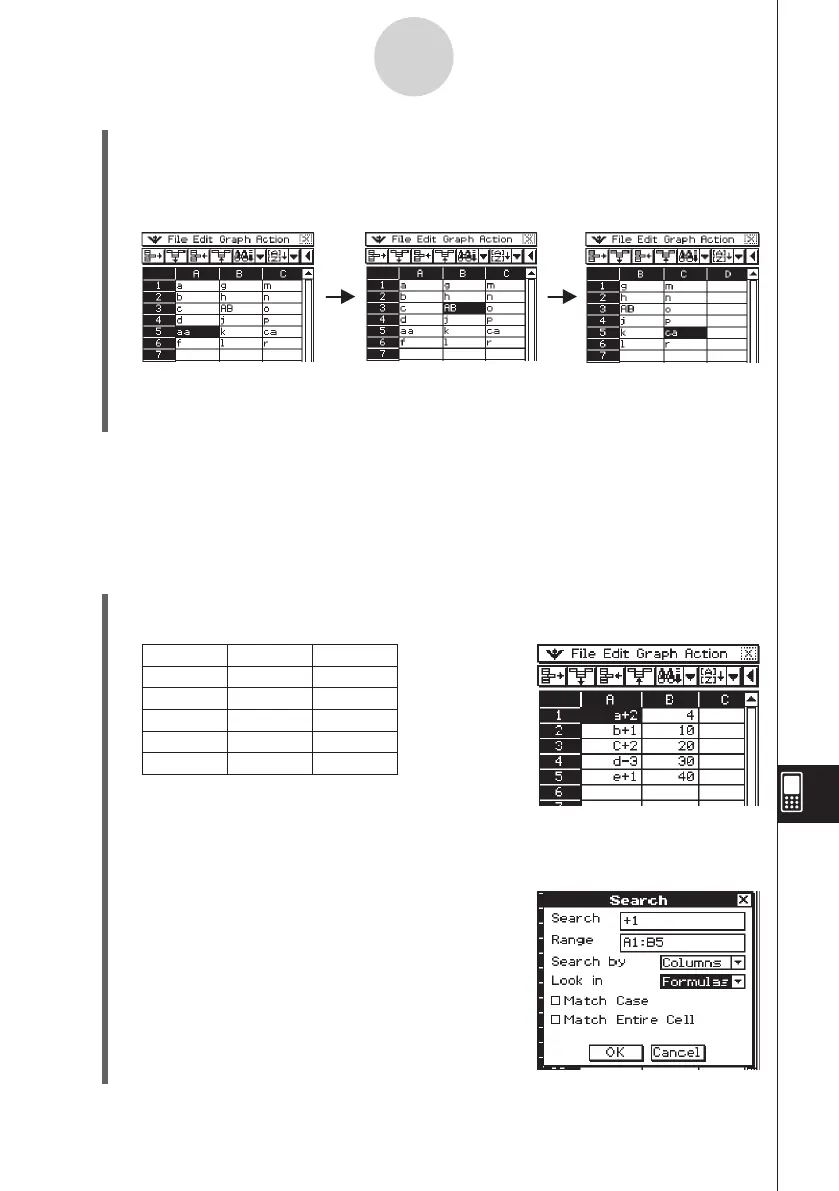
2: To search for calculation expressions that contain the string “+1”
In this example, we want the spreadsheet cells that contain a calculation
expression ( like =1+2 ) to show the expression, not the calculation result ( 3, for
example ). To do this, select “Formulas” for the [Look in] option on the Search
dialog box.
u
ClassPad Operation
(1) Display the spreadsheet you want to search.
• This example is based on a spreadsheet that contains the data shown below.
A B
1 =a+2 =3+1
2 =b+1 =8+2
3 =C+2 =18+2
4 =d−3 =28+2
5 =e+1 =39+1
(2) Tap [Search] on the [Edit] menu or tap the toolbar
e
button.
• This displays the Search dialog box.
(3) Configure the search dialog box settings as
shown here.
Expressions in each cell
Displayed spreadsheet















 To Next Page