Product Manual — Doc. 9349B Crestron Zūm® Wired Solutions • 233
3. Click the toggle turn Demand Response Mode on or off.
If a GLS-SIM has been discovered by the ZUM-HUB4, the GLS-SIM status is represented
as Offline or Online.
4. Click Save to save the settings or Cancel to close the window without saving.
Set the Demand Response Level for All Discovered Devices
To set the Demand Response Level for all devices:
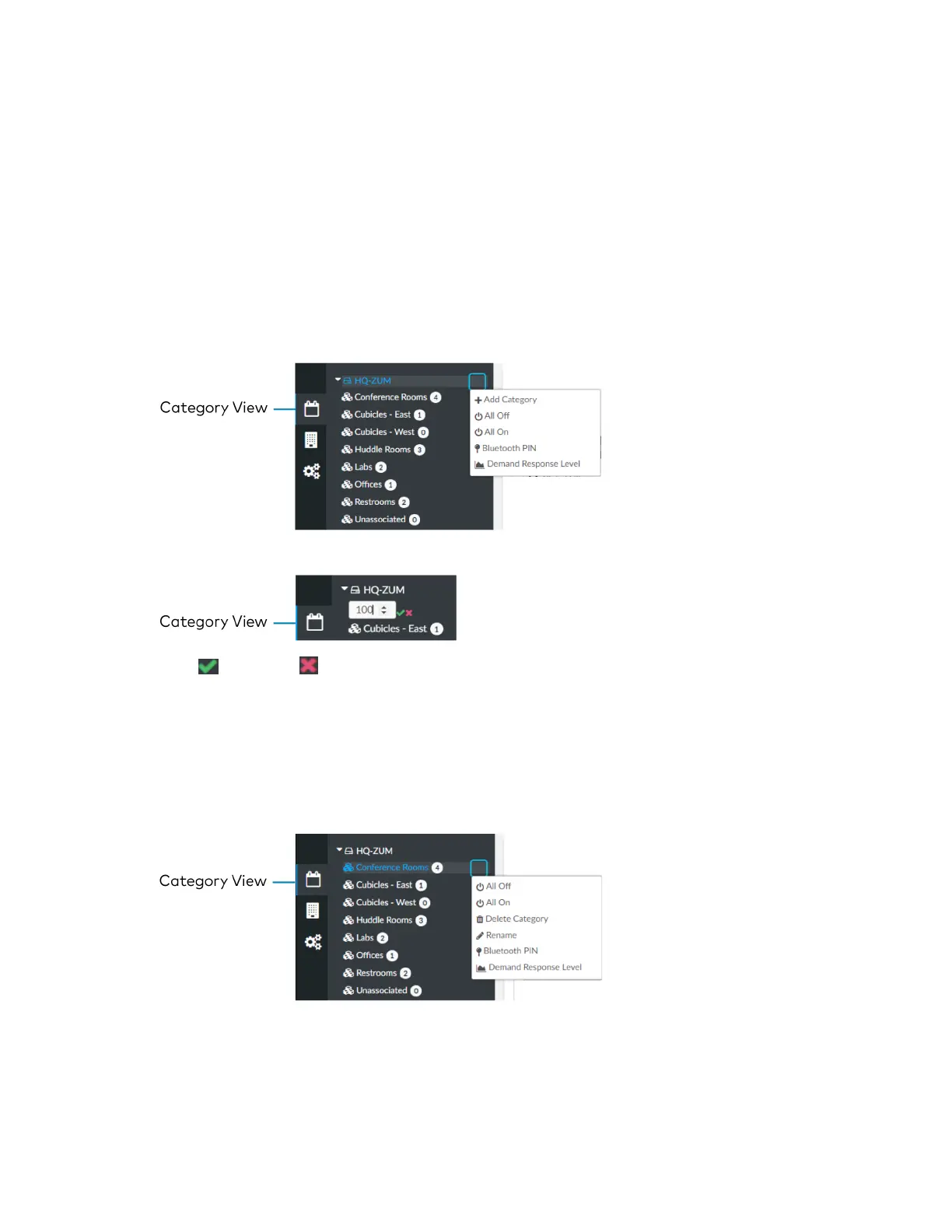
1. Open the Category View.
2. Click the menu beside the ZUM-HUB4.
3. Click Demand Response Level.
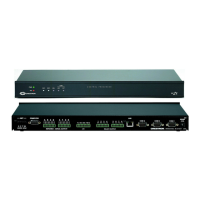
4. Set the light level (0 to 100).
5.
Click to save or to cancel.
Set the Demand Response Level for a Room Category
To set the Demand Response Level for devices in a Room Category:
1. Open the Category View.
2. Click the menu beside the Room Category name.
3. Click Demand Response Level.


 To Next Page