User's Manual
31
Step 2 Configure the parameters.
Table 4-12 Description of capture parameters
Parameter Description
Work Mode
●
Loop
: Use loop to take snapshots.
●
Video
: Use video to take snapshots.
●
Mixmode
: Use loop and video to take snapshots.
Number of Snapshots It can take 1–2 snapshot(s).
Capture Direction
●
Approaching
: Only captures vehicles that approach.
●
Departing
: Only captures vehicles that depart.
●
Two-way
: Captures vehicles that approach or depart.
Video Mode Parameters
●
Scene: Select
Small Vehicle
or
Large Vehicle
as needed.
●
Licensed Vehicle Frame Threshold: Configure the frame number
of capturing licensed vehicle. 1 (default) means to capture when
detecting one frame of licensed vehicle passing detection area.
●
Unlicensed Vehicle Frame Threshold: Configure the frame
number of capturing unlicensed vehicle. 10 (default) means to
capture when detecting 10 frames of unlicensed vehicle passing
detection area.
Loop Mode Parameters
●
Max Pass Time: Configure the maximum time for vehicle passing.
5 s (default) means that under loop mode, the capture will not
take snapshots when both loops are triggered within 5 s interval.
●
Loop Cache Frame: Configure the cache frame number of loop. 3
(default) means to save 3 frames of loop detection result.
Step 3 Click
Confirm
.
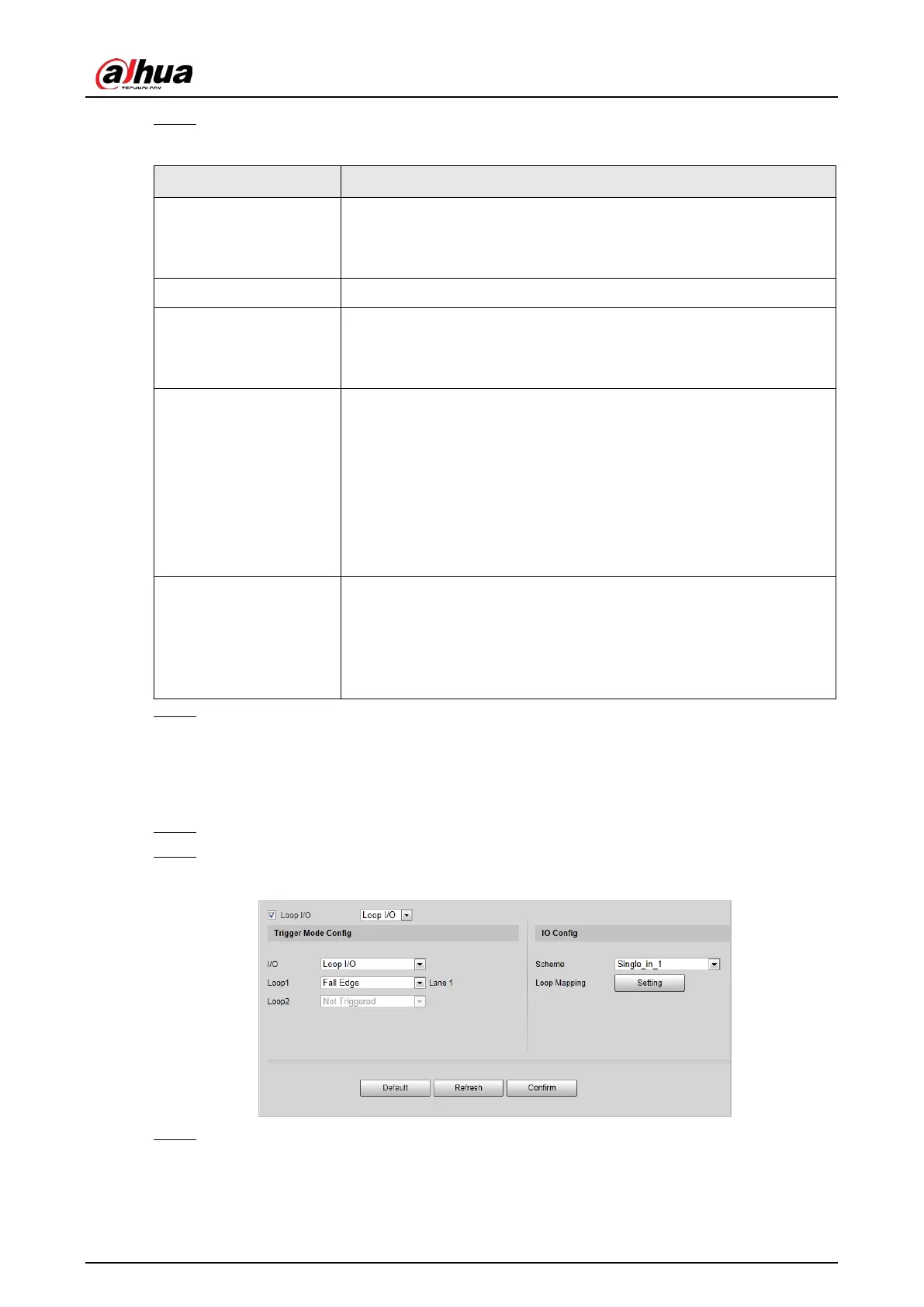
4.5.1.1.2 IO
You can configure loop IO snapshot parameters.
Step 1 Select
Setting
>
ITC > Snapshot Settings > IO
.
Step 2 Select
Loop I/O
check box.
Figure 4-31 IO
Step 3 Configure parameters.


 To Next Page
 Loading...