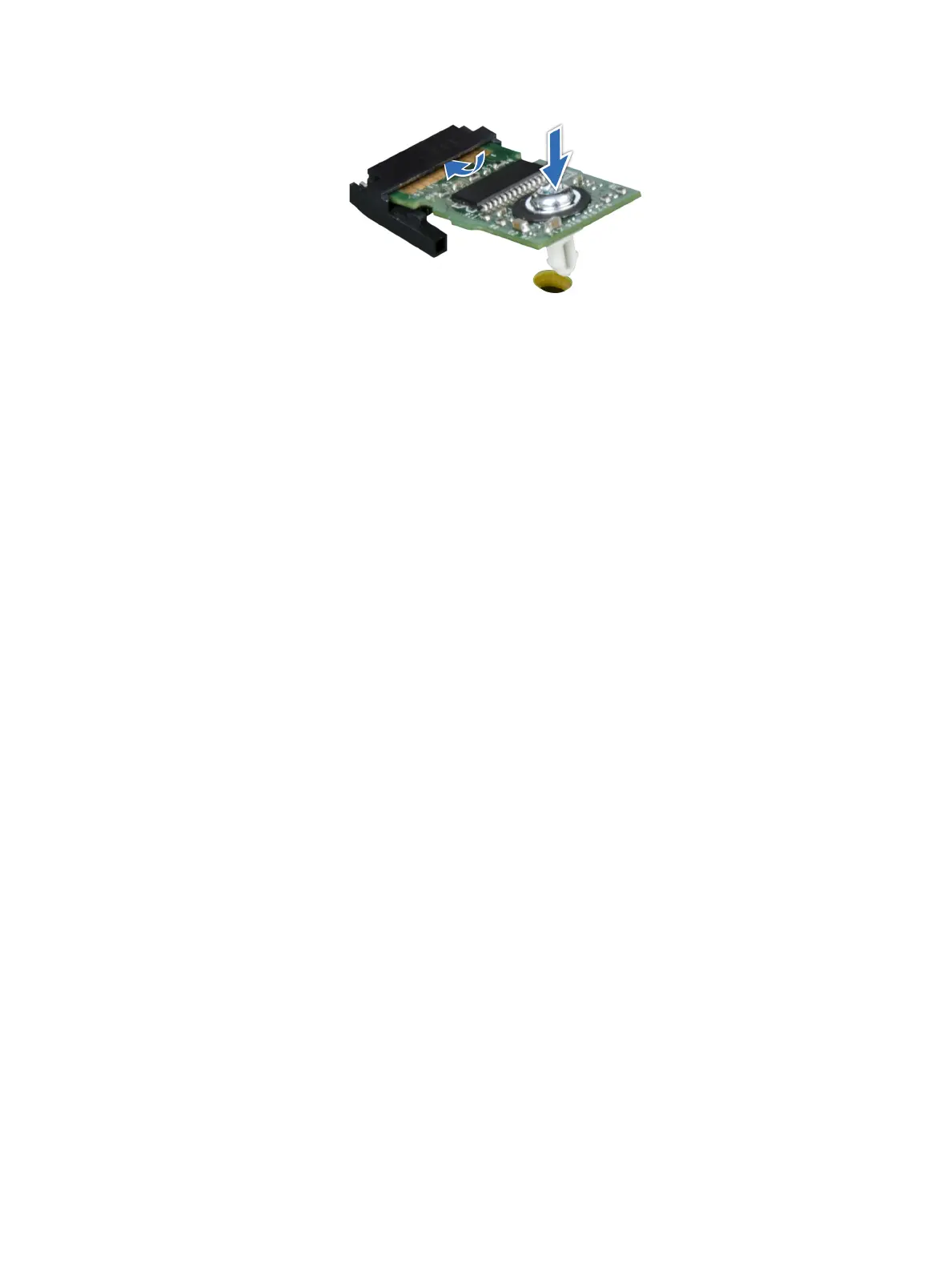
Figure 111. Installing the TPM
Next steps
1 Install the system board.
2 Follow the procedure listed in After working inside your system.
Initializing TPM for BitLocker users
Initialize the TPM.
For more information, see http://technet.microsoft.com/en-us/library/cc753140.aspx
The TPM Status changes to Enabled, Activated.
Initializing the TPM 1.2 for TXT users
1 While booting your system, press F2 to enter System Setup.
2 On the System Setup Main Menu screen, click System BIOS > System Security Settings.
3 From the TPM Security option, select On with Pre-boot Measurements.
4 From the TPM Command option, select Activate.
5 Save the settings.
6 Restart your system.
7 Enter System Setup again.
8 On the System Setup Main Menu screen, click System BIOS > System Security Settings.
9 From the Intel TXT option, select On.
Control panel
Removing the left control panel
Prerequisites
1 Follow the safety guidelines listed in Safety instructions.
2 Follow the procedure listed in Before working inside your system.
3 Remove the air shroud.
Installing and removing system components
163





 To Next Page