messages generated by the system rmware and agents that monitor system components, see the Error Code Lookup page at
qrl.dell.com.
The LCD panel is available only on the optional front bezel. The optional front bezel is hot pluggable.
The statuses and conditions of the LCD panel are outlined here:
• The LCD backlight is white during normal operating conditions.
• When the system needs attention, the LCD backlight turns amber, and displays an error code followed by descriptive text.
NOTE: If the system is connected to a power source and an error is detected, the LCD turns amber regardless of whether
the system is turned on or o.
• When the system turns o and there are no errors, LCD enters the standby mode after ve minutes of inactivity. Press any button on
the LCD to turn it on.
• If the LCD panel stops responding, remove the bezel and reinstall it.
If the problem persists, see Getting help.
• The LCD backlight remains o if LCD messaging is turned o using the iDRAC utility, the LCD panel, or other tools.
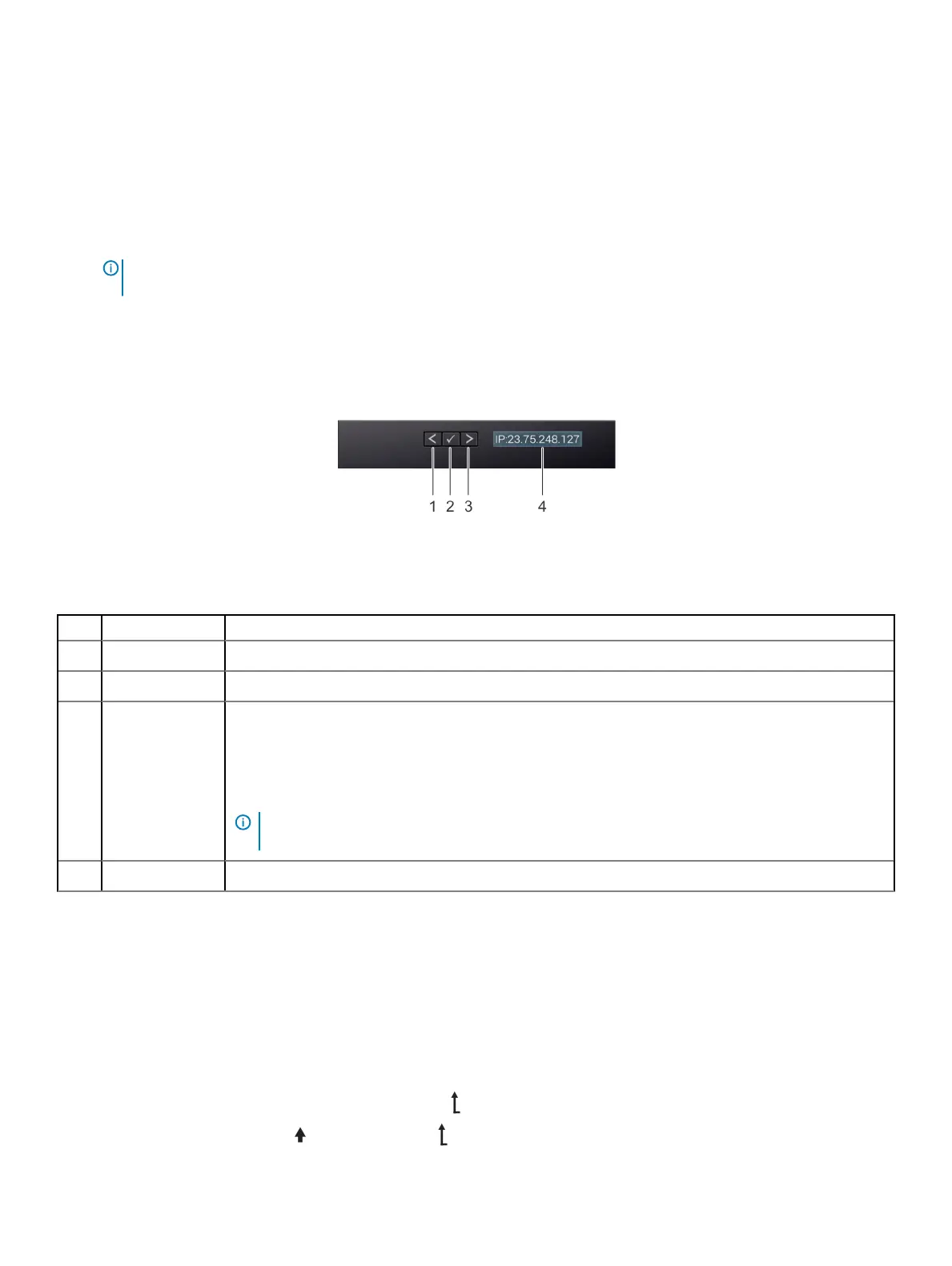
Figure 13. LCD panel features
Table 17. LCD panel features
Item Button or display Description
1 Left Moves the cursor back in one-step increments.
2 Select Selects the menu item highlighted by the cursor.
3 Right Moves the cursor forward in one-step increments.
During message scrolling:
• Press and hold the right button to increase scrolling speed.
• Release the button to stop.
NOTE: The display stops scrolling when the button is released. After 45 seconds of inactivity, the
display starts scrolling.
4 LCD display Displays system information, status, and error messages or iDRAC IP address.
Viewing Home screen
The Home screen displays user-congurable information about the system. This screen is displayed during normal system operation when
there are no status messages or errors. When the system turns o and there are no errors, LCD enters the standby mode after ve
minutes of inactivity. Press any button on the LCD to turn it on.
1 To view the Home screen, press one of the three navigation buttons (Select, Left, or Right).
2 To navigate to the Home screen from another menu, complete the following steps:
a Press and hold the navigation button till the up arrow is displayed.
b Navigate to the Home icon using the up arrow .
26
Dell EMC PowerEdge R640 system overview





 To Next Page